➠ The selected destination and its scan settings are specied. You can also change the settings before
sending.
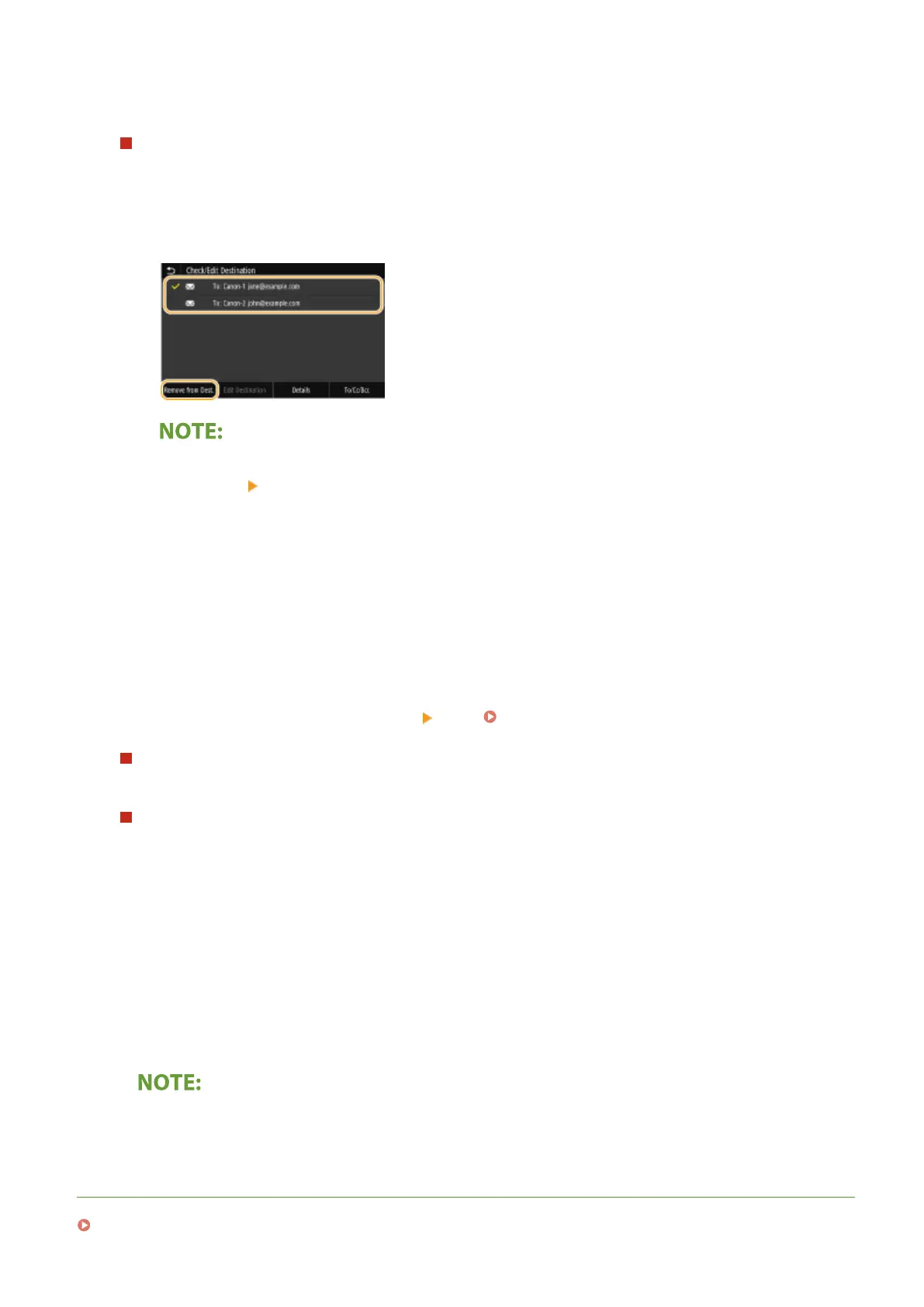
To delete destinations (e-mail/I-Fax)
If you specied multiple destinations, you can delete destinations as necessary.
1
Select <Conrm Destination>.
2
Select the check box for the destination to be deleted, and select <Remove from Dest.>.
● If you select the Group check box, you can view the destinations registered in the group by selecting
<Details> <Destination>.
3
Select <Yes>.
6
Select <Start>.
● If the <Conrm Destination> screen is displayed, check whether the destination is correct, and then select
<Start Scanning>.
➠
Scanning of the original starts.
● If you want to cancel, select <Cancel>
<Yes>. Canceling Sending Documents(P. 300)
When placing originals in the feeder in step 1
When scanning is complete, the sending/saving process starts.
When placing originals on the platen glass in step 1
When scanning is complete, follow the procedures below (except if you selected JPEG as a le format).
1
If there are additional pages of originals to be scanned, place the next original on the platen glass, and
select <Scan Next>.
● Repeat this step until you nish scanning all of the pages.
● When there is only one page to be scanned, proceed to the next step.
2
Select <Start Sending>.
➠ The sending/saving process starts.
If the <File Authentication> or <SMTP Authentication> screen appears
● Enter the user name and password, and select <Apply>.
LINKS
Basic Operations for Scanning Originals(P. 284)
Scanning
314









 To Next Page