1
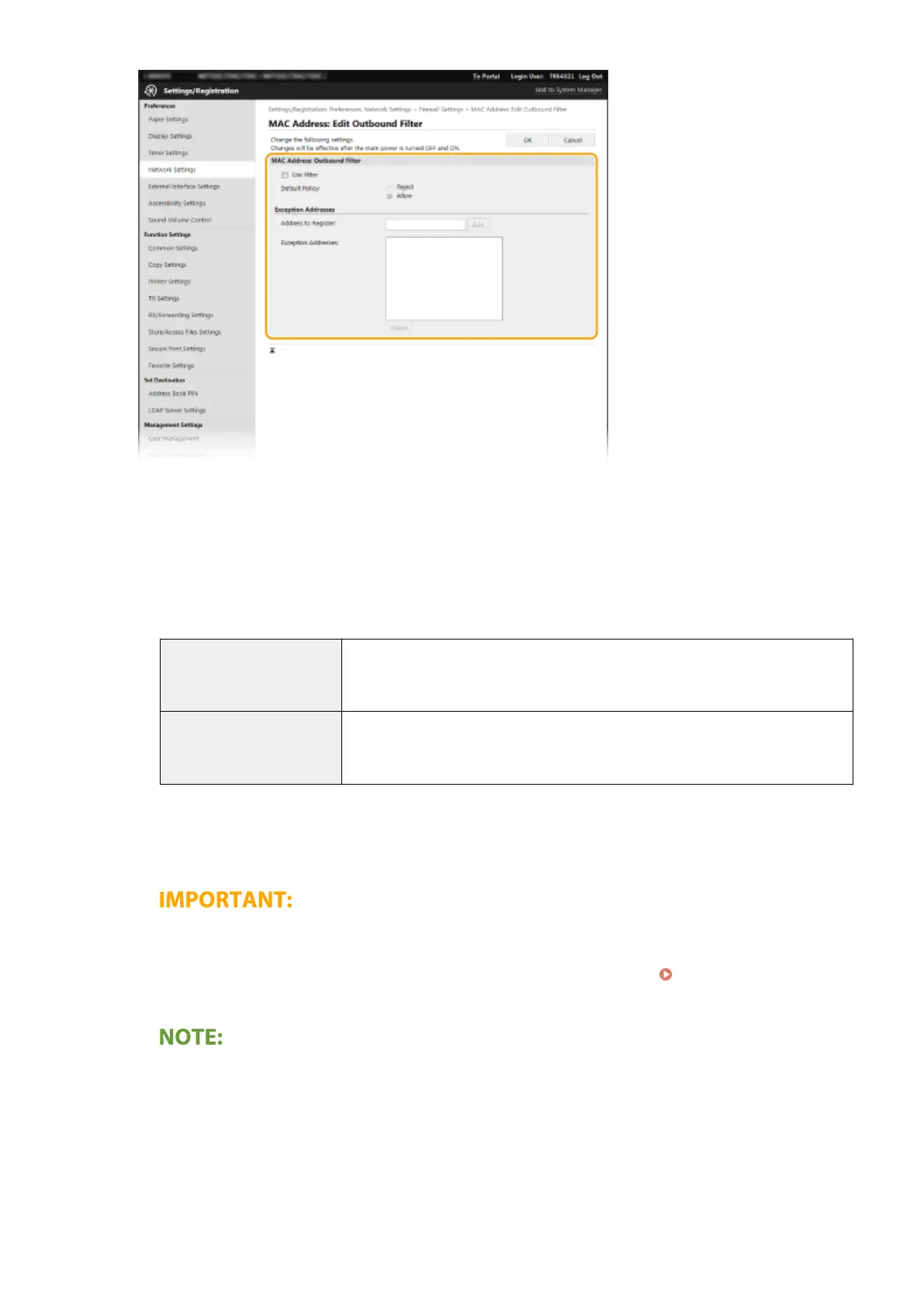
Select the [Use Filter] check box and click the [Reject] or [Allow] radio button for the [Default Policy].
[Use Filter]
Select the check box to restrict communication. Clear the check box to disable the restriction.
[Default Policy]
Select the precondition to allow or reject other devices to communicate with the machine.
[Reject]
Select to pass communication packets only when they are sent to or received from
devices whose MAC addresses are entered in [Exception Addresses].
Communications with other devices are prohibited.
[Allow]
Select to block communication packets when they are sent to or received from
devices whose MAC addresses are entered in [Exception Addresses].
Communications with other devices are permitted.
2
Specify address exceptions.
● Enter the MAC address in the [Address to Register] text box and click [Add].
● You do not need to delimit the address with hyphens or colons.
Check for entry errors
● If MAC addresses are incorrectly entered, you may become unable to access the machine from the
Remote UI, in which case you need to set <MAC Address Filter> to <Off>. <MAC Address
Filter>(P. 465)
When [Reject] is selected for an outbound lter
● Outgoing multicast and broadcast packets cannot be ltered.
Deleting a MAC address from exceptions
● Select a MAC address and click [Delete].
Managing the Machine
375









 To Next Page