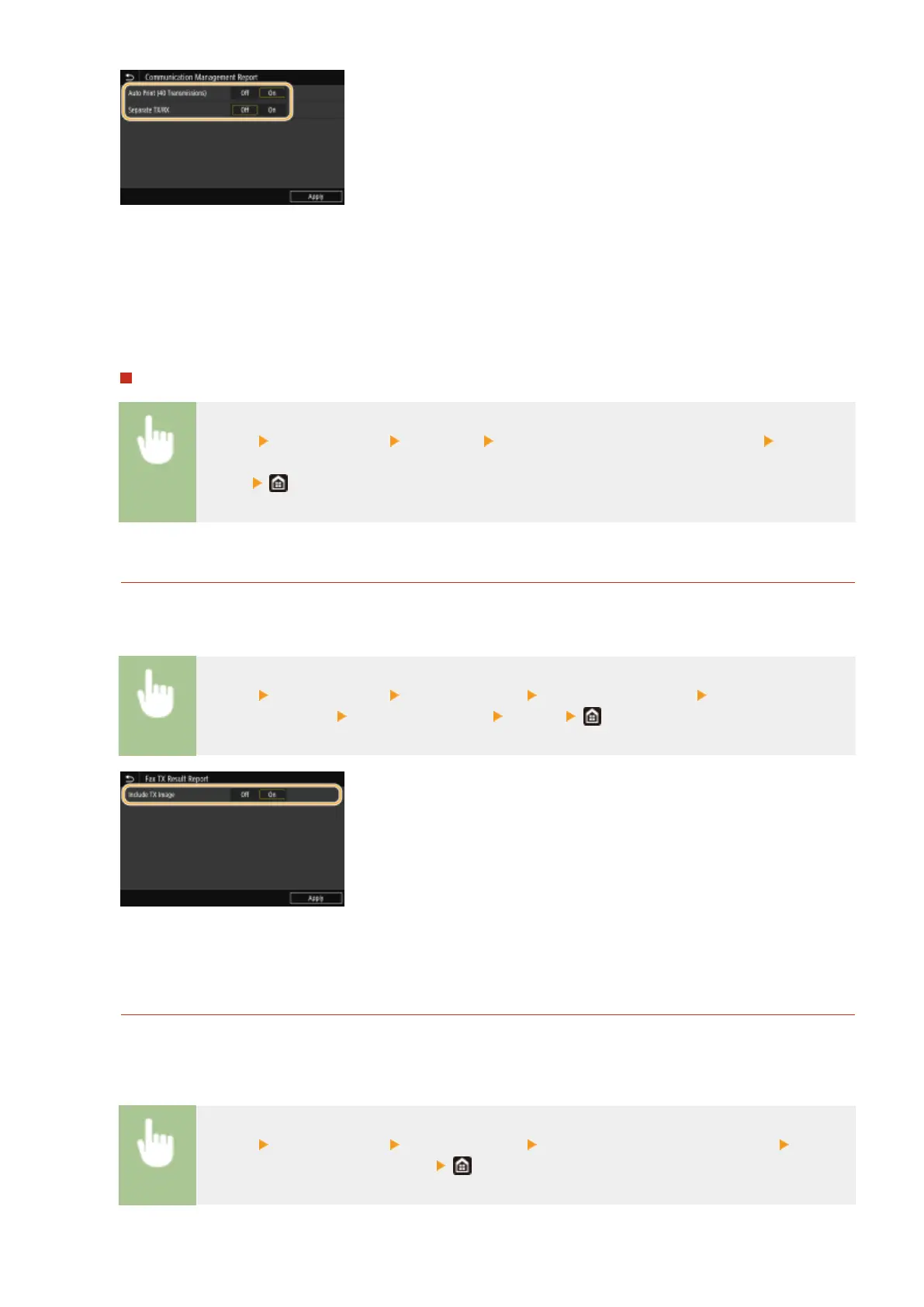
<Auto Print (40 Transmissions)>
Select <On> to print the report automatically after every 40 transmissions, or <Off> if you do not want to print
the report automatically.
<Separate TX/RX>
Select <On> to print sent and received reports separately, or <Off> to print both reports on one sheet.
Print the report manually
<Menu> <Output Report> <Print List> <Communication Management Report> Check that
the size and type of paper displayed on the screen is loaded in the machine, and select
<Start>
Fax TX Result Report
You can check the fax logs of sent documents by printing a Fax TX Result Report. The report can be printed
either every time a transmission is completed or only when a sending error occurs.
<Menu> <Output Report> <Report Settings> <Fax TX Result Report> Select <On> or <Only
When Error Occurs> Select <Off> or <On> <Apply>
<Include TX Image>
When you select <On>, a part of a sent document can be included in the TX Result Report.
E-Mail/I-Fax/File TX Result Report
You can check the e-mail and I-Fax logs of sent documents as well as documents saved to a shared folder or FTP
server by printing an E-Mail/I-Fax/File TX Result Report. The report can be printed either every time a
transmission is completed or only when a sending error occurs.
<Menu> <Output Report> <Report Settings> <E-Mail/I-Fax/File TX Result Report> Select
<On> or <Only When Error Occurs>
Maintenance
607









 To Next Page