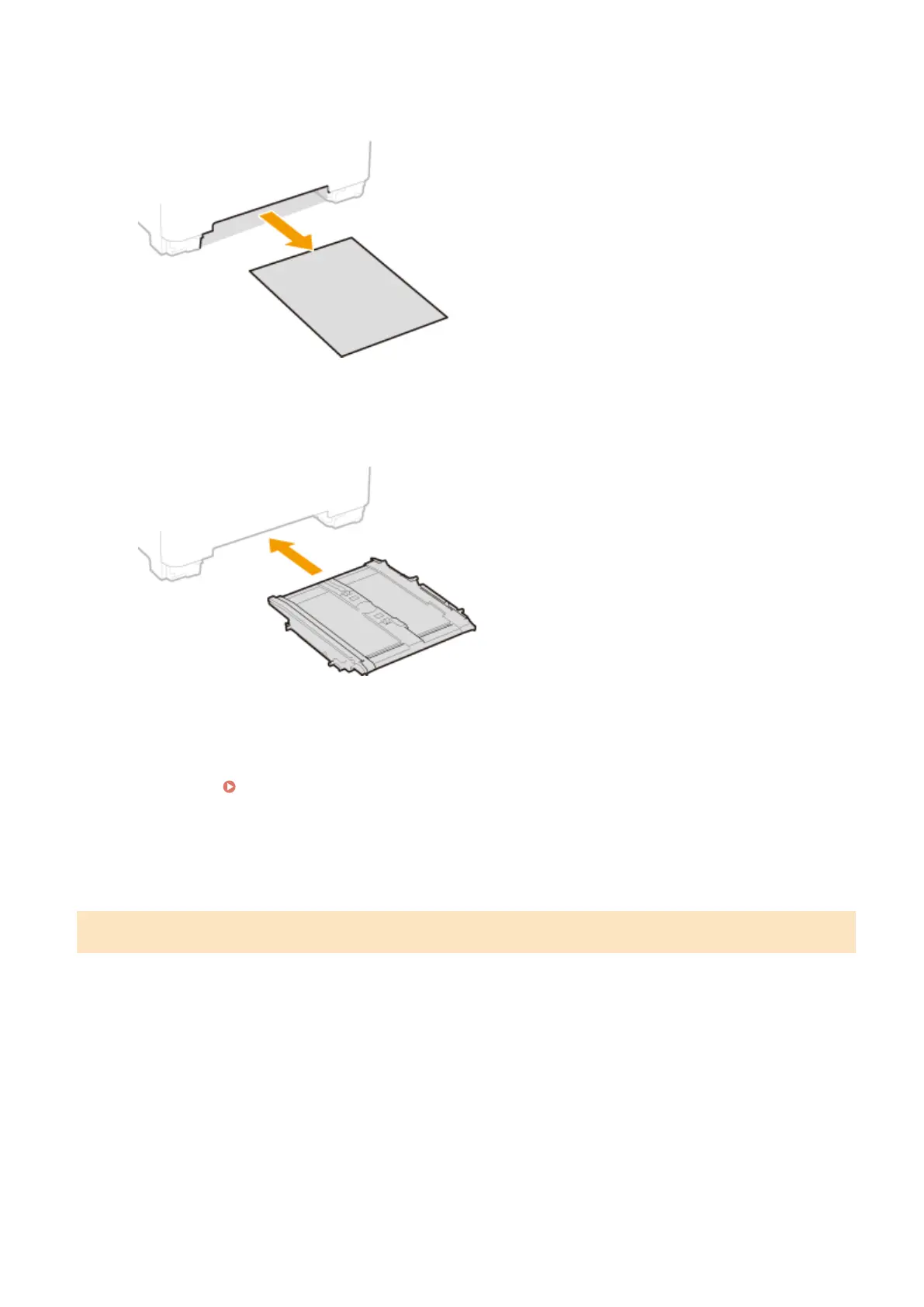
3
Gently pull out the paper.
4
Carefully insert the transport guide straight in.
● Firmly push the transport guide back in until it clicks into place.
5
Set the paper drawer.
● When you insert the paper drawer with <Notify to Check Paper Settings> set to <On>, a conrmation screen
is displayed. <Notify to Check Paper Settings>(P. 567)
6
Select <Yes> when the <Is all of the jammed paper removed?> message is displayed
on the screen.
Paper Jams in the Paper Drawer
If the jammed paper cannot be removed easily, do not forcibly pull it out, but follow the procedure for a different
paper jam location indicated by the message.
1
Pull out the paper drawer.
MF735Cdw / MF733Cdw / MF731Cdw
MF634Cdw / MF632Cdw
Troubleshooting
678









 To Next Page