8
Make your selection in the F Print Quality list.
9
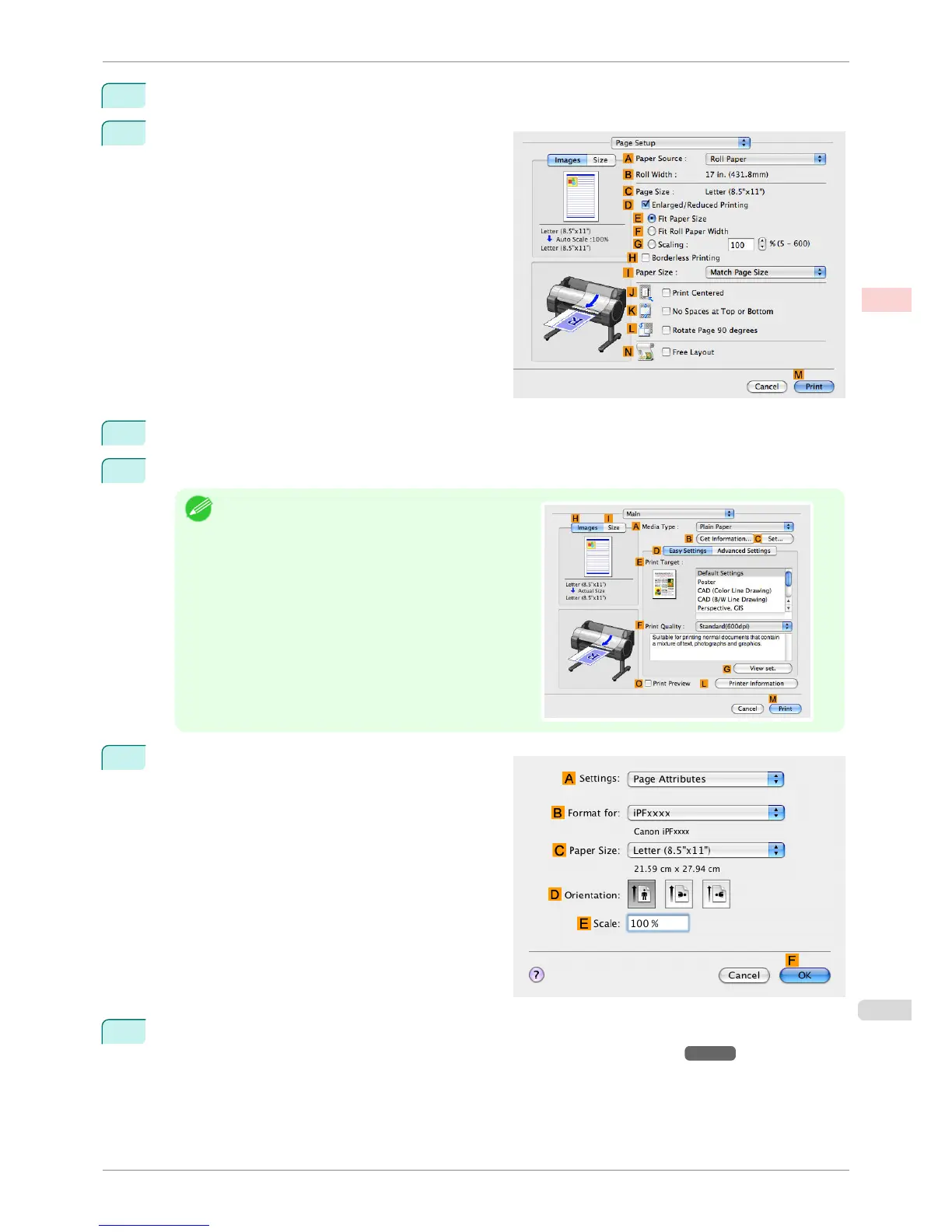
Access the Page Setup pane.
10
Select and click a roll paper in the A Paper Source list.
11
Make sure the width of the loaded roll is displayed in the BRoll Width list—in this case, 10 in. (254.0mm).
Note
•
If the width of the roll loaded in the printer is not shown
in
B Roll Width, click L Printer Information on the
Main pane to update the printer information.
12
Make sure
C Page Size on the Page Setup pane
shows the original size as specified in CPaper Size
in the Page Attributes dialog box—in this case,
10"x12".
13
Specify additional printing conditions.
For details on available printing conditions, see "Printer Driver Settings(Mac OS X) →P.292 "
iPF760
Printing Photos and Images (Mac OS X)
User's Guide
Enhanced Printing Options Printing Photos and Office Documents
35















 To Next Page