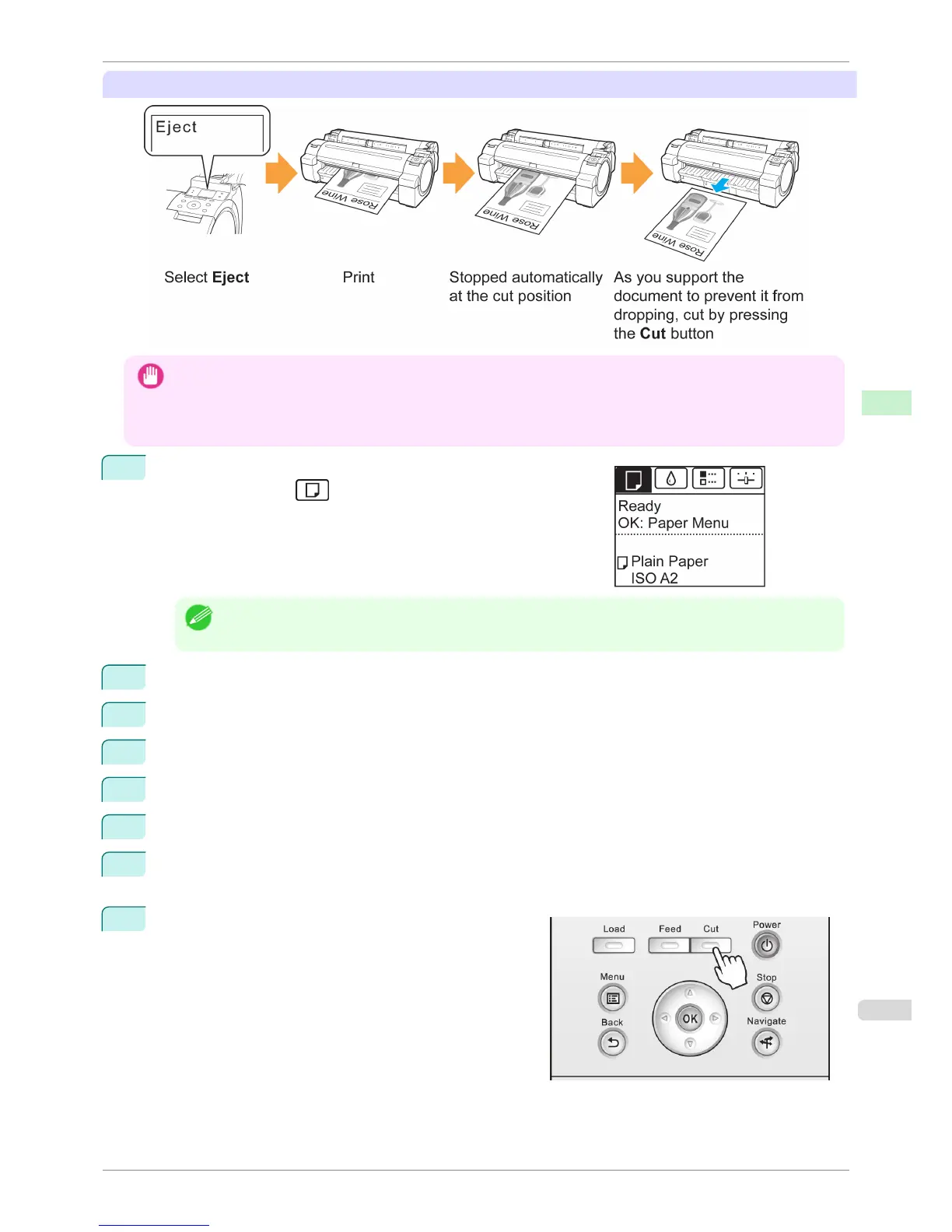
Eject (waiting for ink to dry after printing)
Important
• When cutting wide printed documents after ejection, have two people support the documents. If the paper drops, printed
documents may be damaged.
• Do not lift the paper when holding printed documents before cutting. If the paper rises, it may affect the printing quality or
cause rough cut edges.
1
On the Tab Selection screen of the Control Panel, press
◀ or ▶ to
select the Paper tab (
).
Note
• If the Tab Selection screen is not displayed, press the Menu button.
2
Press the OK button. The Paper Menu is displayed.
3
Press ▲ or ▼ to select Paper Details, and then press the OK button.
4
Press ▲ or ▼ to select the type of paper, and then press the OK button.
5
Press ▲ or ▼ to select Cutting Mode, and then press the OK button.
6
Press ▲ or ▼ to select Eject, and then press the OK button.
7
Starts printing.
When printing is finished, the printer will stop without cutting.
8
Holding the printed document to prevent it from dropping,
press the Cut button to cut the roll.
iPF760
Specifying the Cutting Method for Rolls
User's Guide
Handling Paper Handling rolls
411















 To Next Page