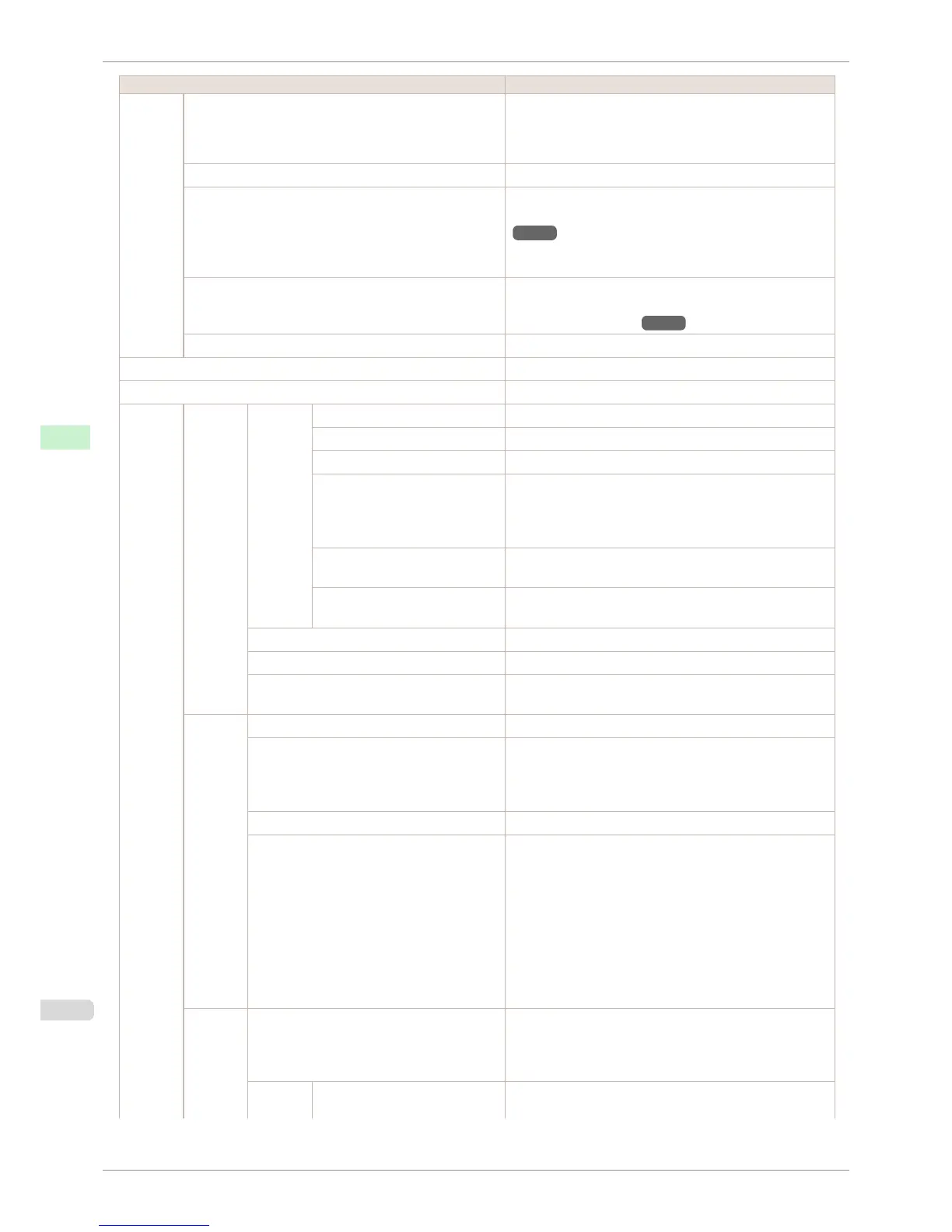
Setting Item Description, Instructions
Mainte-
nance
Head Cleaning Choose Head Cleaning A if printing is faint, oddly colored, or
contains foreign substances.
Choose Head Cleaning B if no ink is printed at all, or if print-
ing is not improved by Head Cleaning A.
Nozzle Check Print a test pattern to check the nozzles.
Replace P.head When replacing the Printhead, choose Yes and follow the in-
structions on the screen. (See "Replacing the Printhead.")
→P.526
Not displayed during a warning message that the remaining
Maintenance Cartridge capacity is low.
Repl. maint cart When replacing the Maintenance Cartridge, choose Yes and
follow the instructions on the screen. (See "Replacing the
Maintenance Cartridge.")
→P.532
Head Info Indicates information about the printhead.
GL2 Replot Print the previous GL2 print job again.
GL2 BufferClear Clear the print data in the replot buffer.
GL2 Set-
tings
Quality
Manager
Color
Mode
Monochrome Print in monochrome.
Color (CAD) 1 Print in standard colors.
Color (CAD) 2 Print in brighter colors.
Color (CAD) 3 Print emulating the following printers, in colors resembling
colors produced by these printers: Canon iPF500, iPF600,
iPF700, iPF510, iPF610, iPF710, iPF605, iPF720, iPF810,
iPF815, iPF820, and iPF825. (*2)
Color (CAD) 4 Print emulating the HP Designjet 500/800, in colors resem-
bling colors produced by these printers.(*2)
Color (CAD) 5 Print emulating the HP Designjet 1000, in colors resembling
colors produced by this printer.(*2)
Print Quality Choose the print quality.
Input Resolution Choose the printer input resolution, 600dpi or 300dpi.
Print (Economy) Although printing quality is diminished, less ink is consumed
than in regular printing. Select On to conserve ink.
Paper
Manager
Paper Source Choose the source of paper for HP-GL/2 printing.
Margin Specify the margin around paper. The margin for the trailing
edge of sheets is 23 mm (0.9 in).
However, if you have specified the leading margin in Paper
Details, the value in Paper Details has priority.
Conserve Paper Conserves paper when printing.
Auto Rotate If the long side of an original is shorter than the roll width, the
original is automatically rotated 90 degrees to conserve pa-
per. Similarly, if the long side of an original in landscape ori-
entation is longer than the roll width and the short side is
shorter than the roll width, the original is repositioned to fit on
the paper.
HP RTL print jobs are not rotated. Because HP RTL images
are not rotated even if the paper is rotated 90 degrees, im-
ages may be cut off or the blank paper may be ejected. In
this case, set Auto Rotate to Off.
Line &
Pen
Manager
Enable merge Specify whether to merge or print over colors where lines
overlap.
Choose Off to print the second line over the first. Choose On
to merge all overlapping colors.
Pen Set-
up
Select Palette As pen values, choose Software, Palette A, Palette B, or
Factory.
Menu Settings
iPF760
User's Guide
Control Panel Printer Menu
452















 To Next Page