Setting Item Description, Instructions
GL2 Set-
tings
Line &
Pen
Manager
Pen Set-
up
Select Palette Choose Software to print according to software settings.
Choose Palette A or Palette B to print using the value speci-
fied in Define Palette.
Define Palette Specify the Width, Color, and Line Attributes in the palette
Pen no.. Choose Factory to confirm the values when Facto-
ry is selected in Select Palette.
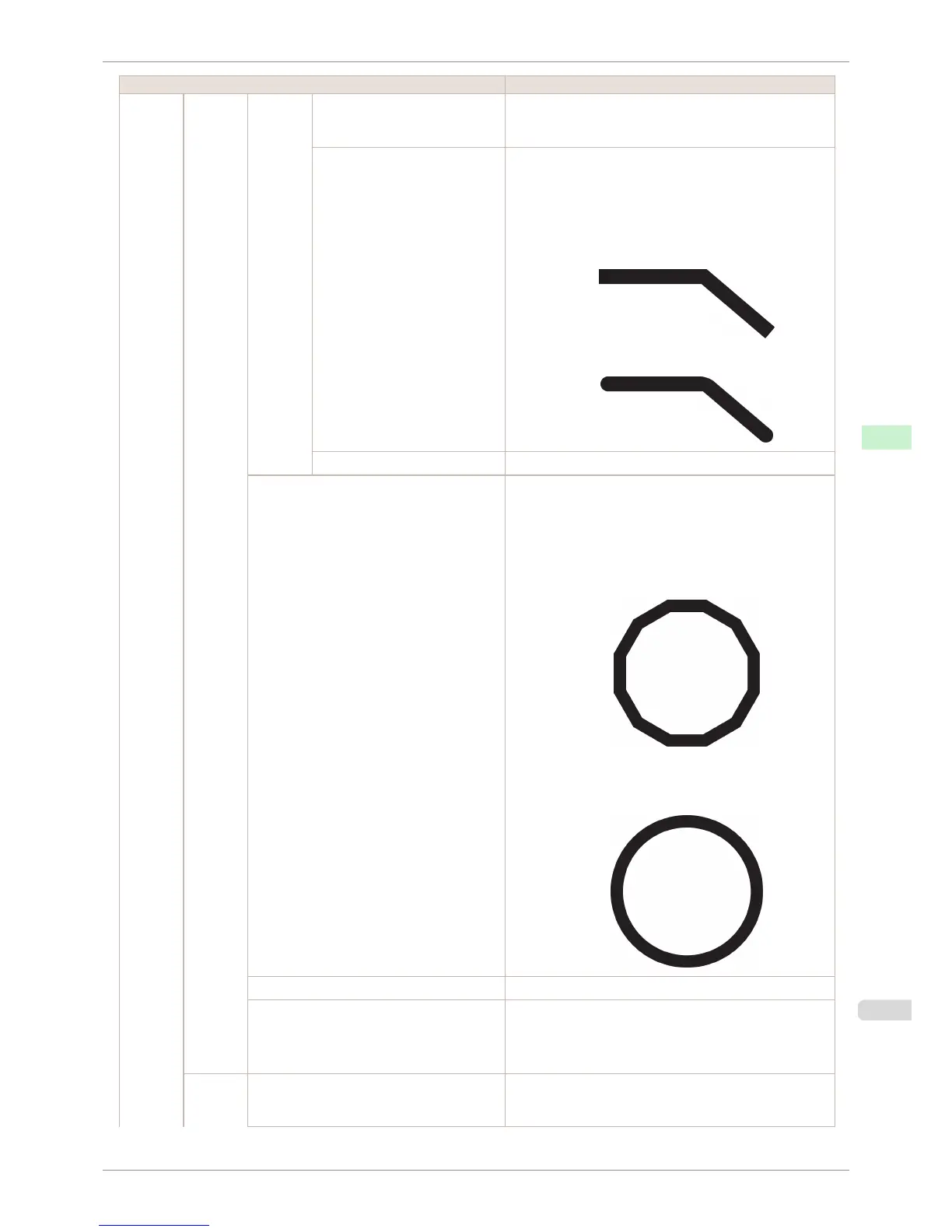
In Line Attributes, choose No Setting or Circle Setting as
the processing for the ends and junctions of lines.
•
If you choose No Setting
•
If you choose Circle Setting
Reset Palette Restore Define Palette to the default palette settings.
Smoothing Choose whether to print arcs as smooth curved lines or as
multiple connected line segments.
•
If you choose Software
Operation is determined by the application. If nothing is
specified by the application, the result is as shown in the
figure.
Note: By default, this is a 72-sided figure
•
If you choose Smooth
ThickenFineLines Select On to print fine lines more distinctly.
AdjustFaintLines If fine lines are printed in colors that do not match the colors
of other shapes, selecting Off may help produce the expec-
ted results. However, lines in some colors may appear bro-
ken.
Proces-
singOp-
tion
Warning Select On to have any GL2-related warnings displayed.
iPF760
Menu Settings
User's Guide
Control Panel Printer Menu
453















 To Next Page