v2.13 Cleverscope CS300 Reference Manual
©Cleverscope 2004-2018 www.cleverscope.com Page 35
5.1.2 Options (Ctrl+Shift+O) [File Menu]
File Options is used to control the way files are opened and saved.
Open Options allow the automatic opening of saved files. This can be used in conjunction with Save Options to
automatically process files.
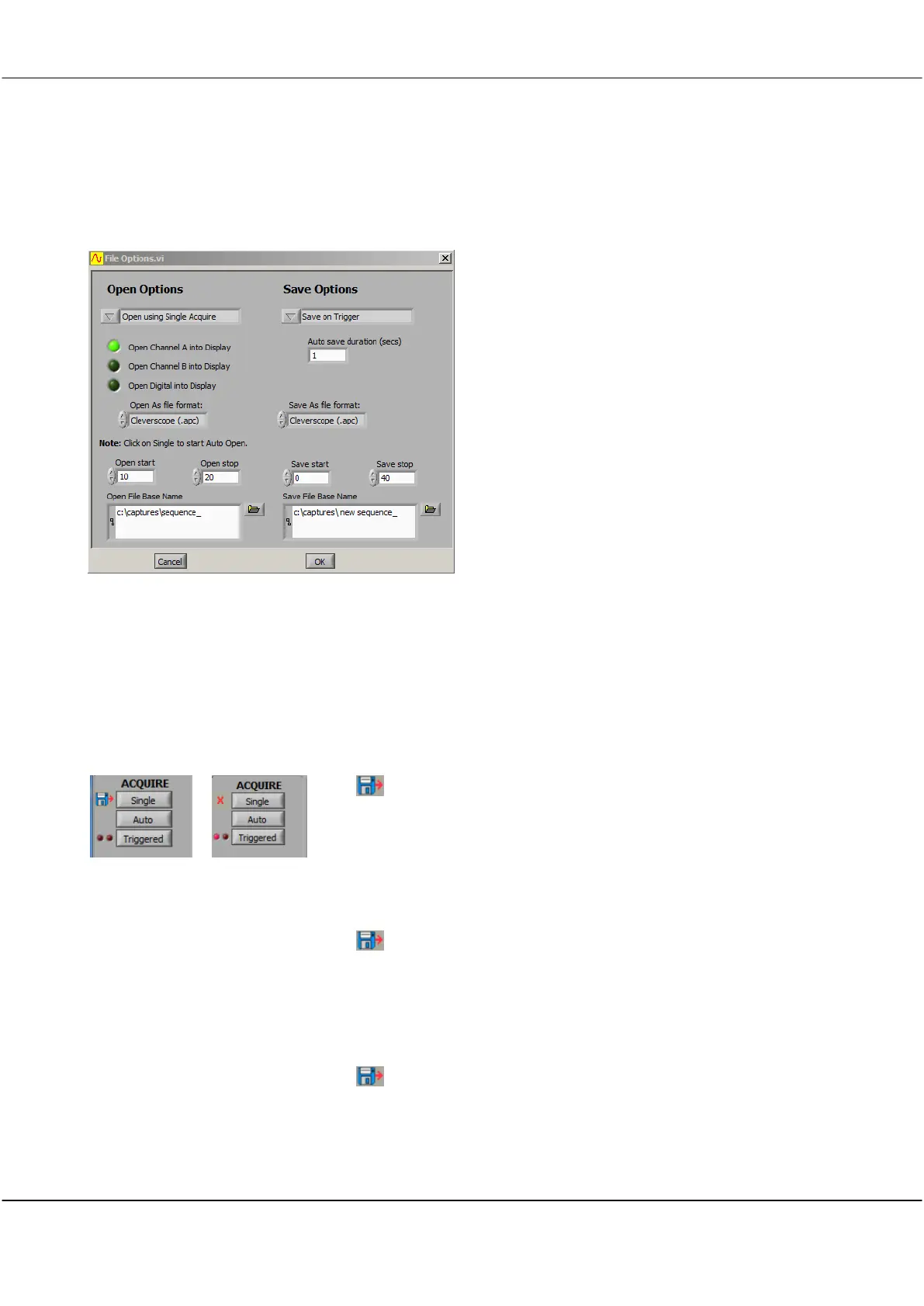
File Options Dialog
The File Options dialog (explained below) is used to
set automated open and save options. This example
shows Cleverscope .apc files being automatically
opened into just Channel A, every time the Single
Acquire button is clicked. Files named
sequence_10
through to
sequence_20
will be opened. Channel B
and the Digital signals will be left as they are. This
could have been used to compare 11 recent captures
with a reference captured to Channel B earlier.
This example also shows a file being automatically
saved every time there is a trigger. Files are being
saved as
new sequence_0
through to
new
sequence_40
. Files are being saved in Cleverscope
(.apc) format.
5.1.3 Open Options [File Menu]
File Open Options
Open Manually
Click on the up or down arrow or in the field to select from the dropdown
menu.
Options are: Open Manually, Open using Single Acquire, Open
Automatically, Open Automatically, Data Only, Open Manually, Data Only
Click on this option to select that a file can only be opened from the File
menu.
Open using Single Acquire
Open enabled Open Disabled
Click on this option to open the file every time the Single button is pressed.
The button is shown to the left of the Single button.
X indicates Single is disabled
Toggling this disables and enables the automatic open.
Click on the Single button to start the auto open and the file is opened
automatically.
The button is shown to the left of the Single button.
Toggling this disables and enables the automatic open.
Open Automatically, Data Only
Click on the Single button to start the auto open and the file is opened
automatically but only the data is extracted from the file.
None of the Cleverscope settings will be loaded..
The button is shown to the left of the Single button.
Toggling this disables and enables the automatic open.
Open Channel A into Display
Click on button to activate. If not activated, Channel A is left as it is. This is
useful for comparison purposes.



 To Next Page