Cleverscope CS300 Reference Manual v2.11
Page 36 www.cleverscope.com ©Cleverscope 2004-2015
Open Channel B into Display
Click on button to activate. If not activated, Channel B is left as it is. This is
useful for comparison purposes.
Open Digital into Display
Click on button to activate. If not activated, Digital values are left as they
are. This is useful for comparison purposes.
Auto save duration (secs)
Click in the field to type in the duration between Auto saves. Graphs are
saved automatically after the duration has elapsed, and a trigger has
occurred.
Click on the up or down arrow or in the field to select from the dropdown
list.
Options are: Cleverscope (.apc), Text (.txt), Binary (.bin)
Note: For all automatic opens a base file name must be specified in Open
File Base Name and the file increment is controlled with Open start and
Open stop. Open start is automatically incremented with each open.
Click on the up or down arrow or in the field to set the File Increment Start
value.
Click on the up or down arrow or in the field to set the File Stop value.
Click on the up or down arrow or in the field to select the file Base Name.
5.1.4 Save Options [File Menu]
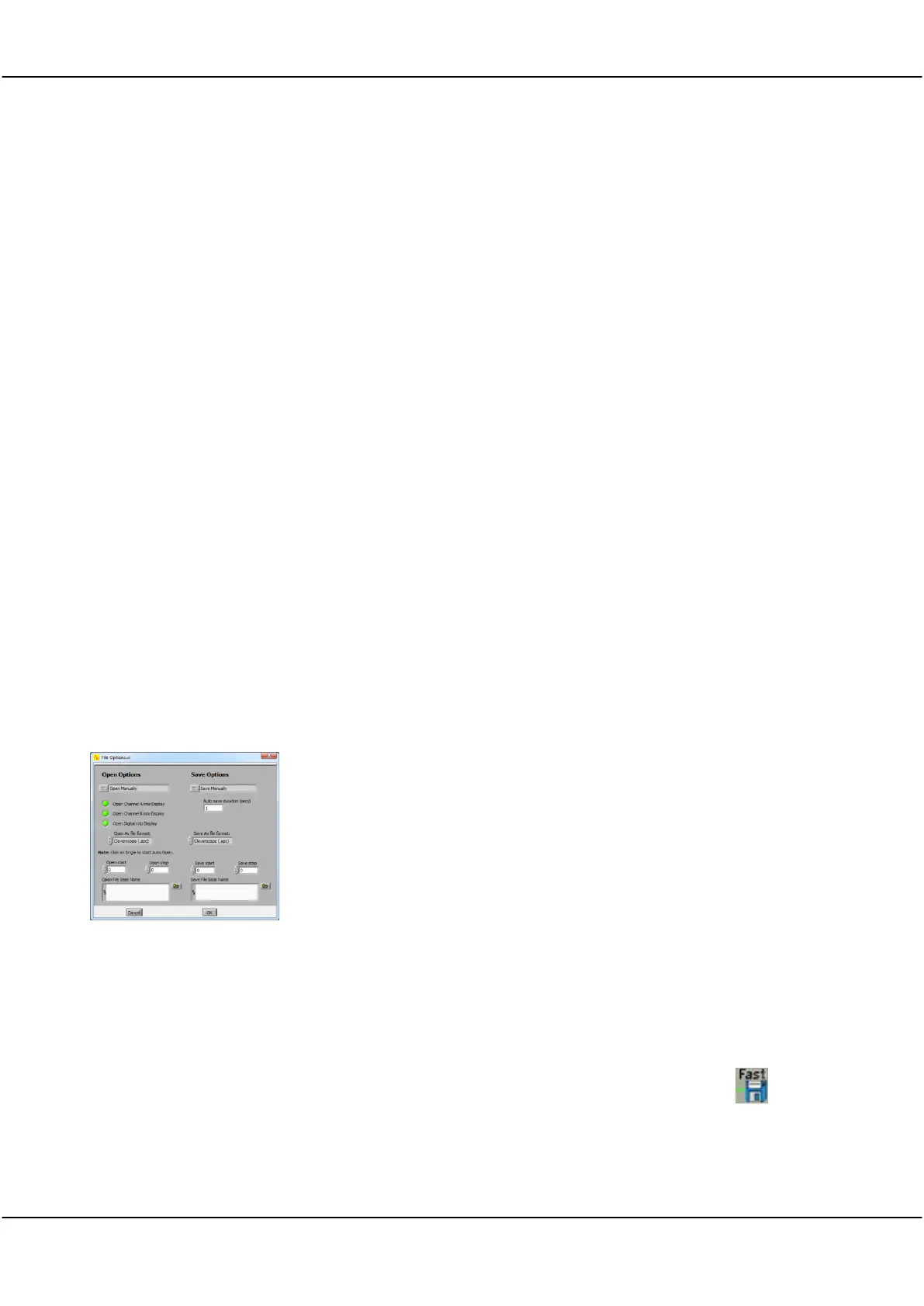
Save Options allow automatic logging of the signal data.
Save Options
Save Manually
Click on the up or down arrow or in the field to select from the dropdown list.
Options are: Save Manually, Save using Fast Save button, Save on Trigger Save on
duration elapsed, Save following Open.
Click on this option to select that files can only be saved from the File menu.
Save Using fast Save
button
Click this option to save the graph to an incrementing file name.
When Save using Fast Save button is selected, the Fast Save button is shown
in the tool bar. Clicking this button
Click on this option to save a file is automatically on every trigger (this includes an
Auto trigger).



 To Next Page