ComNav Commander P2 & P2VS Installation & Operation Setting Up
Document PN 29010074 V4.1 - 86 -
Setting Up
This chapter describes all the steps needed to prepare your Commander P2 or P2VS, for use
on your boat, after you have installed it.
Note: to do the procedures described in this chapter, you will need to be familiar with
the basic concepts of using the autopilot’s Control Head – modes, menus, turning
the system on & off, and so on.
If you have not already done so, please read the introductory parts of the Basic
Operations chapter.
Dockside Setup Menu
Almost all the steps involved in setting up your Commander P2 for use on your boat require
using the Control Head’s Dockside Setup menu – so it will be described here first.
Typically, the Dockside Setup menu is used only infrequently after initial setup.
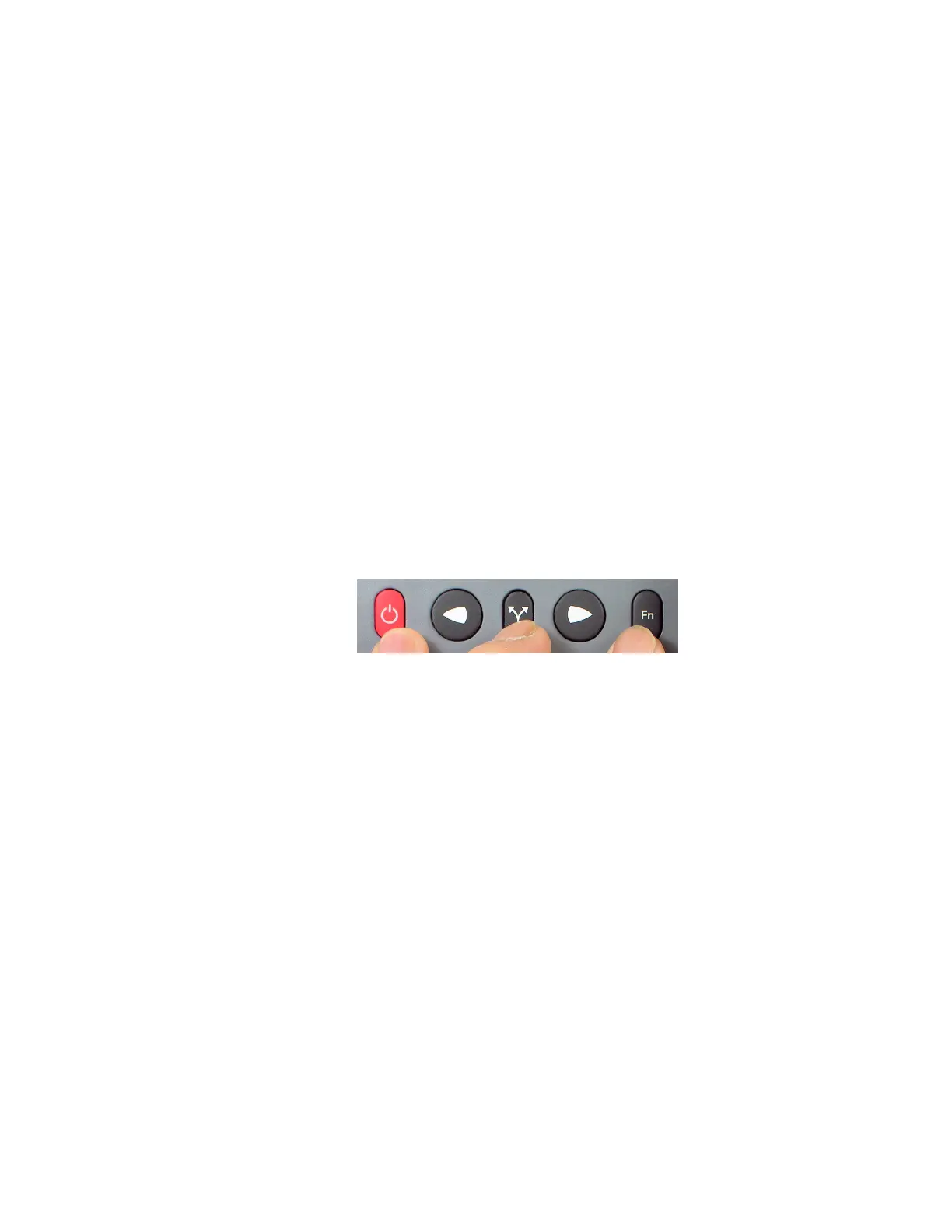
A special combination of buttons must be used to access the Dockside Setup menu:
1) Start with the P2 system powered off.
2) Press and hold the
F
F
n
n
button and the
T
T
U
U
R
R
N
N
button.
3) Then press & hold the
S
S
T
T
A
A
N
N
D
D
B
B
Y
Y
button. Power will turn on.
4) Hold all three buttons activated until the software version numbers are displayed, then
release the buttons.
Figure 64 – Entering Dockside Setup
5) After several seconds, the display will show the Dockside Setup menu (see Figure 65).
Note that a large `D´ (which is the indicator that the system is in Dockside Setup) appears
in the upper left portion of the display.
Note: on a P2VS without an RFU installed, an alarm may sound while the system is
starting up. You can ignore this alarm; it will stop when the menu appears.
The Dockside Setup menu is unlike other menus:
•
There is no time-out feature associated with it.
•
When you exit it, the system performs a full Power-On sequence, ending up in
STANDBY
mode.
•
Many of the items listed in the Dockside Setup menu are not simple
parameters
, but
instead are
automated scripts
(sequences of pre-defined steps) that perform a variety
of functions and system tests.
⇒
The letters
“Fn”
on the right hand side of the menu display identify the items that
are scripts. To activate the associated script, press the
F
F
n
n
button.


 To Next Page