EasyManua.ls Logo

Dexcom G5 - App Task Bar

Dexcom G5
410 pages
Print Icon
To Next Page IconTo Next Page
To Previous Page IconTo Previous Page
Loading...
Dexcom G5 Mobile System User Guide
157Home Screen, Rate of Change Arrows, and Errors
App Task Bar
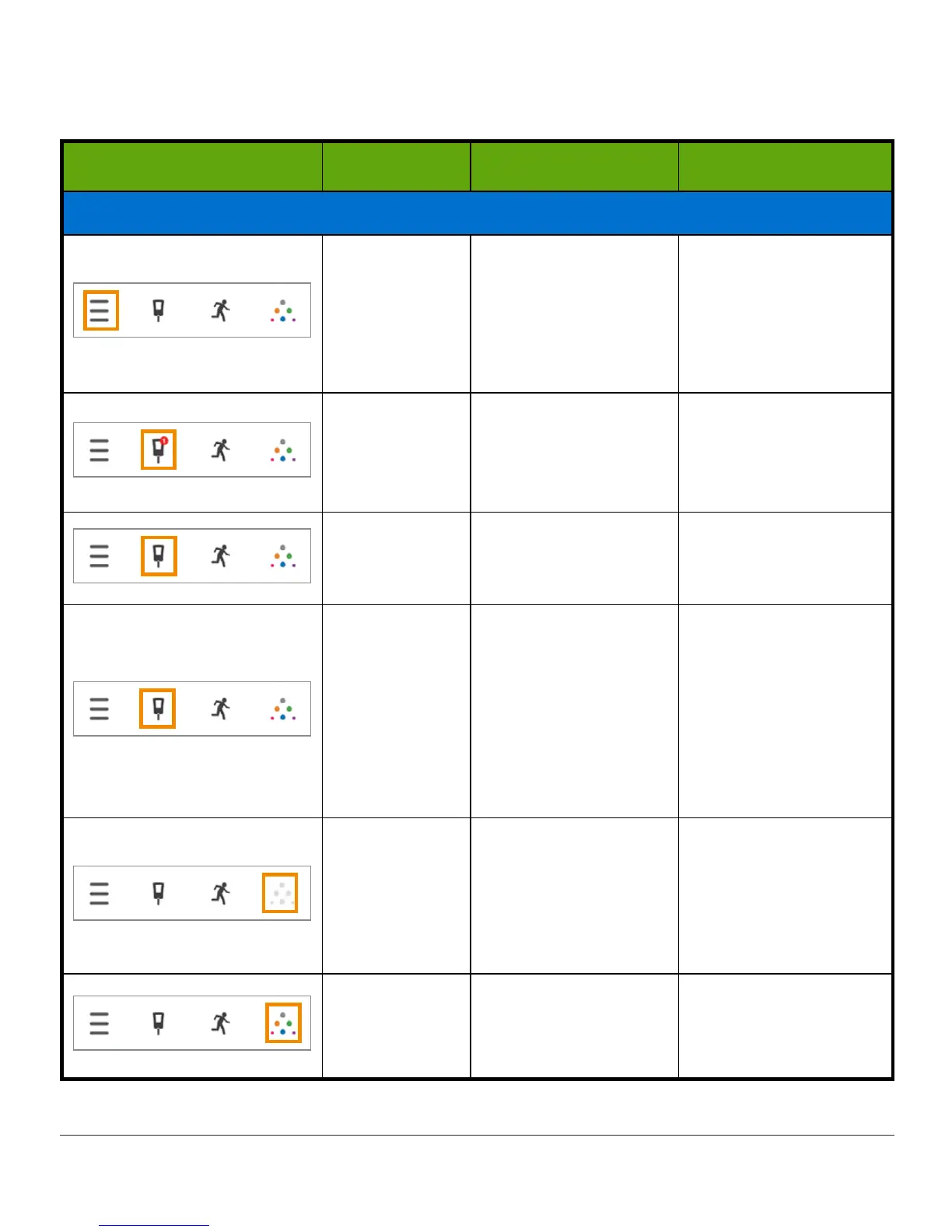
What you see Name What it means What you do
Task Bar: Complete Tasks
Main Menu
Goes to other
options.
Tap
Menu
to access:
Alerts
Settings
Help
Start/Stop Sensor
BG Meter
with red
badge and
number
Calibration prompt.
Tap
icon
and enter
fingerstick BG value
(see Chapter 7).
BG Meter
without red
badge
No need to calibrate. Do nothing.
Event
Enter different
events capturing
activities affecting
your glucose.
Tap
icon
to enter
data for:
Carbs
Insulin
Exercise
Health
(See Chapter 10.)
Dexcom
Share
Dexcom
Share
is
only available on the
app.
Gray icon means
Share
is not active.
Tap
icon
to activate
(see Chapter 21).
Dexcom
Share
Once activated,
Dexcom
Share
icon
is colored.
Do nothing.
Tap
icon
to access
Dexcom
Share
.

Table of Contents

Related product manuals