Dexcom G5 Mobile System User Guide
186Daily Events Aect Your Glucose Trends and Patterns
Events are meant to be entered as individual occurrences: don’t enter daily totals, enter each
Event separately.
In the next section, you will learn how to enter Events, first in your smart device, then in
your receiver.
10.3 Entering Events
You probably will enter Events in the display device you use most often; however, you should
know how to enter Events into each.
First, let’s look at how to enter Events in a smart device, then in the receiver.
When using Dexcom
Share
, you can allow your Followers to see your Event entries. For more
Dexcom
Share
information, please see Part 5.
Entering Events: Smart Device
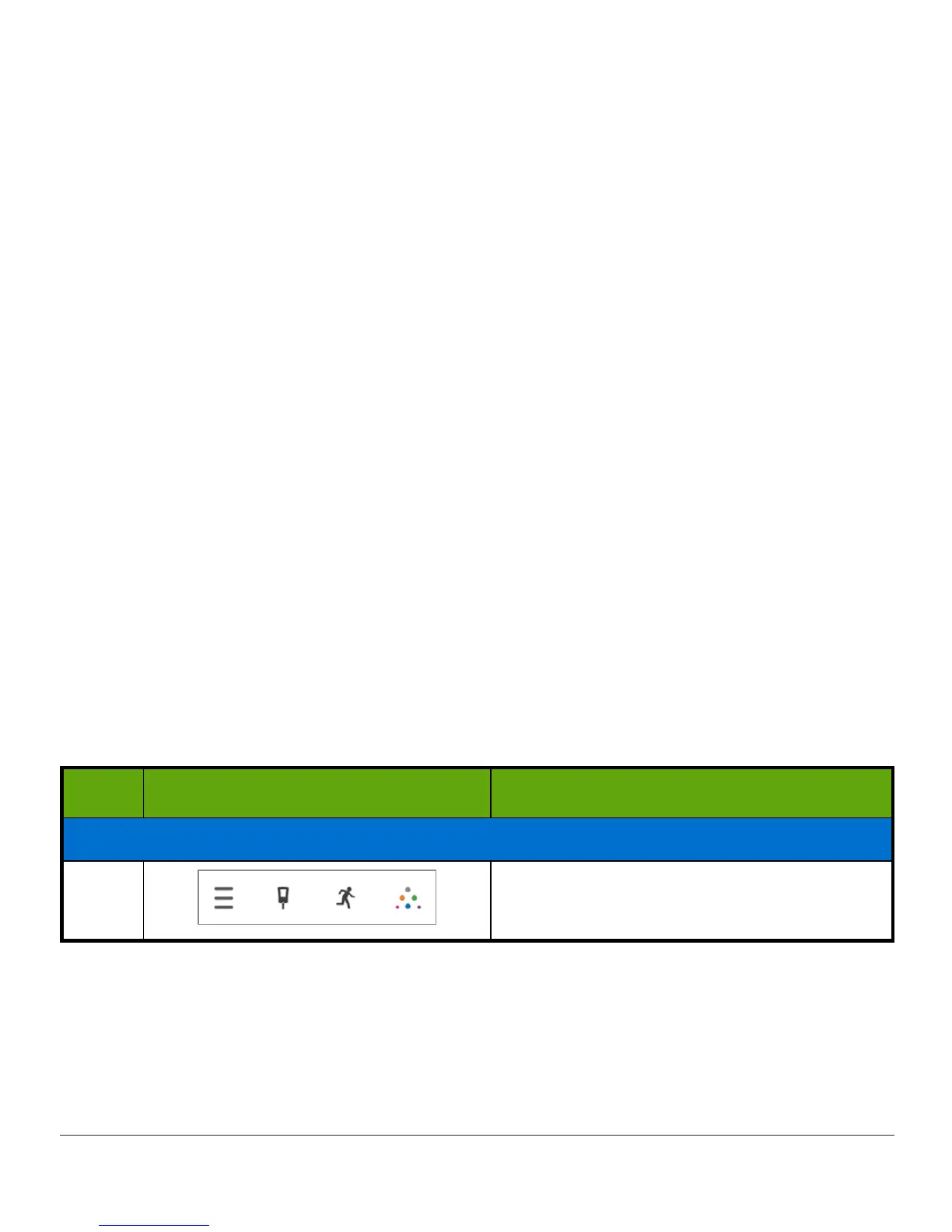
In the Dexcom G5 Mobile app, Events are just a tap away! The Event icon, a running man, is
on the app home screen task bar in portrait mode (remember, you don’t have the task bar in
landscape).
The same steps are used to enter Carbs, Insulin, Exercise, and Health Events. If you can
enter a Carbs Event, you can enter an Insulin Event. To enter Events, we’ll use the above
scenario. The following table shows how to enter Carbs (drive-thru lunch) and Stress (traffic
jam) Events.
Entering Events: Dexcom G5 Mobile App
Step What you see What you do
Enter Carbs Event
1
Tap
Events
.
(Continued on next page)



 To Next Page