Dexcom G5 Mobile System User Guide
241On the Go With G5: Customizing Your Alarm and Alerts
App: Changing Scheduled Alert Settings
Step What you see What you do
1
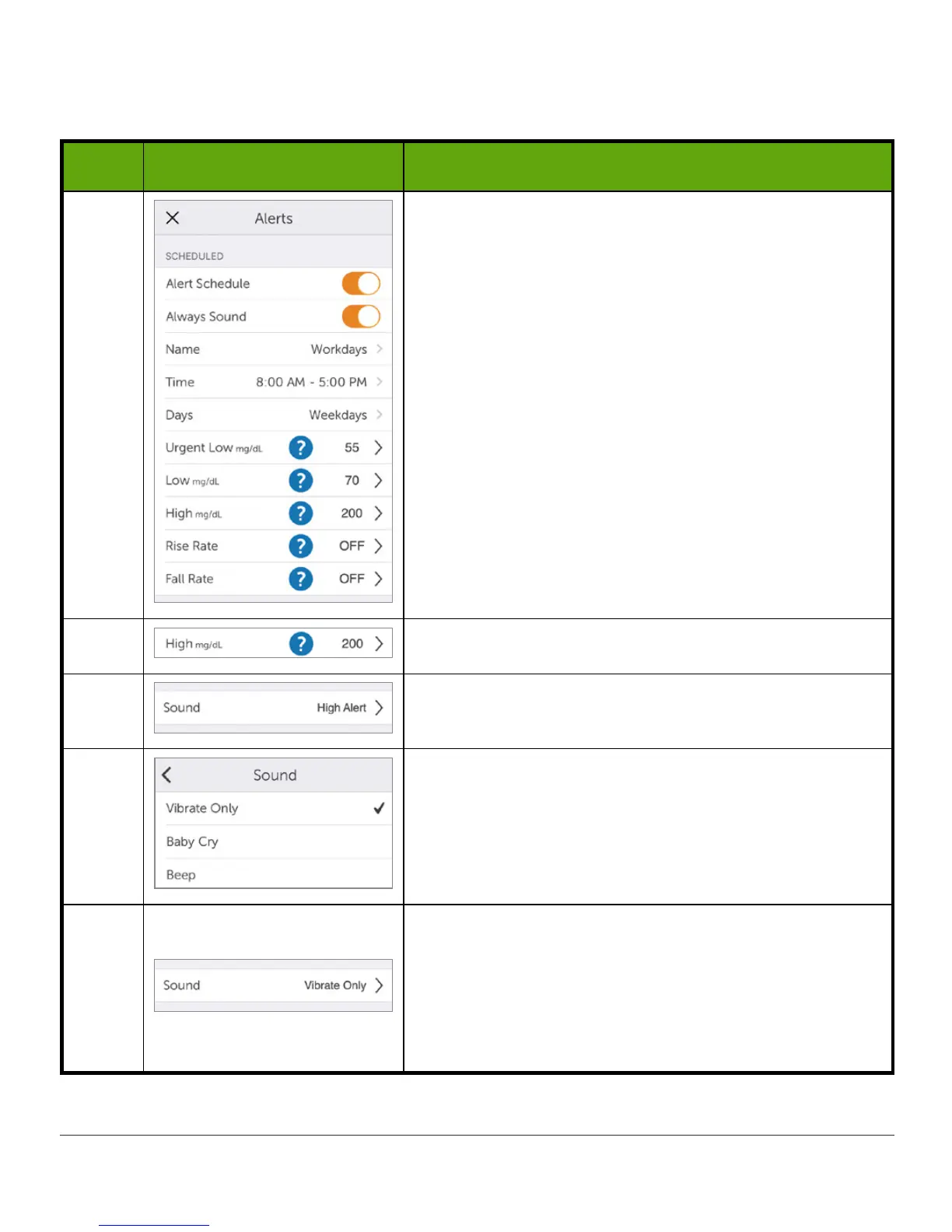
Open Menu > Alerts.
When Alert Schedule is on, there are two groups of
settings in the Alerts menu:
• Your regular Alerts are grouped on top. They’re
active when your schedule isn’t.
• Your scheduled Alerts are grouped below. They’re
only active during the days and times shown.
2
In the Scheduled section, tap High.
3
Tap Sound.
4
Tap Vibrate Only.
5
Return to your Home screen.
Now your scheduled High Alert will vibrate instead
of playing a sound.
Outside of your scheduled hours, your regular High
Alert sound is used.



 To Next Page