Dexcom G5 Mobile System User Guide
165Home Screen, Rate of Change Arrows, and Errors
By default, your Alarm and Alerts appear only on your Apple Watch when paired, and not your
smart device. Set your notifications to appear on both devices in the Watch app.
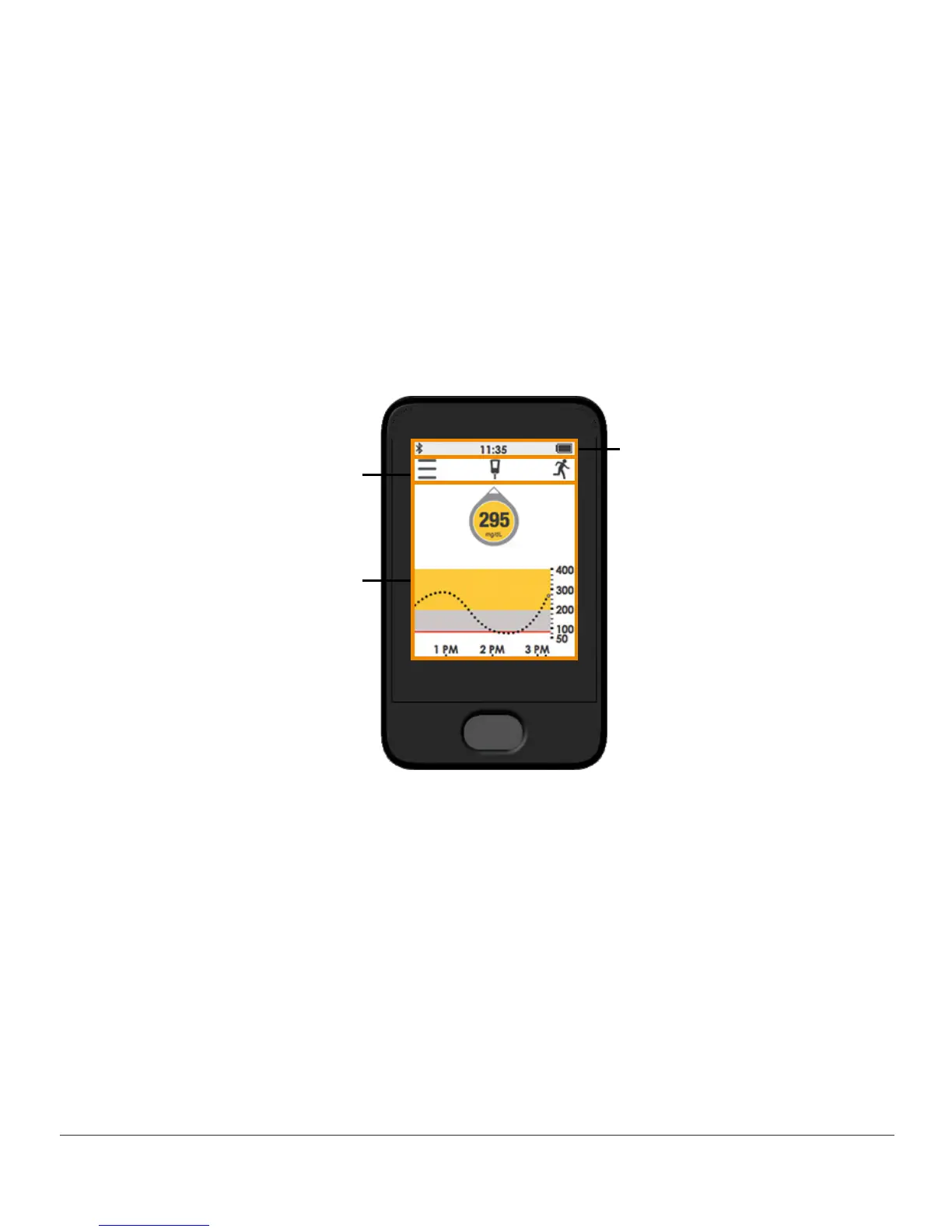
Receiver Home Screen
This section gets you familiar with the receiver’s home screen. In other chapters, you’ll see
how to enter data or make system changes.
Like your smart device, your receiver has a touchscreen.
The receiver’s home screen has three sections:
Status Bar
Task Bar
Glucose
Information
Figure 7. Home Screen on Receiver
• Status Bar: Shows Bluetooth status, system time, and battery level
• Task Bar: Tap icons to go to the Main Menu, enter your BG numbers, or record Events
• Glucose Information: Shows your sensor glucose readings and trends



 To Next Page