Using Magic Sheets 355
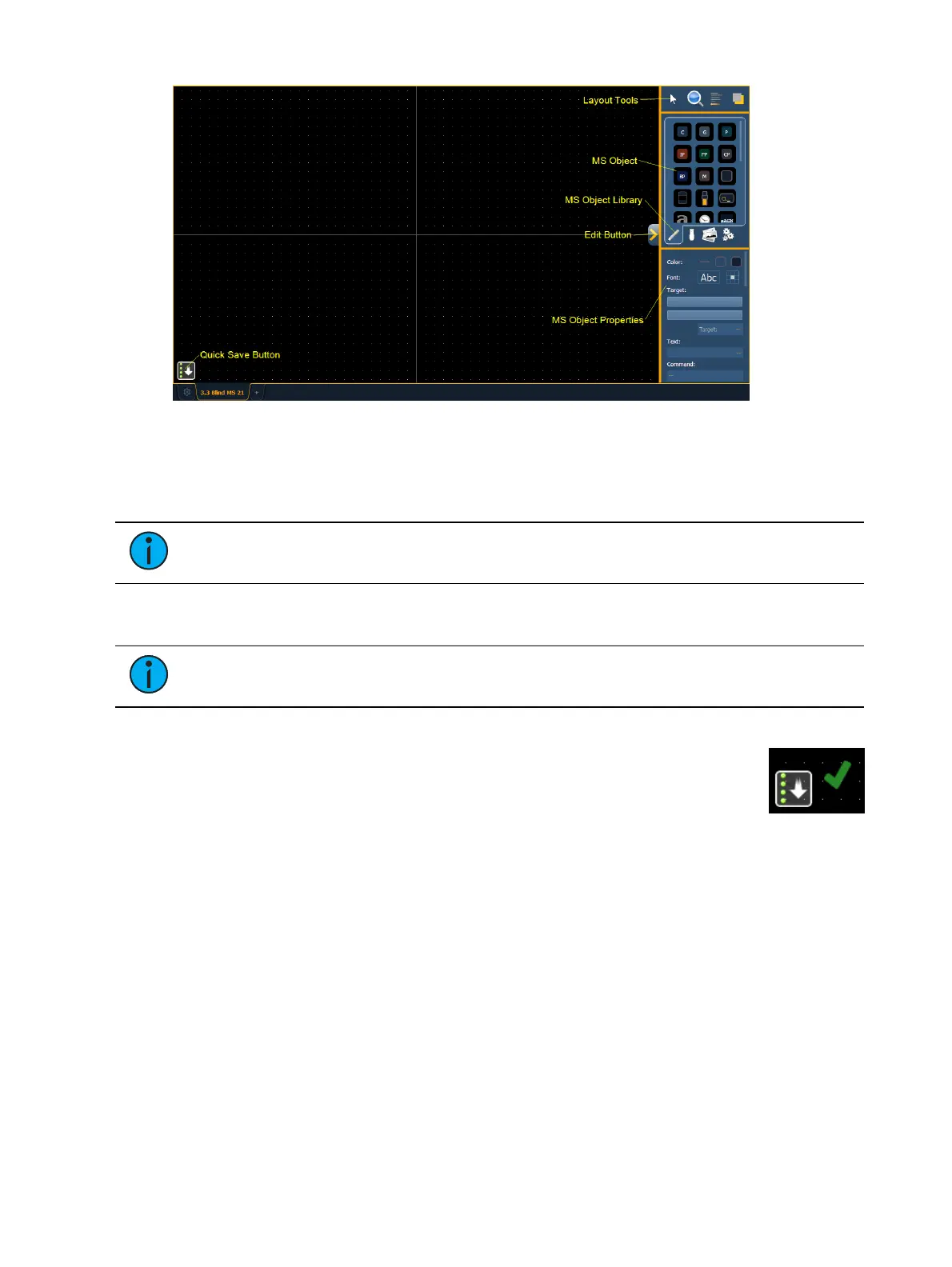
The main area of the magic sheet will display a grid to aid with layout. The editing tools will be
displayed on the right side of the magic sheet. The editing tool window is divided up into three
areas: layout tools, the MS Object Library, which is made up of four tabs that contain the MS
Objects, and the MS Object Properties.
Note: To see a description of a tool or object, hover your cursor over it. Its title will
display after a second or two.
You can drag and drop objects onto the magic sheet, or you can use the layout tools to create
arrays of objects.
Note: Holding down [Shift] while placing an object will bypass the snap to grid
behavior.
Quick Save
Clicking on the {Quick Save} button allows you to save an undo restore point for
the magic sheet you are working on. Once saved, a green check mark will
temporarily appear next to the {Quick Save} button.
It is recommended that you click {Quick Save} before making any major changes
to the magic sheet that you think you might want to undo. [Undo] [Enter] will take the magic
sheet back to the last undo restore point. An undo restore point is also set whenever you exit the
editor.
Quick saving a magic sheet will also send any changes made to the magic sheet to all the
devices in a multi-console system.
Layout Tools
The layout tools are divided into four areas:
Edit Mode (on the next page)
Zoom (on the next page)
Alignment (on page357)
Ordering (on page359)



 To Next Page