Using Magic Sheets 363
Importing Images
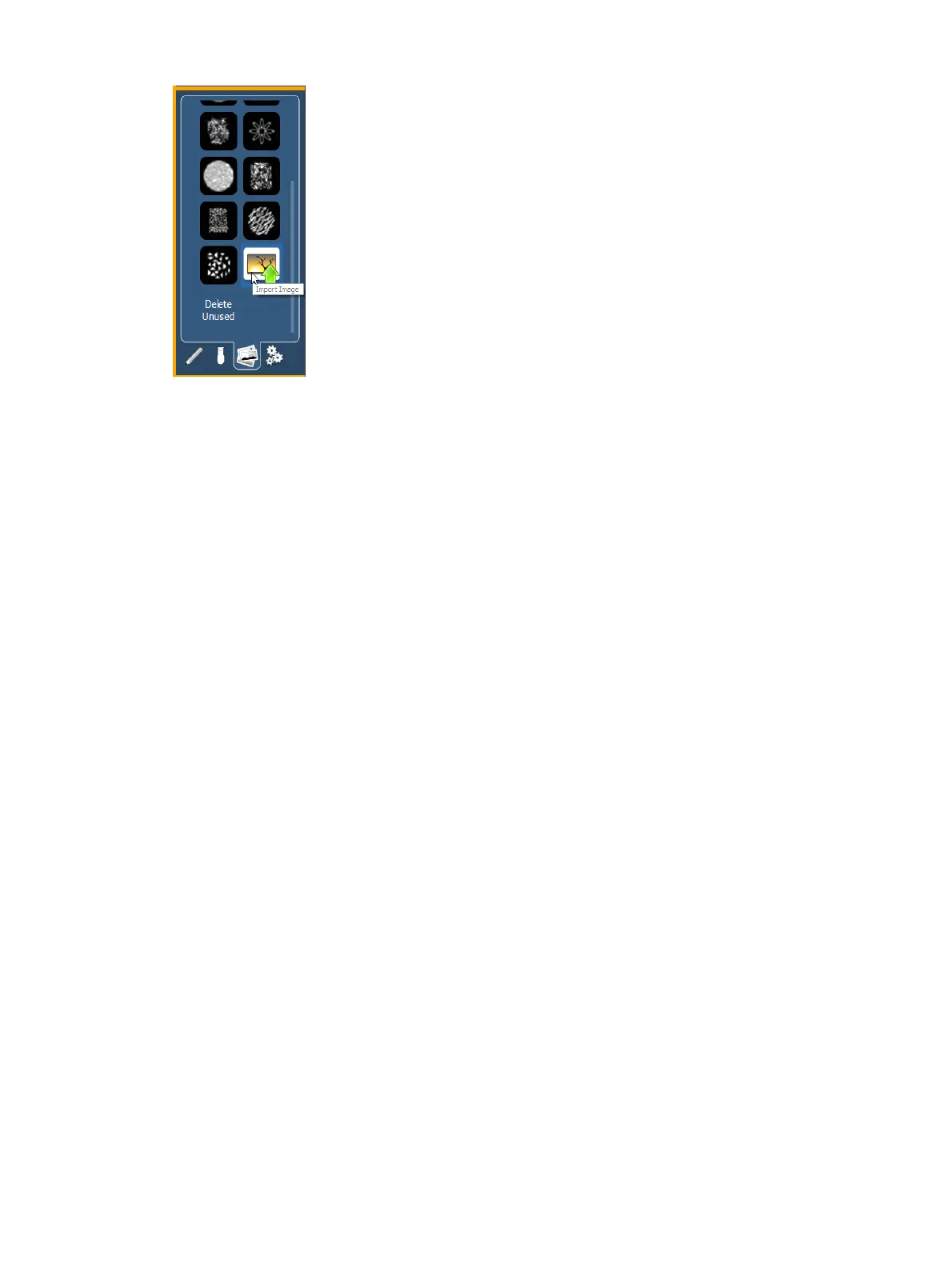
You will need to have the images on a USB drive to import them into the desk.
Once an image has been imported, it is saved with the show file.
To import an image:
1. Click on the import image icon. A separate window will open displaying any found USB
drives.
2. Select the appropriate drive.
3. Navigate to the file you use to upload.
4. Click on the file and then press {Ok}. It will now appear in the images tab.
Click on an image to select it. To use as an icon, drag and drop the image onto the magic sheet.
You will be able to resize it. See
Editing Objects on the Magic Sheet (on page369)
.
Background images need to be set in the background settings tab. You can also adjust the
background settings there. See
Background Settings (below)
.
Deleting Unused Images
Unused images that have been previously imported can be deleted from the console by clicking
on the {Delete Unused} button.
A message will appear letting you know that "This action will close and save all Magic Sheets
open for edit, then delete all unused Magic Sheet images."Select {Ok}to delete images or
{Cancel} to exit out of this option.
Background Settings
In the fourth tab, you can adjust the settings for the background. Three options are available for
background types; you can either use a solid color, a gradient of two colors, or a image.



 To Next Page