CR Console Operation Manual
2009. 09 897N0519H 4 - 39
4.4.1 Magnifying Display Image
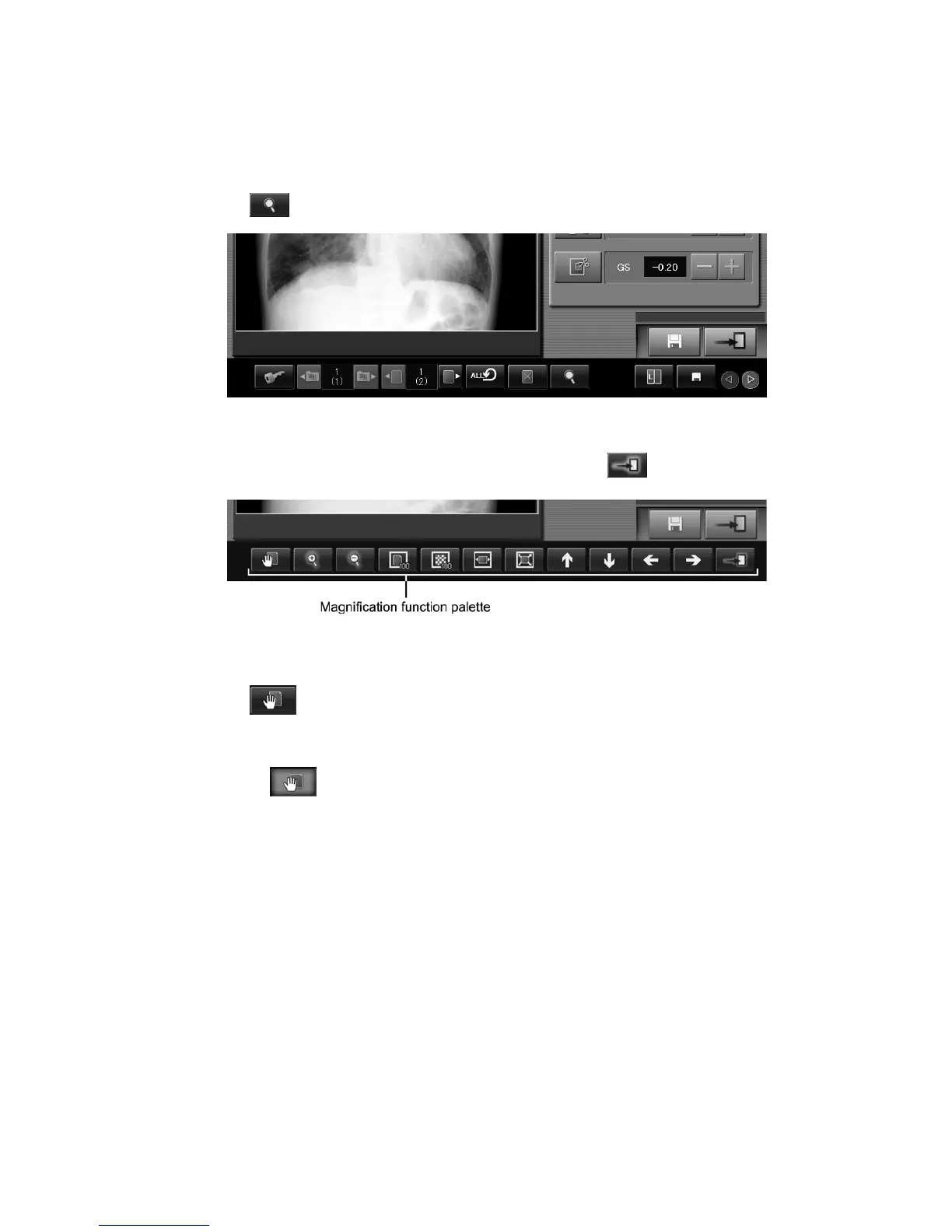
Magnifies the display image. Note, however, that the result of magnified display will not be reflected
on output images. (For the CR Console Lite, the Magnifying display image is an optional function.)
Select
.
The magnifying function palette is displayed.
Perform necessary processing using each tool, and then select
.
Activating the image move mode :
Select
. The relevant button will be activated.
Select any position on the image. If you move the position thus selected up-and-down and right-and-
left, the image can be moved freely.
Selecting
again will change the system to the routine mode. This mode will operate
differently as follows depending on the screen status.
When either of the Palette/Delivery/List tabs has been selected, GA (contrast)/GS (density) values
will be changed. You can also change the values by selecting any position on the image and moving
it up-and-down (GA) or right-and-left (GS).
When trimming processing is in process, the frame used for this processing is changed. While in
marker or annotation character input processing, the selected marker or annotation character position
is moved. Note that no action will be taken if a setting box other than trimming processing or marker
or annotation character input is displayed.



 To Next Page