CR Console Operation Manual
2009. 09 897N0519H 2 - 15
(4) Scroll view display area (option)
When the scroll view option is activated, the scroll view is displayed at the lower right corner of the
screen. The scroll view is displayed on the “Patient Information Input Screen”, “Exposure Menu
Selection Screen” and “Study Execution Screen”.
In the scroll view, you can check image reading status of a study whose image reading is processed
in the background. From among studies stacked in the “Local WL” list, the scroll view displays
status of studies that fall under the following conditions. For details of the scroll view, see [
2.4
Scroll View Display Area (option)
].
(5) Image Reader status
This displays operation status of the Image Reader connected to the CR Console and maintenance
icons. Displayed Image Reader status will differ depending on the connected Image Reader. For
details of Image Reader status, see [
2.3 Image Reader Status
].
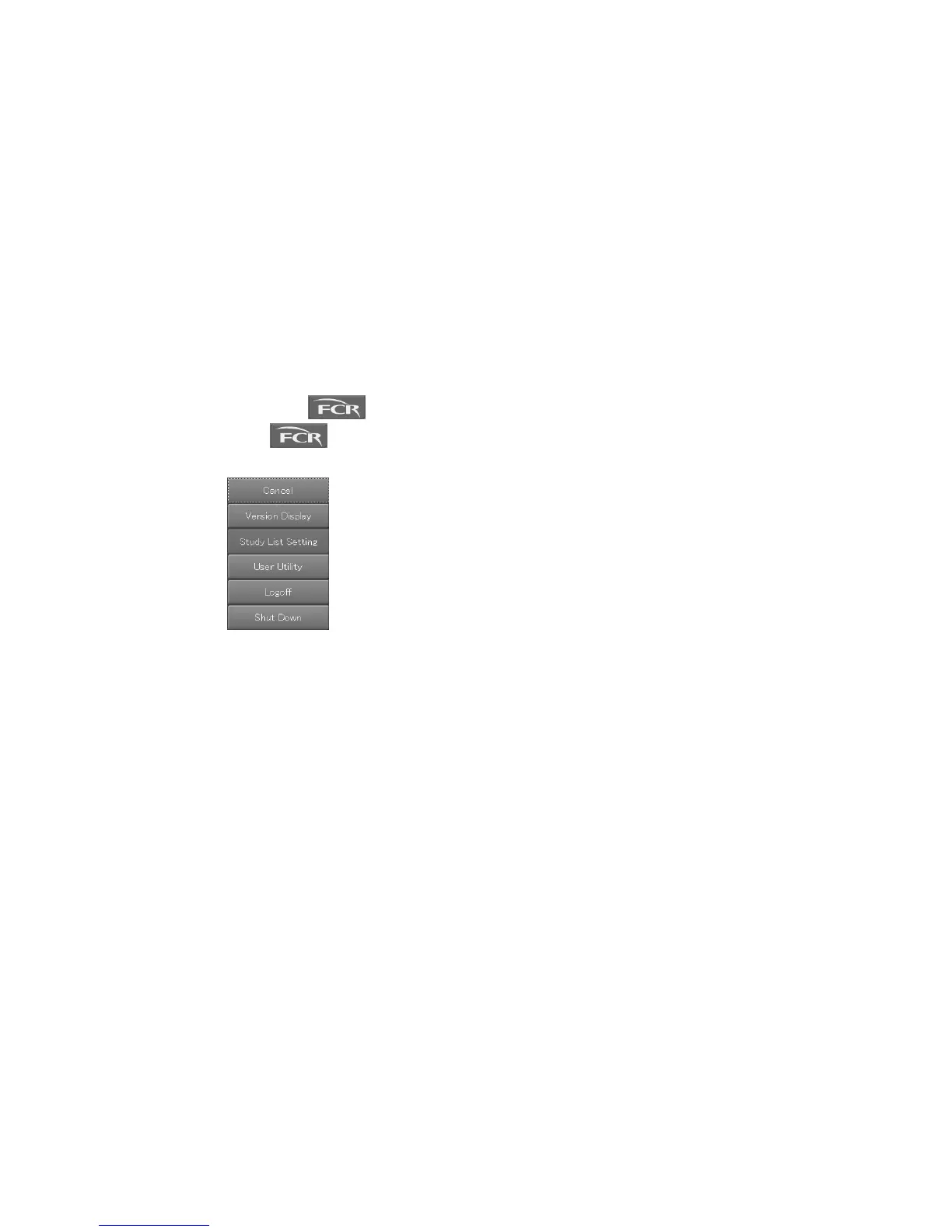
(6) FCR button (
)
Selecting
will display a menu that is associated with the CR Console system. The displayed
menu will differ depending on the settings performed at installation.
Displayed menus
Major menu items displayed are explained below.
Cancel
Cancels the menu display.
Software version display
Displays the “Version information confirmation box”. For details, see [
2.6 Version Display
].



 To Next Page