81901A “MSW_GPC-40/600A”_03-2021_ENG_page 141
5. USING THE GFW/GPC-OP KEYPAD
5.1. Description
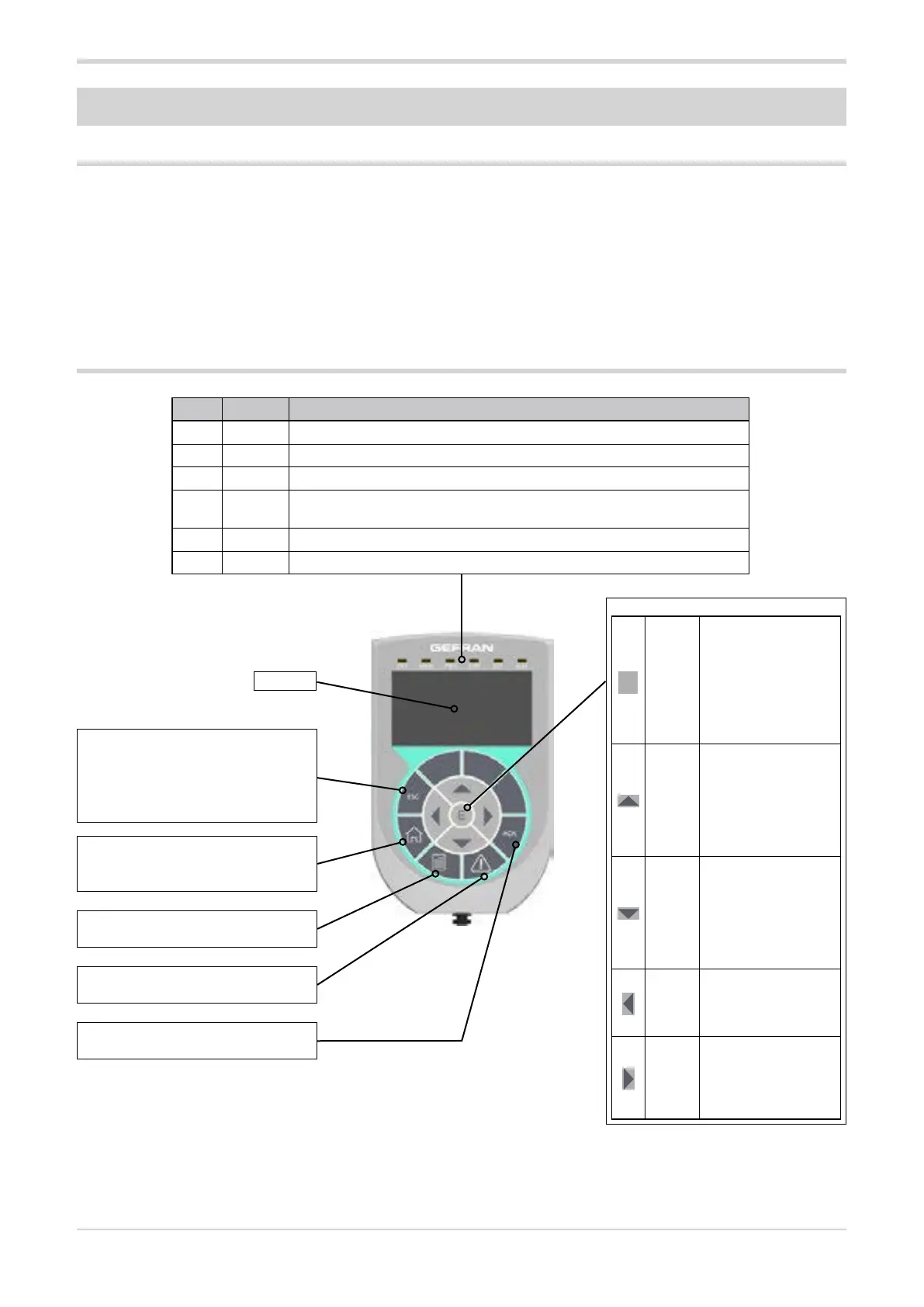
The programming keypad is used to display status param-
eters and for diagnostics during operation. It can also be
used to modify a large number of GPC parameters.
The keypad has a 5 x 21 character liquid crystal display.
A membrane keypad is used for navigation and controls.
There are also 6 LEDs for signalling.
A strip of magnetic material is located on the back of the
keypad so that it can be fixed to the front of the GPC-M or
to a metal surface (e.g., the switchboard door).
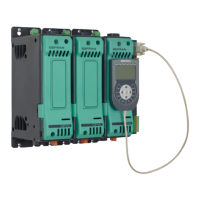
The keypad (GFW/GPC-OP cod. F068952) comes with a 70
cm cable with a DB9 male connector for connection to the
GPC-M.
5.2. Legend
LED COLOUR MEANING
OFF Yellow The LED is on when GPC is in software OFF.
MAN Yellow The LED is on when GPC is in manual operation.
PWR Green The LED is on during power supply.
ILIM Red
The LED lights up when GPC reaches a current limit condition (if enabled).
During normal operation this LED is off.
SST Yellow The LED is on during the softstart ramp.
ALM Red The LED is on when GPC signals the activation of an alarm.
ESC
Returns to the main menu.
Exits a parameter or a list of parameters.
Exits a message that requires its use.
Navigation keys
E
ENTER
Enters the selected
submenu or parameter,
or selects an opera-
tion.
It is used when
changing parameters
to confirm the new set
value.
UP
Moves the selection up
in a menu or parame-
ter list.
When editing a pa-
rameter, it increases
the value of the figure
under the cursor.
DOWN
Moves the selection
down in a menu or
parameter list. When
editing a parameter,
decreases the value
of the figure under the
cursor.
LEFT
Returns to the main
menu. When editing
a parameter, it moves
the cursor to the left.
RIGHT
Enters the selected
submenu or parameter.
When editing a pa-
rameter, it moves the
cursor to the right
HOME
Access to the main screen (default
screen).
ACK
Resets (acknowledges) alarms.
MENU
Access to the menu screen.
ALARM
Access to the alarm screen.
DISPLAY





 To Next Page