CHAPTER 5
67
Printing Jobs on the GERBER SOLARA ION
4/29/10 Rev G
When the printer has entered idle mode, it continues to spit for the first two hours. After two
hours it ceases to spit ink and you must run the Clean Heads routine upon resuming printing
operations.
Cleaning the printheads
At the beginning and end of each day, after every four hours of printing, and after two hours of
idle time you must clean the printheads. The cleaning routine pushes a small quantity of ink
through the printhead nozzle plates to clear them. After the heads are cleaned you must also
wipe each printhead using swabs moistened with Daily Maintenance Solution. The Clean All
Printheads command is easily accessed using the CLEAN HEADS key on the control panel. See
“Clean Heads Procedure” on page 84 for complete instructions.
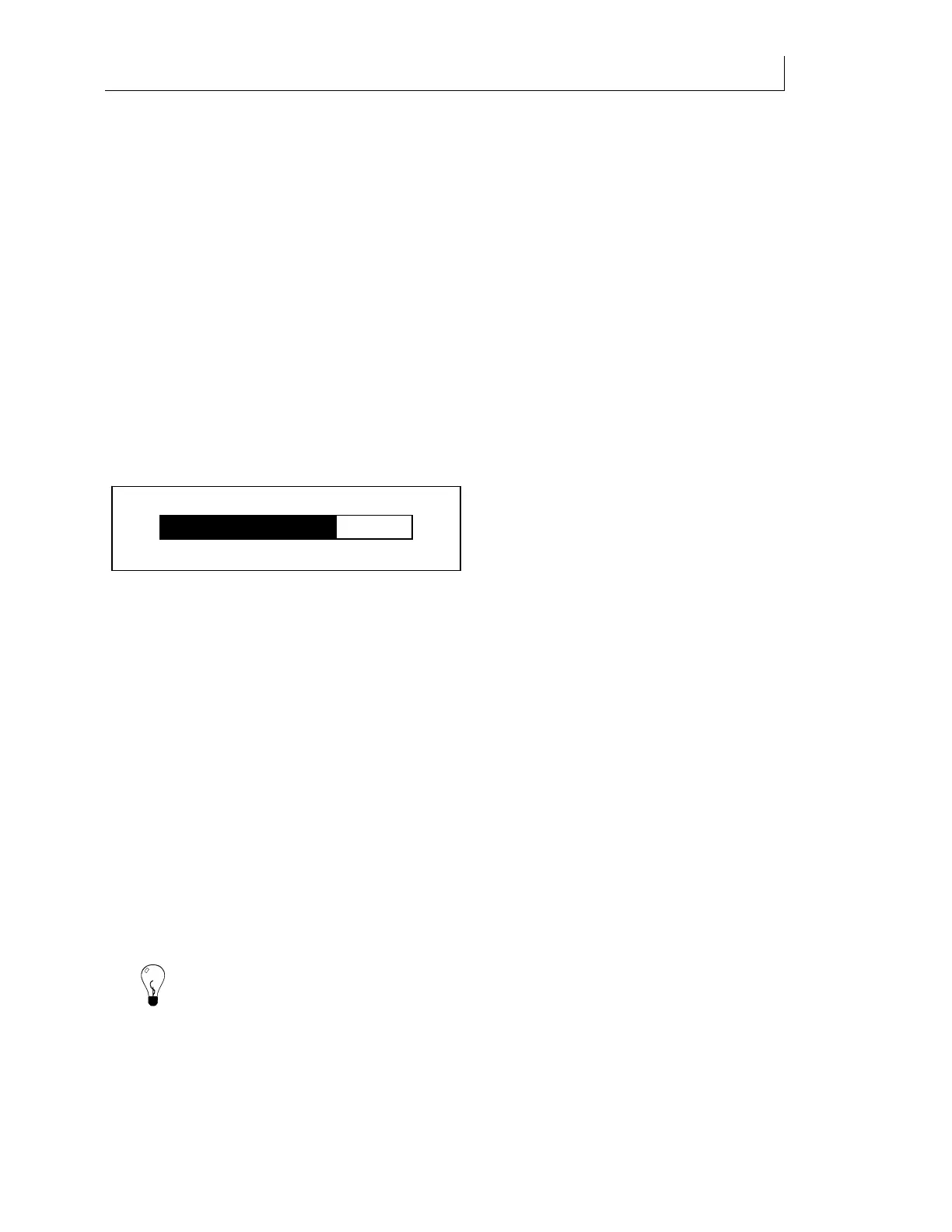
Pausing a job due to data starvation
If job data is slow to arrive at the printer from the computer, the printer will move the carriage
to the home position temporarily while it waits for data. When sufficient data is received,
printing will automatically resume. When a job pauses due to slow data reception, the
Printing –
job name screen displays.
Some causes of data starvation include: slow computer processing of data, busy network traffic,
slow network connection, and excessive processing on the computer during data transmission.
Choosing a print mode for Roll-to-Roll printing
There are two modes for printing roll-to-roll jobs: Single and Continuous (Cont.). Print mode
selection is controlled by the ROLL-TO-ROLL key on the control panel and is not active on
flatbed-only printers. Press the ROLL-TO-ROLL key repeatedly to toggle between Single and
Continuous mode.
Single mode
Use Single mode to run one job at a time. Single mode allows you to:
Change material between jobs
Advance the material before the next job
After a job prints, the Gerber Solara ion waits for you to begin the next job when it is received at
the printer (see “Printing a single job” on page 67).
Tip: You
can print a job in Single mode to verify printed output, and then switch to Continuous
mode to continue printing multiple jobs that you plan to print on the same rolled material.
Continuous mode
Continuous mode is designed for printing multiple jobs on the same material using the roll-
to-roll option. In Continuous mode, you must begin the first job, but subsequent jobs start
Start Duration 20 Min
End
10:22 10:42
Printing - <job name>
70%


 To Next Page