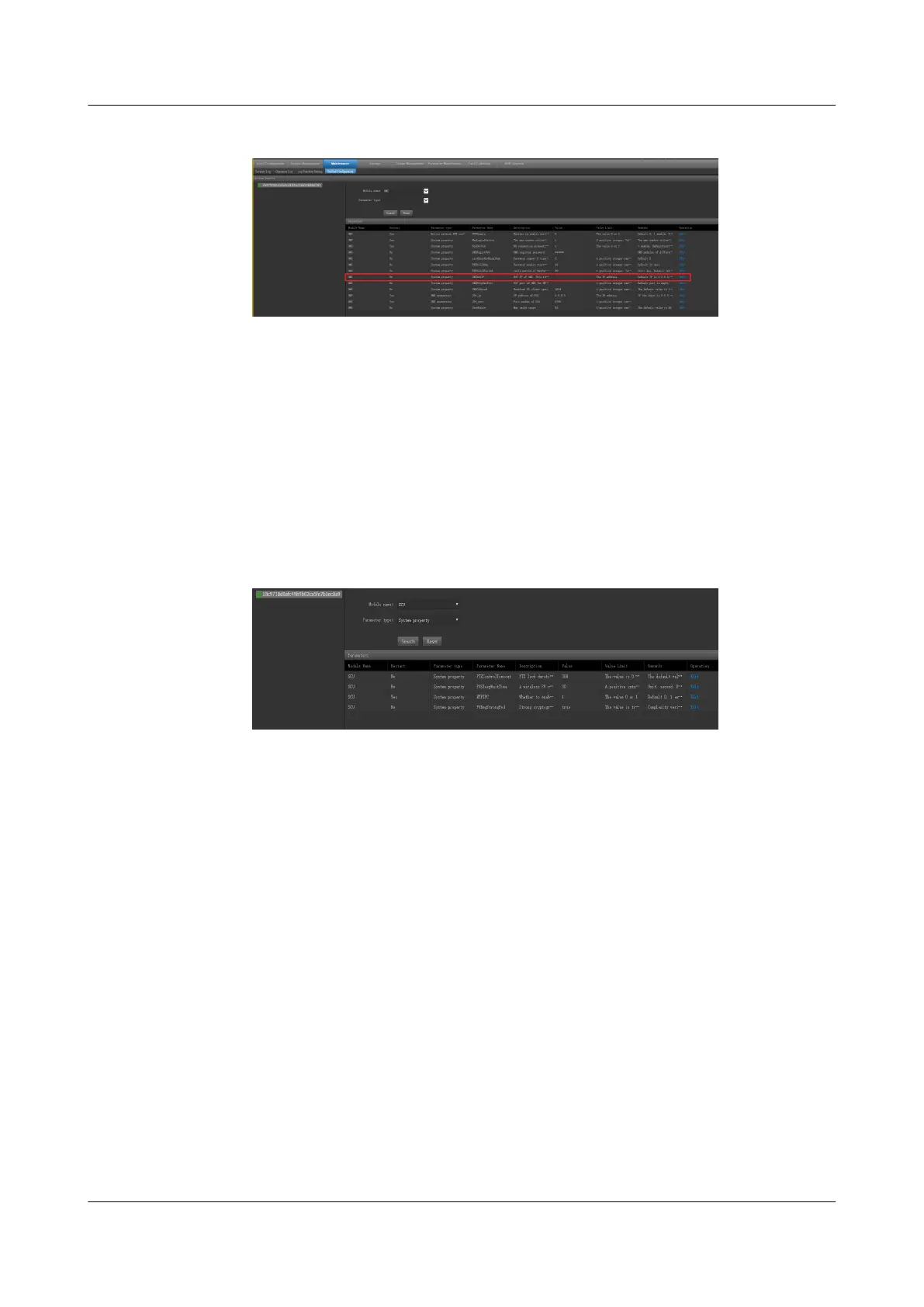
Figure 6-53 Setting the external IP address of the OMU
Step 2 Enable camera NTP synchronization.
The camera NTP synchronization function for the server is disabled by default. The
camera NTP synchronization function needs to be enabled for the server that
connects to the camera. After the camera NTP synchronization function is enabled,
cameras will automatically time-synchronize from their access servers.
1. Log in to the OMU portal of the VCN as user admin.
2. Choose Maintenance >
Unied Conguration.
3. Select the server that the camera needs to access, set Module name to SCU
and Parameter type to System property, and click Search.
Figure 6-54
Conguring camera NTP synchronization
4. In the search results, click Edit in the row where Parameter Name is NTPIPC
and set Value to 1.
5. Click Save. After the camera NTP synchronization function is enabled, the
camera, after being connected to the server, will automatically time-
synchronize with the server.
----End
Follow-up Procedure
● The VCN automatically restarts after the IP address is
modied. The restart
takes about 5 minutes. After the restart, use the new IP address to access the
VCN.
● Change the PC IP address to an address in the network segment of the new
VCN IP address, enter the VCN IP address in the address box of the Internet
browser, and log in to the OMU Portal system.
● (Optional) Set up a VCN stack. For details, log in to the https://
e.huawei.com/, search for the VCN product documentation, open the
documentation, and see the section (Optional) Deploying IVS in Stack
Mode.
● (Optional) Create a VCN cluster. For details, log in to the https://
e.huawei.com/, search for the VCN product documentation, open the
ECC800 Data Center Controller
User Manual (for ECC800-Pro) 6 Feature Description
Issue 02 (2020-09-07) Copyright © Huawei Technologies Co., Ltd. 184



 To Next Page