– Press MENU to conrm the settings.
The parameter settings take eect only if you press MENU and then the
PDU2000-M (C) buzzes and restarts. If you do not press MENU, the PDU2000-M
(C) buzzes and restarts automatically after 30s and the settings are not saved.
● Set the PDU2000-M (H) monitoring parameters.
The display of a single-phase module is used as an example.
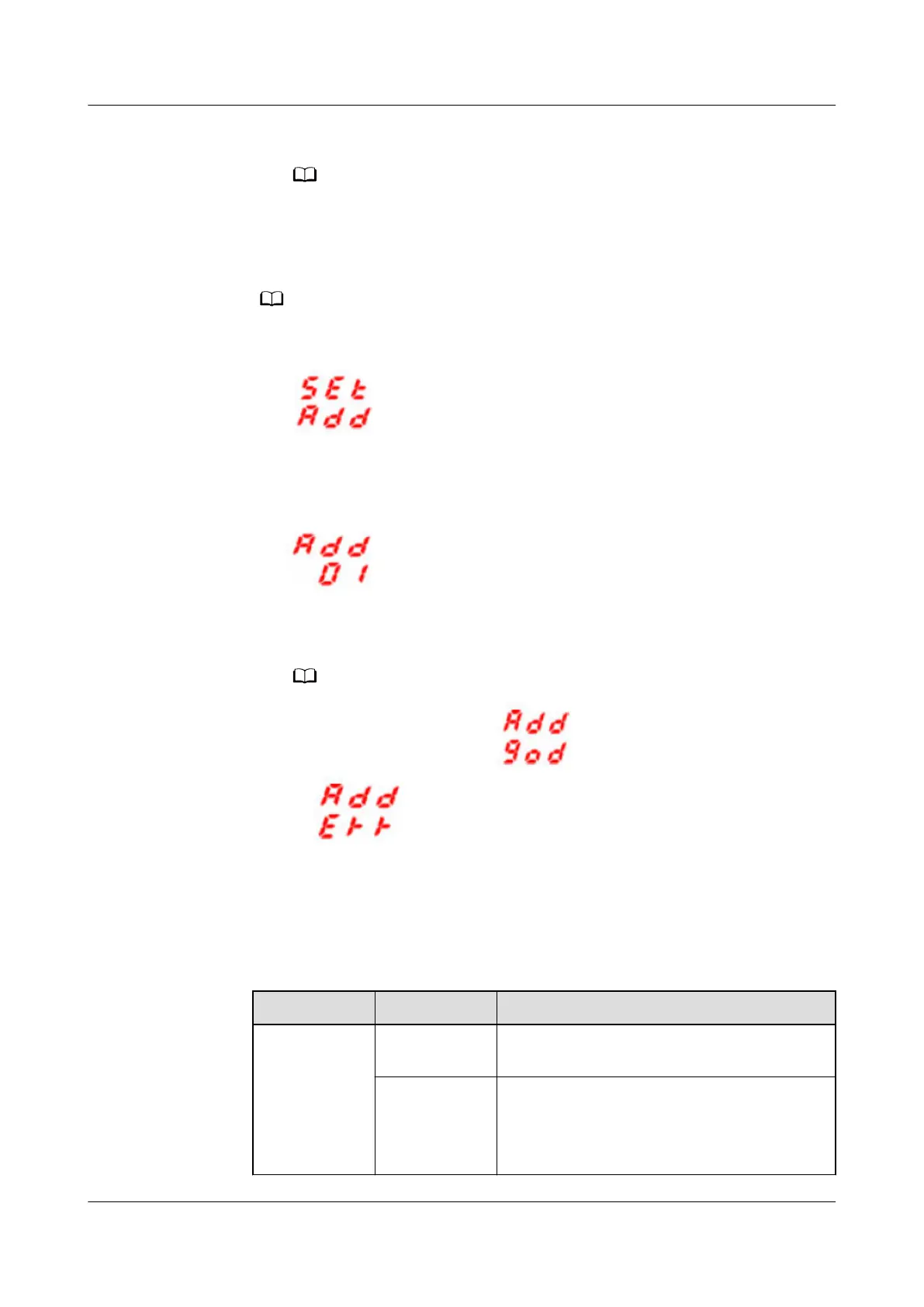
– After the PDU2000-M (H) is powered on, press MENU. The LCM displays
.
– Press MENU again to access the device communications address screen.
Figure 8-15 PDU2000-M (H) communications settings
– Press DOWN and UP to select the address to be set.
– Press MENU to conrm the settings.
If modication is successful, is displayed: If modication fails,
is displayed:
Step 2 Add a PDU2000.
1. Log in to the ECC800-Pro WebUI as an administrator.
2. Add a PDU2000.
Table 8-15 Adding a PDU2000
Path
Parameter Setting
Choose
System
Settings >
Device
Management
and click Add
Device. The
Device
attribute
Select PDU from the drop-down list box.
Device Type Select PDU2000-M (C) or PDU2000-M
(H) from the drop-down list box based on
the actual device.
ECC800 Data Center Controller
User Manual (for ECC800-Pro) 8 FAQ
Issue 02 (2020-09-07) Copyright © Huawei Technologies Co., Ltd. 280



 To Next Page