Page 96 of 182 TP1A002–1 English
Aug 2015
Linx 8900 Operating Manual —
Add other fields
Linx 8900
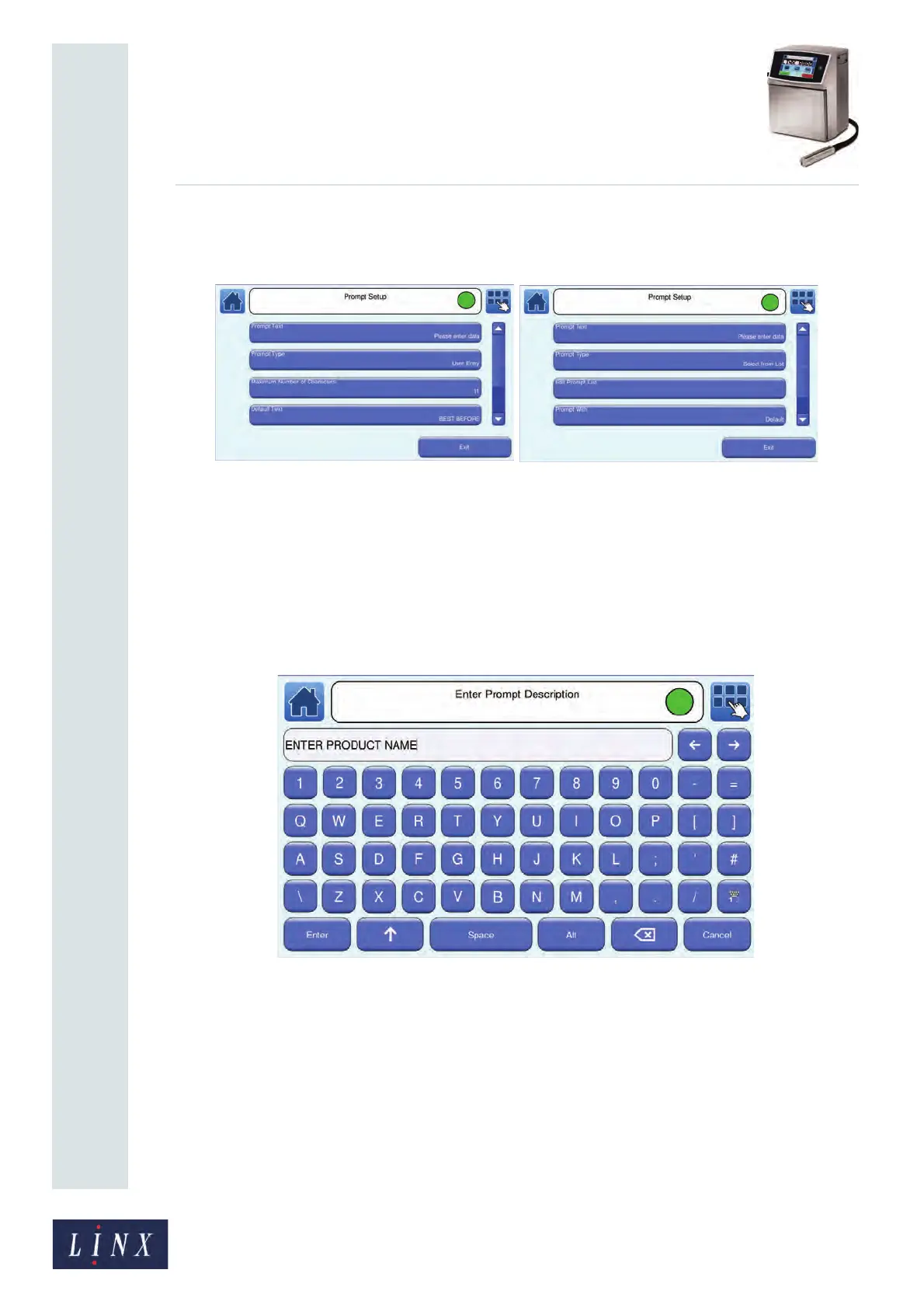
5 Touch the Prompt Setup button to display the Prompt Setup screen. The options
on this screen allow you to set user-prompt text and prompt type.
(a) (b)
Figure 102. Prompt Setup screen—Prompt Type: (a) User Entry option
and (b) Select from List option
6 Touch the Prompt Text button to display the Enter Prompt Description screen. This
screen allows you to enter the text that is displayed as a prompt when a message is
selected. The default text is “Please enter data”, but you can enter your own prompt
description. For example, “ENTER PRODUCT NAME”. Enter your text and touch
the Enter button to return to the Prompt Setup screen.
Figure 103. Enter Prompt Description screen
7 Touch the Prompt Type button and select either User Entry or Select from List
from the Prompt Type screen:
• The User Entry option can be used to prompt the user to enter text up to a
maximum number of characters, specified by the Maximum Number of
Characters option. See ‘User Entry option’ on page 97 for more information.
• The Select from List option can be used to prompt the user to select existing
text from a list, which you can edit via the Edit Prompt List option. See ‘Select
from List option’ on page 98 for more information.
89180


 To Next Page