Page 160 of 182 TP1A002–1 English
Aug 2015
Linx 8900 Operating Manual —
Look after your printer
Linx 8900
9.1.1 Printer cover
Use a clean, soft, lint-free cloth and the same solvent type that is used in the printer to clean
ink spills from the printer cabinet. Observe the safety precautions when you handle the
solvent.
Do not use abrasive materials, which can damage the equipment.
Use a lint-free cloth to prevent any contamination of the printhead.
9.1.2 Clean the touch screen display
If the printer is turned off, use a clean, soft, lint-free cloth and cleaning solution to clean the
touch screen. If the printer is turned on, use the Clean Touch Screen button (see ‘Clean
Touch Screen’ on page 168) to lock the touch screen, and then clean the touch screen.
9.1.3 Clean the printhead
Touch the Help button on the Main Menu screen, and then touch the Clean Printhead
option for instructions on how to clean the printhead.
To clean the printhead:
Before you start, make sure that you read the Safety text in the Linx 8900 Quick Start Guide.
1 Make sure that the printer is in the ‘Idle’ state.
2 Loosen the securing screw of the printhead cover tube, and then slide off the cover
tube.
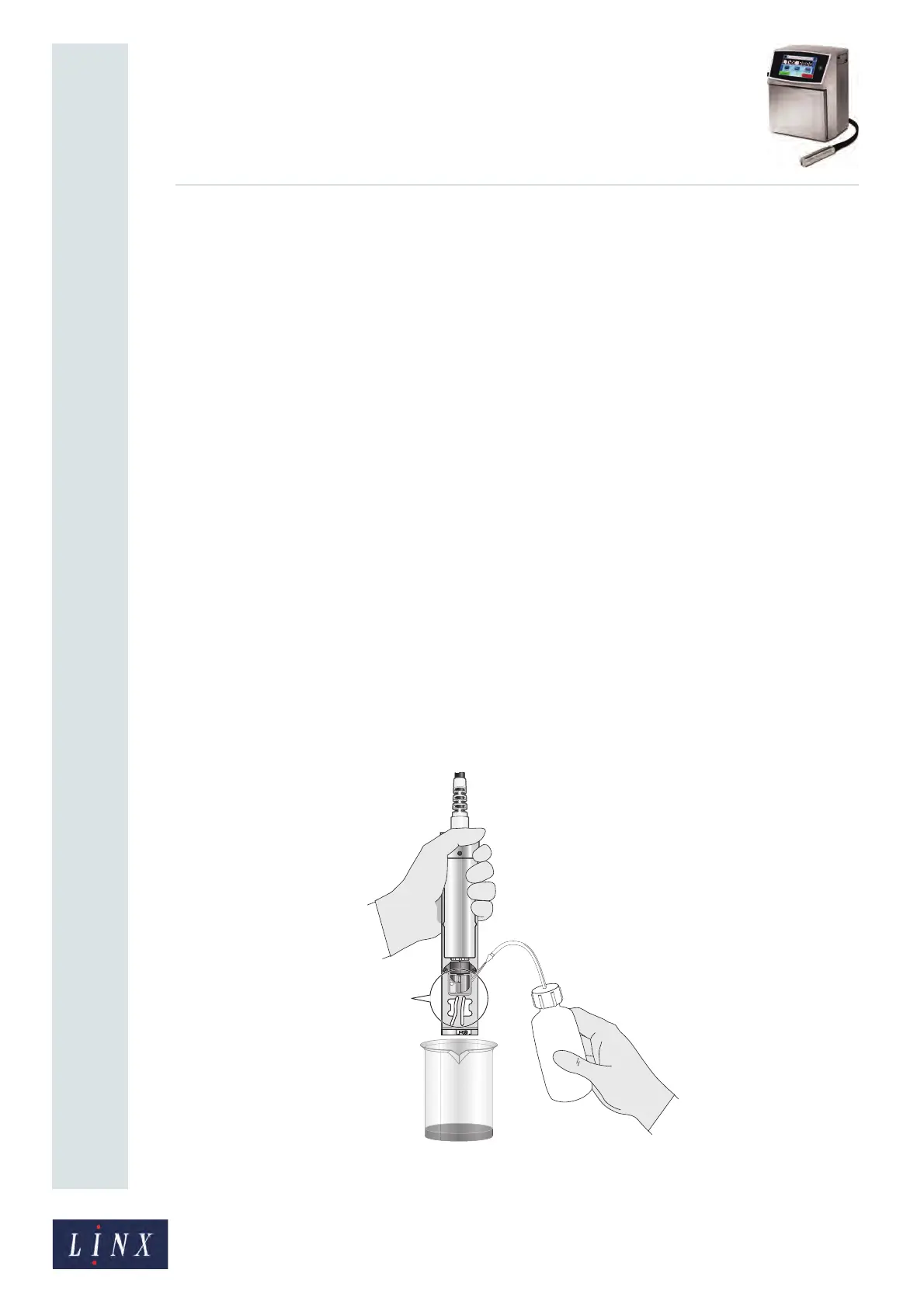
3 Hold the printhead as shown in Figure 165, or attach it to a washstation if you have
one.
Make sure that the cleaning solvent is the same type that is used in the printer.
Figure 165. Clean the printhead


 To Next Page