Page 97 of 182 TP1A002–1 English
Aug 2015
Linx 8900 Operating Manual —
Add other fields
Linx 8900
8 If necessary, repeat steps 1 to 7 to create additional prompted fields in your
message.
6.4.2 Configure prompted fields
User Entry option
To configure a prompted field created with the User Entry option:
1 At the Editor screen in edit mode, touch the field to select it. The field is highlighted
in yellow.
2 Touch the Edit Properties button to display the Text Field Properties screen, and
then touch the Prompt Setup button to display the Prompt Setup screen.
3 Touch the Maximum Number of Characters button to enter the maximum number
of characters that can be entered in the prompted field. The default value is 10
characters.
4 Touch the Default Text button to edit the default text. This option sets the default
text for the prompted field that appears in the edit box of the User Entry prompt
screen (see Figure 108 on page 101). This text is originally the text entered in the
field you created in step 1 on page 95, but you can edit the text that you entered (for
example, you can change the default text to “BISCUITS”).
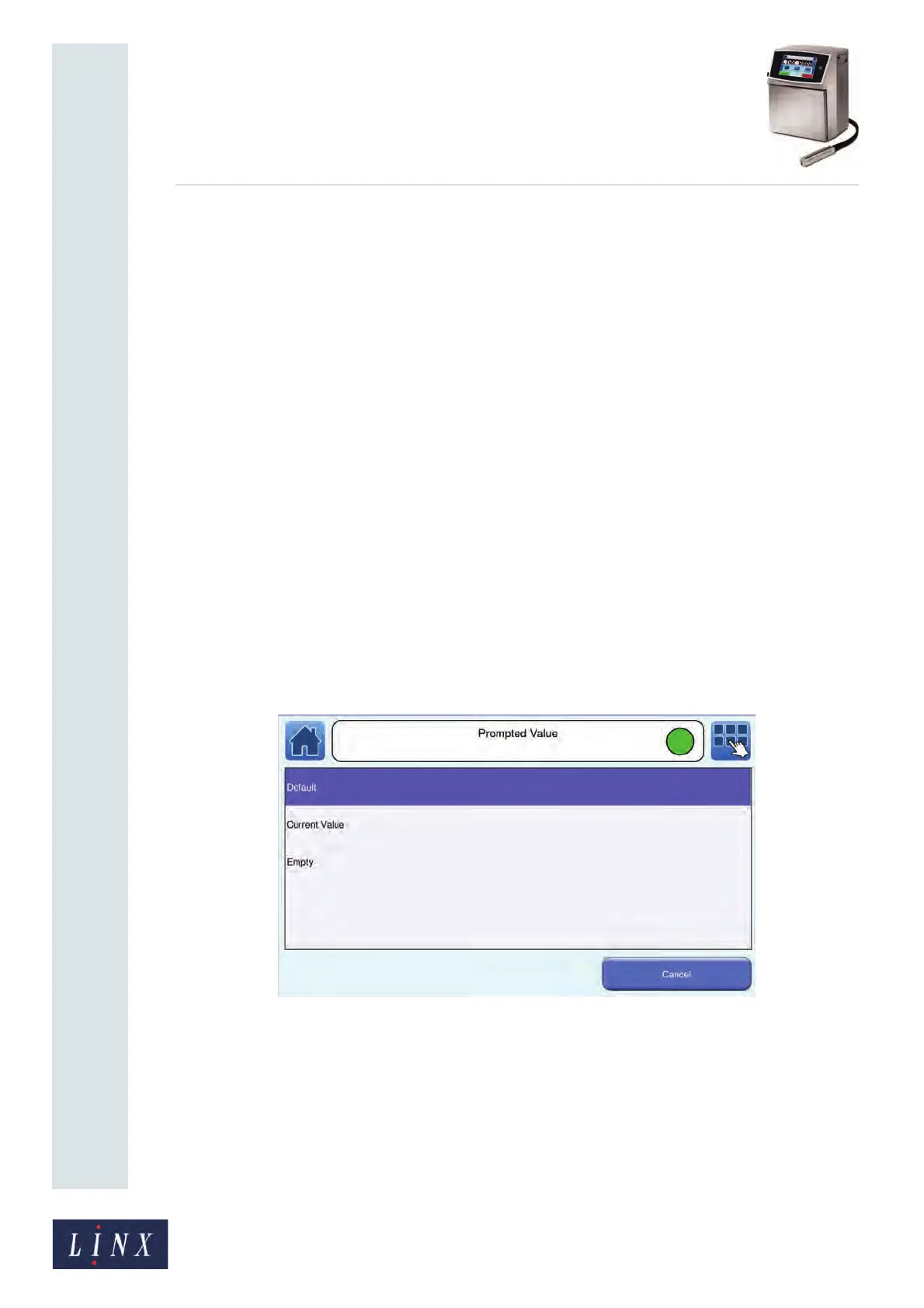
5 Touch the Prompt With button to display the Prompted Value screen, where you
can select which text appears in the edit box of the User Entry prompt screen for the
prompted field.
Figure 104. Prompted Value screen
89183


 To Next Page