Page 77 of 182 TP1A002–1 English
Aug 2015
Linx 8900 Operating Manual —
Line and message settings
Linx 8900
To change the Print Delay:
• Use the keypad to enter a new Print Delay value.
• Use the plus and minus buttons to increase or decrease the Print Delay value.
Touch the Save button to save the selected value and return to the Message Settings screen.
Touch the Cancel button to discard any changes and return to the Message Settings screen.
5.6.3 Print Width
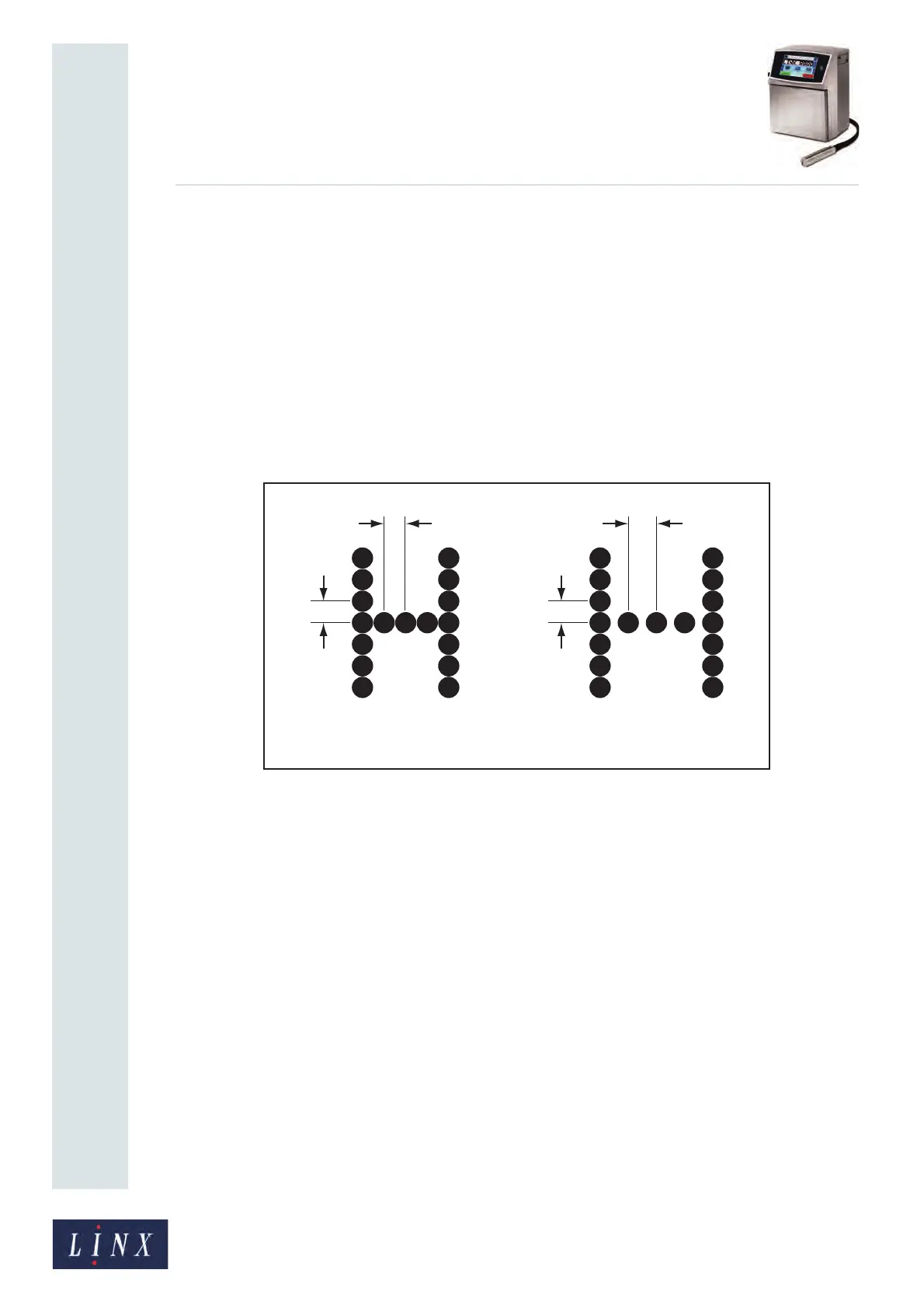
The Print Width setting is the horizontal distance between the drops in the message
characters. To maintain good print quality, the vertical distance between drops in the
message must be equal to the horizontal distance between drops. You can use the Print
Width option to adjust the horizontal distance between drops in the message characters.
Figure 79. Distance between drops in a message
In Figure 79(a) the letter “H” is printed at an ideal Print Width—the horizontal spacing (X1)
is equal to the vertical spacing (Y). In Figure 79(b), the Print Width is larger than the ideal
Print Width—the horizontal spacing (X2) is larger than the vertical spacing (Y).
You can apply the Print Width value and test the result while you are printing.
NOTE: When you change the value, the change applies only to the selected message. You
can use a different value for each message.
The values that are allowed depend on the message style and other factors.


 To Next Page