Page 17 of 182 TP1A002–1 English
Aug 2015
Linx 8900 Operating Manual —
Printer user interface
Linx 8900
2.2.4 Primary and secondary keyboards
The primary keyboard for the printer is normally the same as the selected language. You
can set a secondary keyboard that is different from the primary keyboard and change
between the two keyboards (for example, to enter characters from another language).
If you set a secondary keyboard that is different from the primary keyboard, you can touch
the Toggle Keyboard button to change between the selected primary and secondary
keyboards.
See ‘Keyboard’ on page 36 for more information on how to set up primary and secondary
keyboards.
2.3 Different keyboards
For information on how to use different keyboard systems on the 8900 printer (for example,
the Pinyin system for Simplified and Traditional Chinese, and the Korean character
selector), see ‘Different keyboard systems’ on page 28.
2.4 Output Logging
This option is available on the Home screen carousel area, but if required you can remove it
(see ‘Customise Home Screen’ on page 45). It allows you to set output targets for print jobs,
based on a target print count or a target end time.
NOTE: The text for this option button on the carousel area appears as either Current Rate
Prints/Hour or Current End Time, depending on the output target method chosen.
The background colour of the button indicates the current output status (see
‘Output status option button’ on page 22).
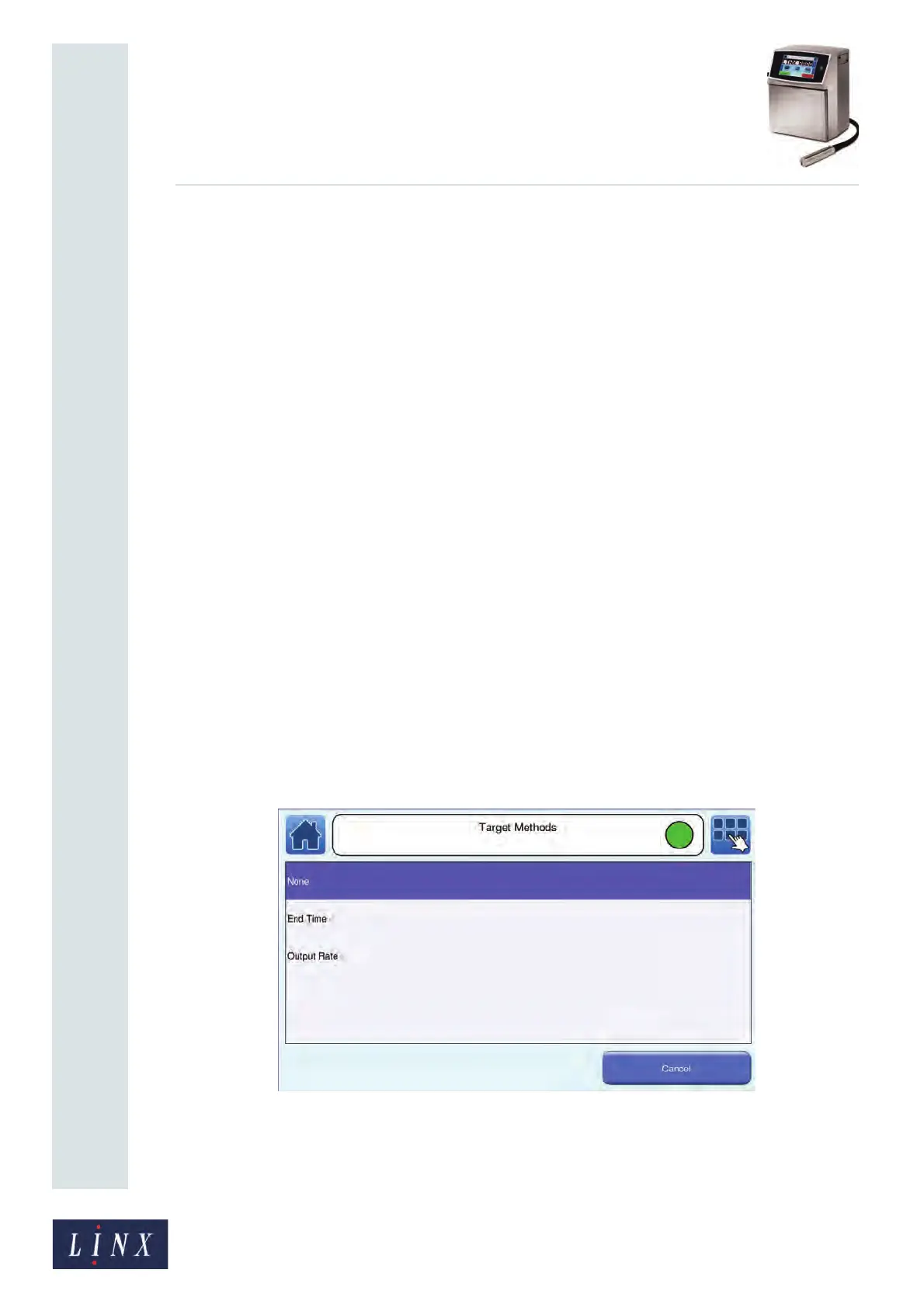
Touch the option button to display the Output Rate screen, and then touch the Current
Target Method button to select a target method to monitor printer output.
Figure 14. Target Methods screen


 To Next Page