Page 108 of 182 TP1A002–1 English
Aug 2015
Linx 8900 Operating Manual —
Add other fields
Linx 8900
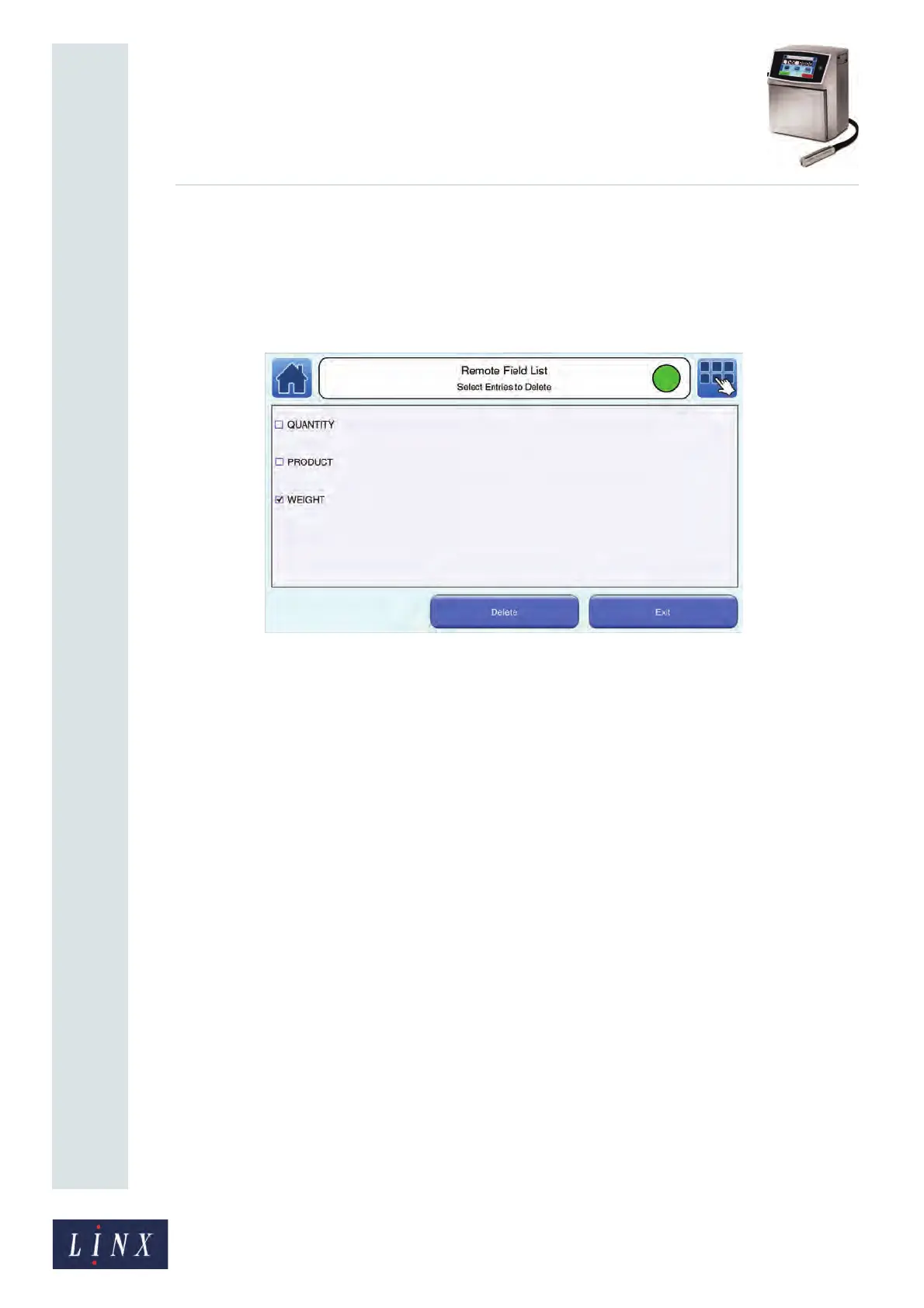
8 To delete a Remote field, touch the Delete button on the Remote Field List screen.
The printer displays the Remote Field List: Select Entries to Delete screen with a
list of the names of all Remote fields. To select a field to delete, touch the name of
the required field. A check mark appears in the box to the left of the field name to
show that the field is selected. To deselect a field name, touch the name of the
required field. The check mark in the box to the left of the field name is removed.
Figure 119. Remote Field List: Select Entries to Delete screen
9 Select the fields you wish to delete, and then touch the Delete button. The printer
displays a confirmation screen for each field to be deleted. Touch the Yes button to
delete the field. Touch the No button to cancel the delete operation for that field and
continue.
For information on how to configure communications options for the Remote fields you
create, see ‘Remote communications’ on page 147.
6.5.3 Add a Remote field to a message
To add a Remote field to a message you must first set up a field or fields with the Remote
Fields option on the Printer Setup screen (see ‘Create a Remote field’ on page 104).
To add a Remote field to a message:
1 Create and select a message, or find and select an existing message, as described in
the Linx 8900 Quick Start Guide.
2 Touch the Edit this Message button.
3 Touch the screen at the required insertion point. Make sure that the field does not
overlap any existing field. The printer displays the Select Field Type screen.


 To Next Page