Page 53 of 182 TP1A002–1 English
Aug 2015
Linx 8900 Operating Manual —
Line and message settings
Linx 8900
5 Line and message settings
5.1 Basic line settings
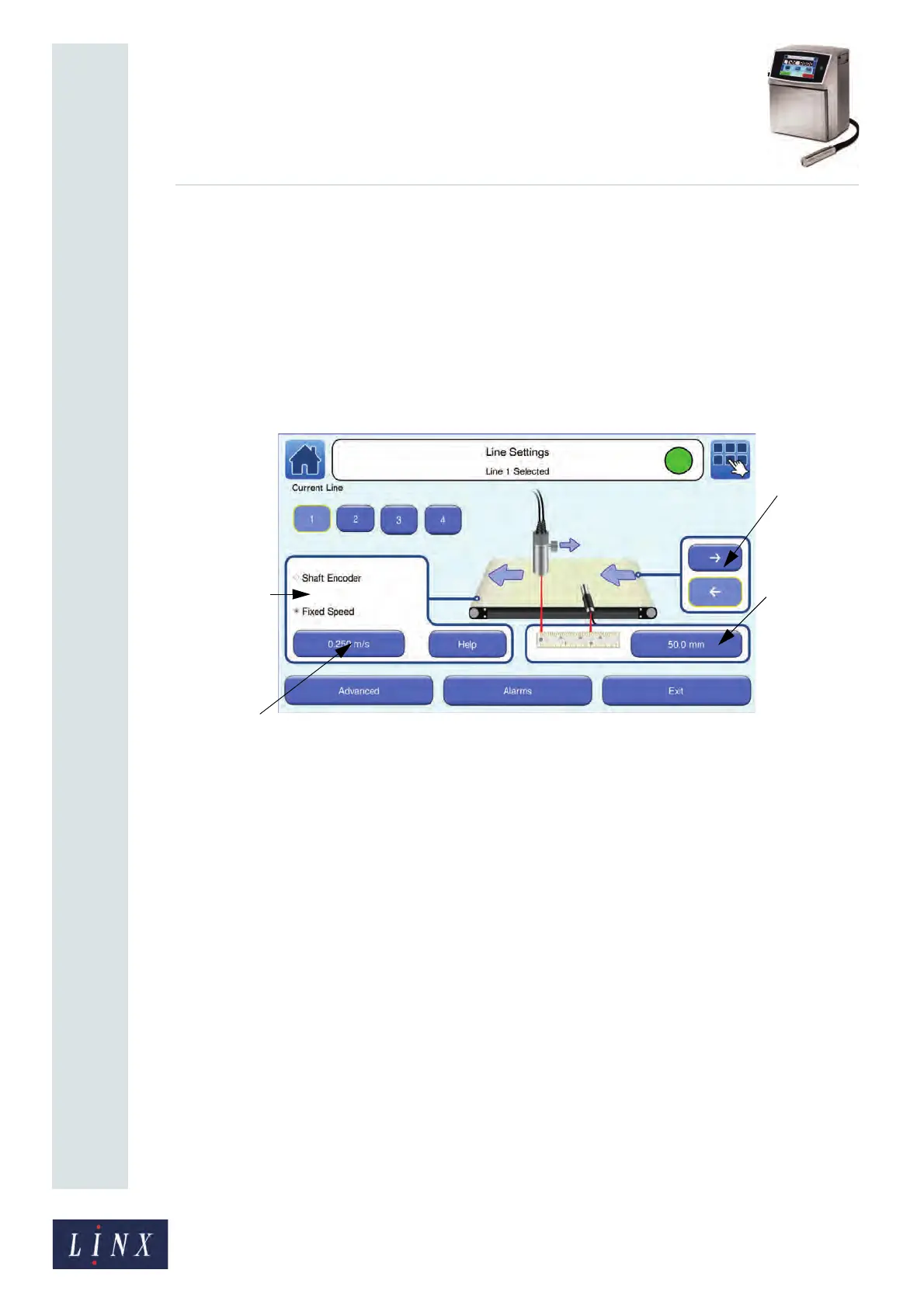
The Line Settings screen allows you to create and manage production lines for the printer.
A production line is where messages are printed on products.
For information about advanced line settings, see ‘Advanced Line Settings’ on page 57.
On the Home screen, touch the Line Settings button to display the Line Settings screen.
Figure 53. Line Settings screen
NOTE: The following options are available in the ‘Idle’ state and the ‘Jet Running’ state, but
not in the ‘Printing’ state.
5.1.1 Current Line
The printer allows you to configure multiple production lines, so that each line can have
different settings. Touch the number button of the line that you require. The selected line
number button is highlighted and the selected line appears in the printer status bar (for
example, “Line 2 Selected”).
5.1.2 Line Direction
The Line Direction buttons allow you to define the direction in which the line moves (right
to left, or left to right). Select the line direction that you require. The picture of the
production line on the screen changes to show the line direction that is selected. The
selected line direction button is highlighted.
89136
Line Direction
Speed Mode
button
Trigger to
Printhead
Distance
buttons
Encoder Pitch
Set Line Speed/
button


 To Next Page