Page 85 of 182 TP1A002–1 English
Aug 2015
Linx 8900 Operating Manual —
Add other fields
Linx 8900
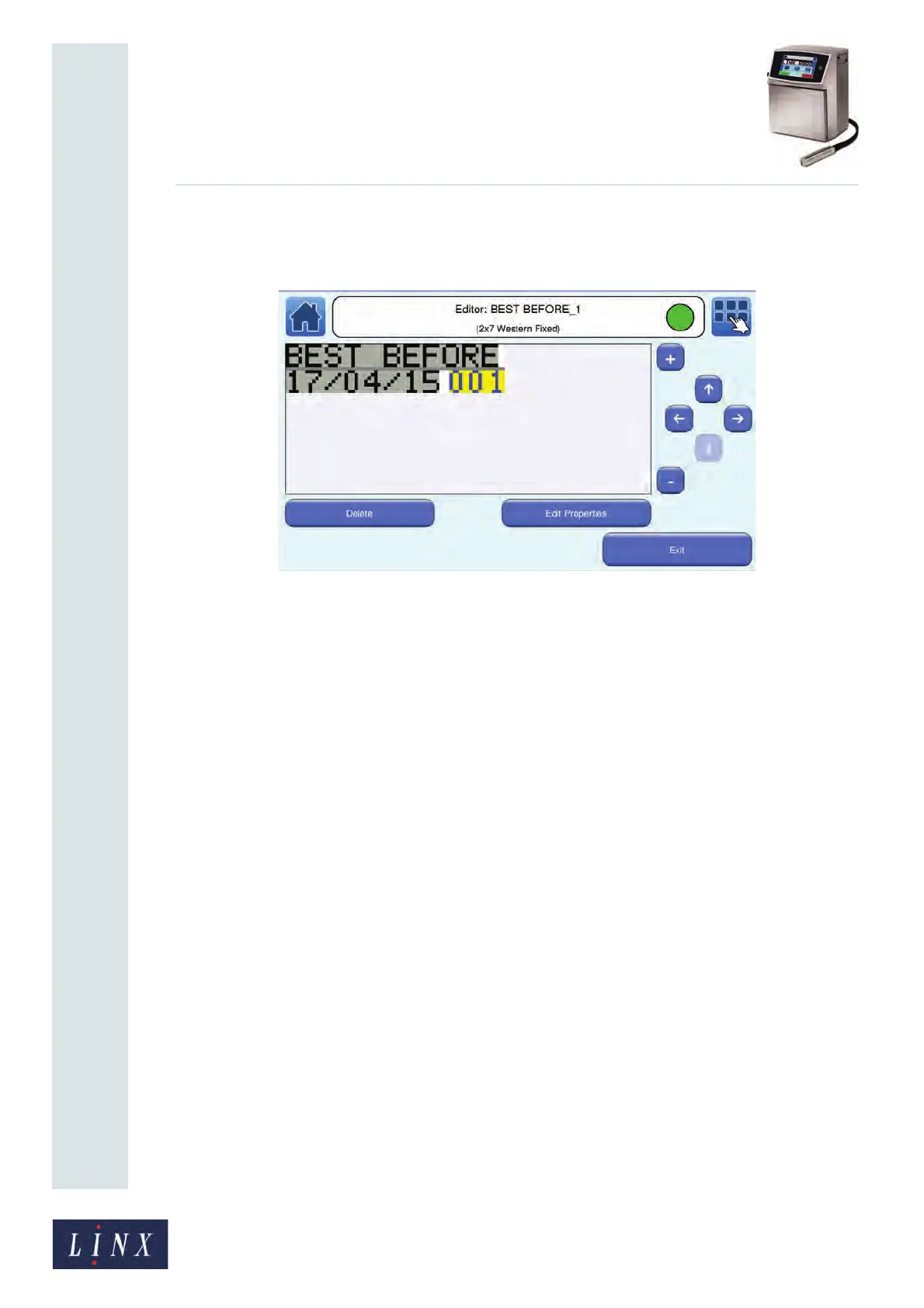
3 Select the required options and then touch the Exit button to return to the Editor
screen in edit mode. A sequential number field with the selected start number is
inserted in the message.
Figure 86. Message with Date and Sequential Number field
4 Touch the Exit button to return to the Editor screen where you can save or discard
the changes to your message.
6.2.1 Edit Sequential Number field properties
When you have created the Sequential Number field you can edit the following additional
field properties, as described in the Linx 8900 Quick Start Guide:
• Font Name—select the required font from the list. You must also select a font size.
• Font Size—select the required font size from the list.
• Bold Factor—select a value in the range x1 to x10.
• Character Rotation—rotates the characters in the selected field by 0, 90, 180, or 270
degrees to the right as shown in the Linx 8900 Quick Start Guide.
• Field Rotation—rotates the selected field by 0, 90, 180, or 270 degrees to the right, as
shown in the Linx 8900 Quick Start Guide.
NOTE: If you rotate a field, the field can move outside the message area and will not
print correctly. The printer applies a red highlight to indicate any field that is
outside the message area. If necessary, you can adjust the font size to make
sure that the field fits in the message area.
• Character Range—selects the numeric system used for the user interface and message
text. The options are Latin Numeric, Arabic Numeric, or Hindi Numeric.
89164


 To Next Page