Page 28 of 182 TP1A002–1 English
Aug 2015
Linx 8900 Operating Manual —
Different keyboard systems
Linx 8900
3 Different keyboard systems
This section describes how to use different keyboard systems on the 8900 printer. It tells you
how to use the Pinyin system for Simplified and Traditional Chinese, and the Korean
character selector.
3.1 Simplified and Traditional Chinese Pinyin
system
NOTE: The Pinyin system for Traditional Chinese works in the same way as the one for
Simplified Chinese, as described below.
The Pinyin system for Chinese allows you to enter combinations of Latin characters that
match sounds in the Chinese language. When you enter Latin characters in the system, you
can build Chinese characters phonetically.
NOTE: You can use the Pinyin system when you select either of the Chinese Pinyin
secondary keyboards. See ‘Primary and secondary keyboards’ on page 17 for more
information about secondary keyboards.
To use the Pinyin system when you select a Chinese Pinyin secondary keyboard:
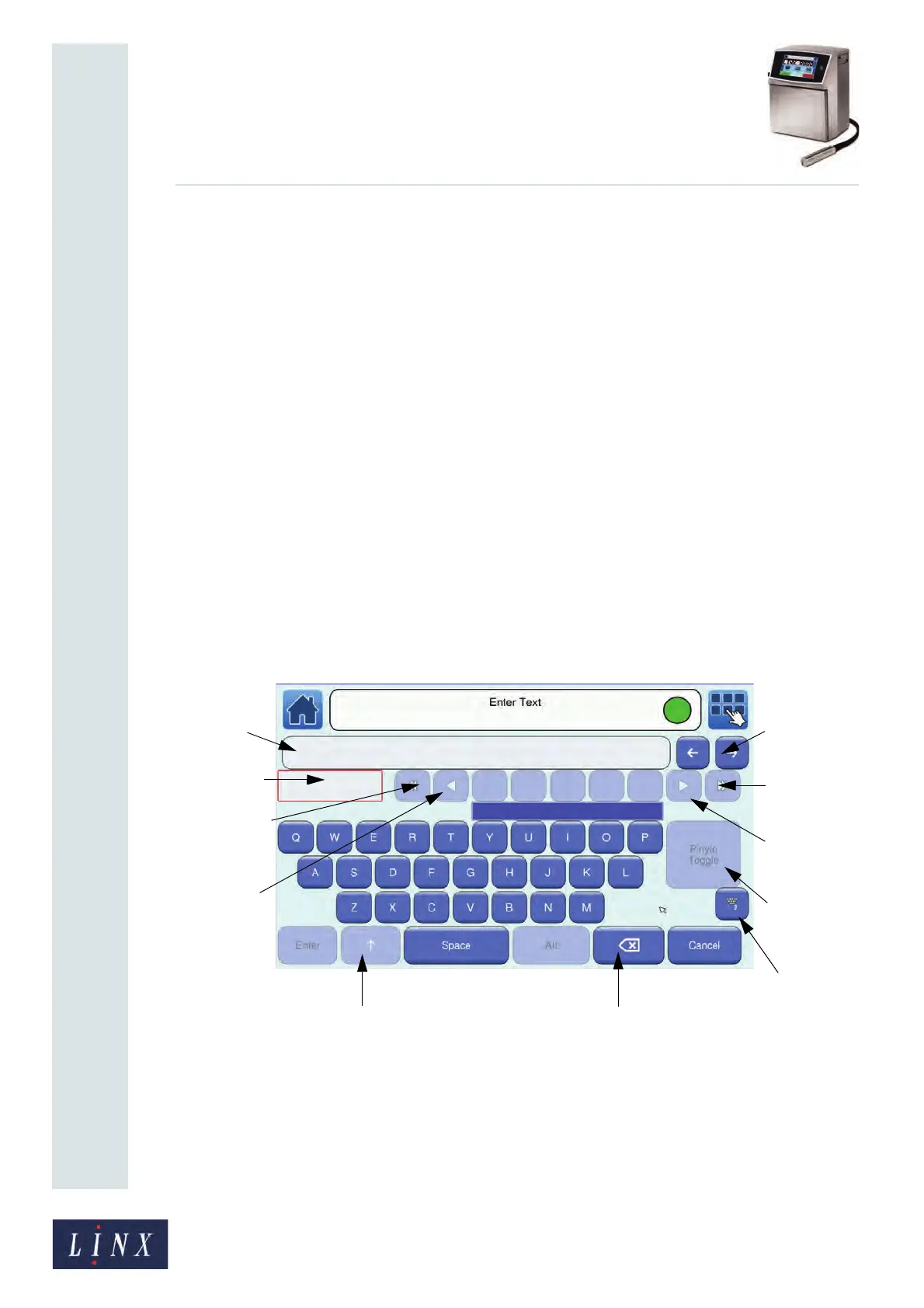
1 From a text edit box, touch the Toggle Keyboard button on the keyboard to open
the Enter Text screen.
Figure 25. Enter Text screen: ‘Pinyin’ mode
Upper text
Lower text
Scroll
End arrow
Right arrow
button
Home arrow
button
Left arrow
button
button
Toggle
Keyboard
button
Pinyin toggle
button
Shift button Backspace button
buttons
box
box


 To Next Page