Page 138 of 182 TP1A002–1 English
Aug 2015
Linx 8900 Operating Manual —
Printer communications
Linx 8900
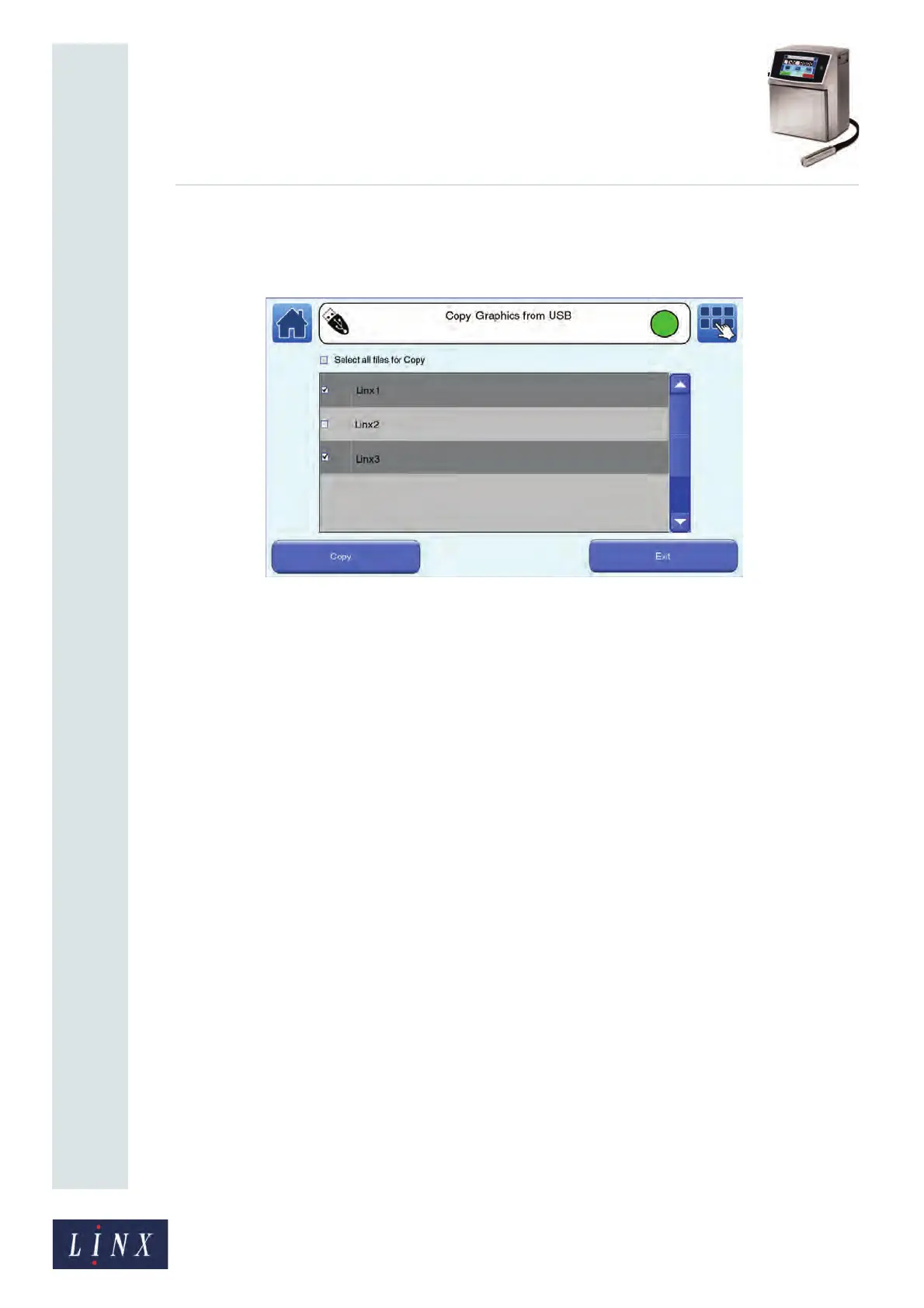
2 Touch the Copy Graphics from USB button to display the Copy Graphics from
USB screen. The printer displays a list of graphics that are saved in the memory
device.
Figure 146. Copy Graphics from USB screen
You use the same method to select graphics to copy as you do for messages (see
page 133 for more information).
3 Touch the Copy button to copy the selected graphics to the printer. If the printer
contains a file that has the same name, see page 133 for the available options.
If a copy operation fails for any other reason (for example, if the operation is
cancelled by the operator or if the memory device becomes full), the printer
displays an information message. Touch the Exit button to return to the Copy
Graphics from USB screen.
When the copy operation is complete, the printer displays a confirmation screen.
4 Touch the Exit button to return to the Copy Graphics from USB screen.


 To Next Page