P/N 9-500-0255 5-11
Service Manual
Chapter 5: Maintenance—General
Troubleshooting
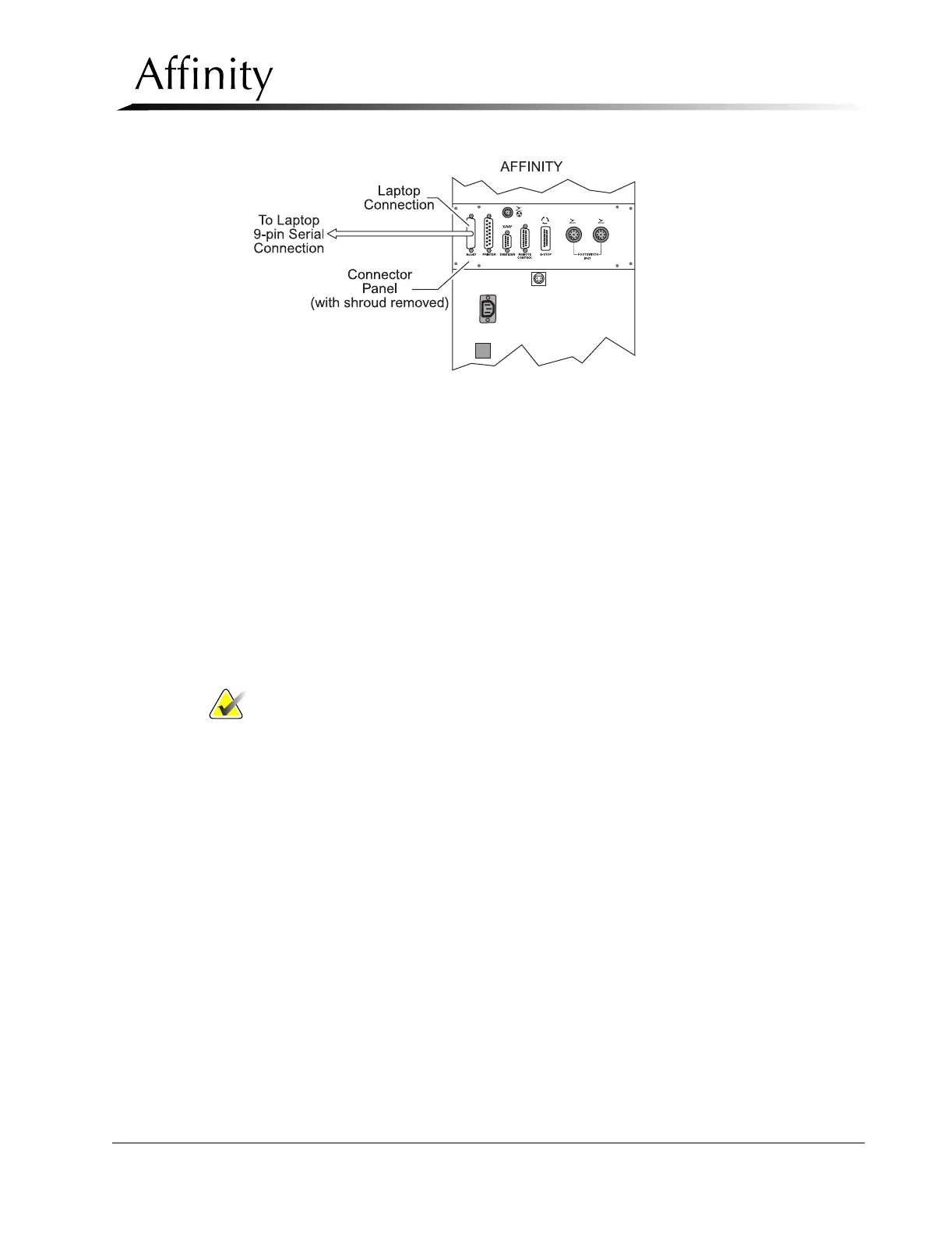
Figure 5-1: Connecting Laptop Computer to Affinity
2. Setup the laptop to receive and record a data file as follows:
• 9600 baud
• 8 data bits
• 1 stop bit
• no parity
• no flow control.
3. To download Alert Codes Log, go to Section 3.3.1. To download/upload calibration data,
go to Section 3.3.2.
3.3.1 Downloading Alert Codes Log
1. At the Affinity Control Panel, Calibration Screen #3, select the “Special” com-
mand field, then select “View Error Log”.
Note… Care must be taken to avoid selection of INIT CAL DATA option in the
Special command field. When selected and initiated, this field will reset all
calibration data.
2. Press Reset + Comp Rel to access the Alert Codes Log.
3. The title of the log, # of records, and CMD line will appear on the display
screen, along with the first page of alert codes. Use scroll keys to view the log.
4. Select (using the change keys) the DOWNLOAD command.
5. Press Reset + Comp Rel to initiate data transfer.
6. Select (using the change keys) the CLEAR command.
7. Press Reset + Comp Rel to clear the log.
8. Verify there are now no records in the log.
9. From the computer, the log can now be printed or appended.
3.3.2 Downloading Calibration Data
1. At the Affinity Control Panel, Calibration Screen #3, select the “Special” com-
mand field, then select DOWNLOAD CAL.


 To Next Page