3-10 P/N 9-500-0255
Service Manual
Chapter 3: Functional Checks/Setting Defaults
The Affinity Series Control Panel
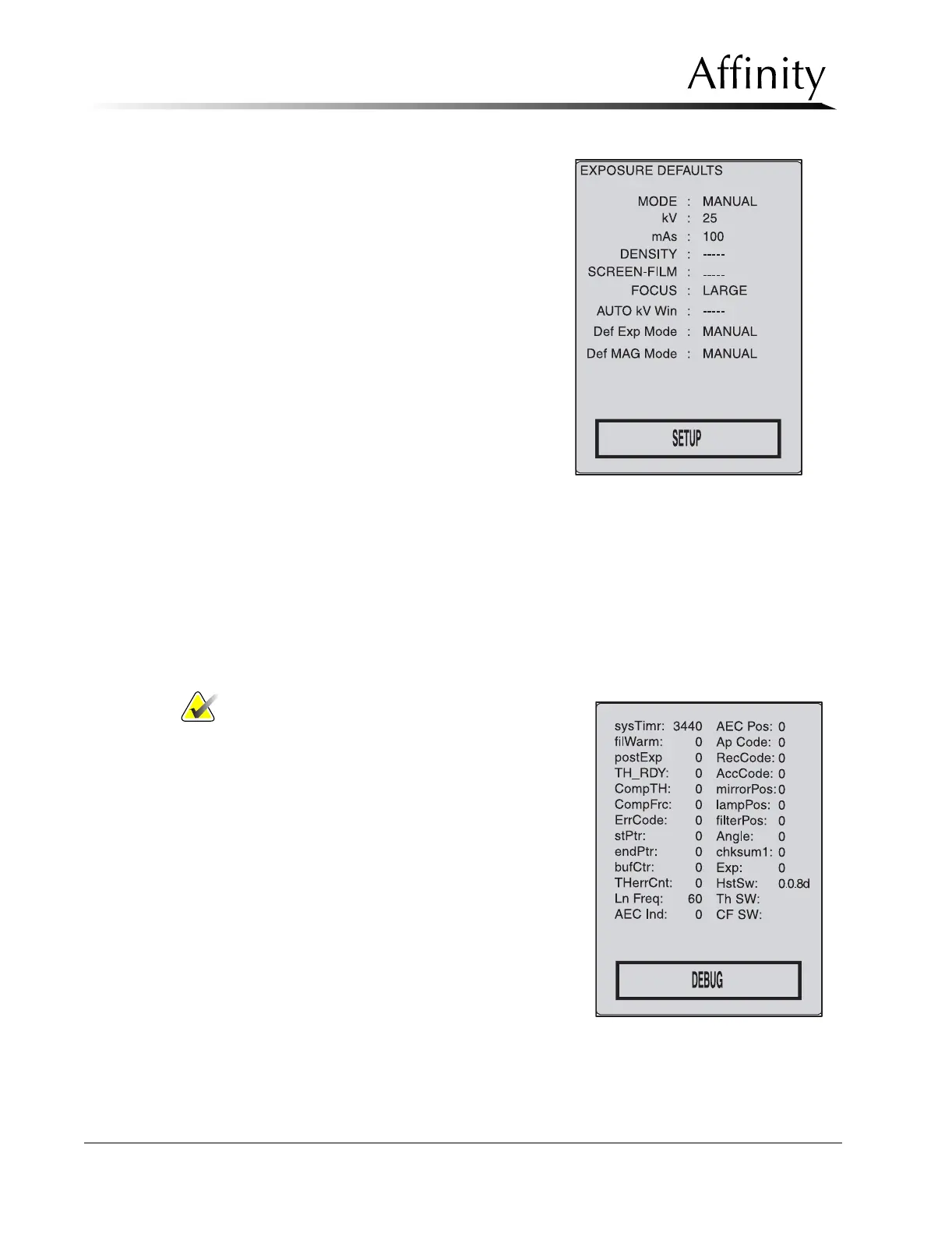
Exposure Default Screen (Figure 3-9)
allows the user to set system defaults
for exposure techniques. The choices
made in the Exposure Default Screen
will be reflected in the Run Mode
Exposure settings displayed after
power up.
Press Reset + Right Arrow together to select the User Default Screen from the Run Mode
Screen. To select the Exposure Default Screen from the Run Mode Screen, press Reset +
Right Arrow twice. To go back to the Run Mode Screen from the Exposure Default Screen,
press Reset + Left Arrow twice, from the User Default Screen, press Reset + Left Arrow once.
Note… Access to the Calibration Mode (the
Debug Screen and the three
Calibration Screens) will require the
servicing engineer to configure a
DIP switch on the Microprocessor
Board (see Chapter 4, Section 2.1,
Entering Calibration Mode).
The Calibration Mode/Debug Screen
(Figure 3-10) displays serial communi-
cations information throughout the unit.
Figure 3-9: The Exposure Default
Screen
Figure 3-10: The Calibration Mode/
Debug Screen


 To Next Page