134 Océ 9600 Copier/Printer User Manual
Menu bar
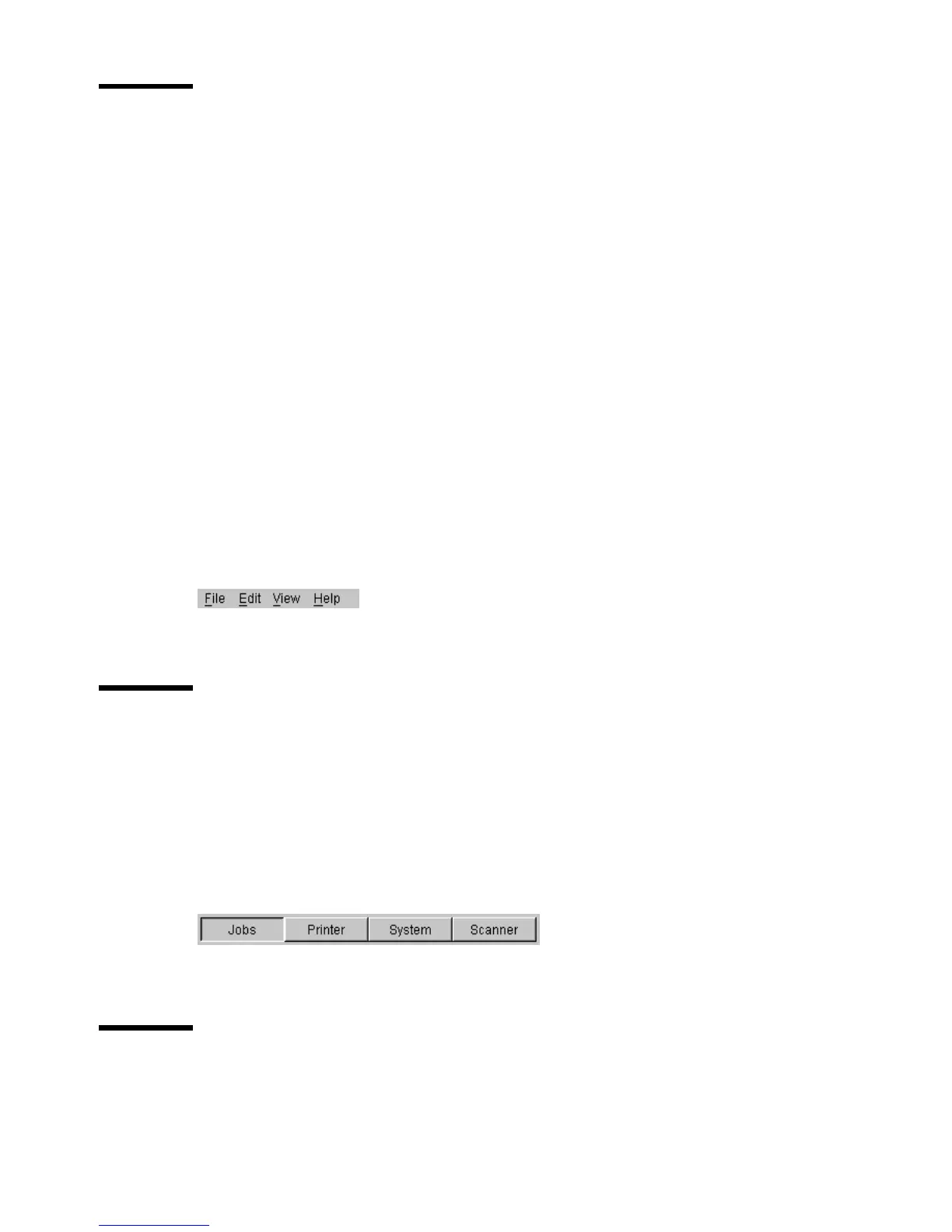
The menu bar of the Settings Editor contains the following menus:
File
If you select the ‘File’ menu, you can log in as a particular type of user,
log out of the previously selected user mode, open an existing setting file, save
the current settings to a file, connect to a different controller (only for remote
users) or exit the Settings Editor.
Edit
If you select ‘Options’ from the ‘Edit’ menu, a window is displayed in
which you can view your default system and the display languages (first and
second) for the Settings Editor application. The ‘Auto login’ option allows you
to start the Settings Editor application automatically in the specified user
mode.
View
The ‘View’ menu allows you to switch between the display languages as
defined in the Edit options window and between KO settings and SA settings.
Help
The ‘Help’ menu contains the following options: ‘Contents of Settings
Editor’ and ‘About Settings Editor’.
[70] Menu bar
Row of buttons
There are four different buttons available at the top of the Settings Editor.
These are ‘Jobs’, ‘Printer’, ‘System’ and ‘Scanner’. Each button provides
access to a specific group of settings. By clicking on each of these buttons, you
can get access to the settings related to the selected group.
A shadow highlight is used to indicate which button is activated.
[71] Row of buttons
Settings area
The settings area consists of two parts: a setting tree and an update area.



 To Next Page