Using the Océ 9600 Copier 53
▼
▼▼
▼
Select original delivery
1
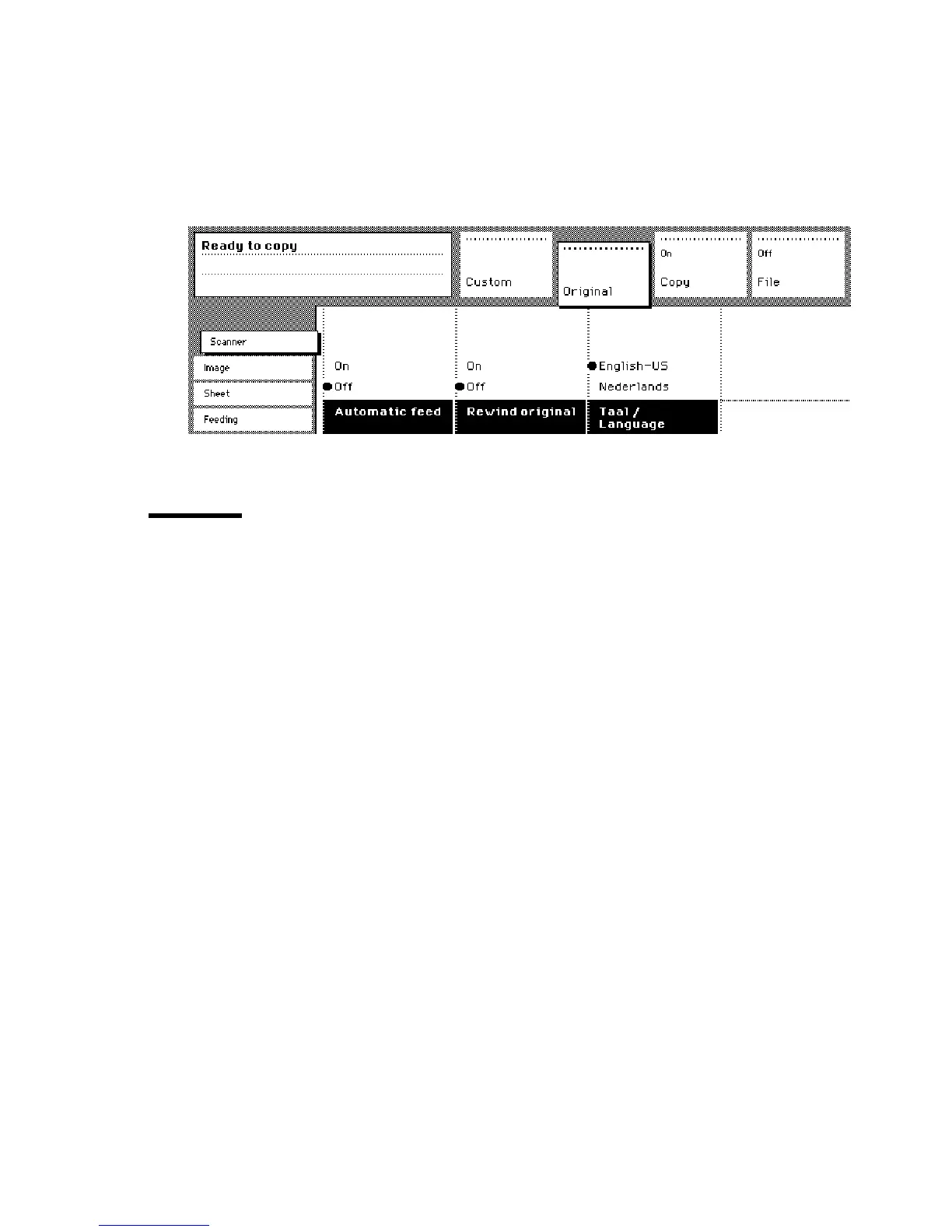
Open the ‘Scanner’ card in the ‘Original’ section.
2
Press the ‘Rewind original’ function button to make your selection:
■
‘On’: Originals are delivered at the front side of the scanner. You have to
collect each original by hand.
■
‘Off’: Originals are delivered at the rear side of the scanner.
[21] Using the Rewind original function to select original delivery at the front or the rear
Defining settings for the next original
You can define the settings for each original you want to copy. When
‘Automatic feed’ is enabled, you should bear in mind that the original is
automatically pulled into the scanner. If you want to be absolutely sure about
the settings that belong to an original, insert an original when the settings are
correct.
Note:
To increase your versatility at the scanner input side, you can ask your
key operator to turn off Automatic feed. When using the scanner with
automatic feed off, you must press the start button for each new original to be
scanned. This allows you the possibility of changing the settings for the next
original, even if you already put the original in place on the scanner feed table.
▼
▼▼
▼
Define settings for the next copy job
1
Select all settings required for the next original.
2
Insert the next original.
If ‘Automatic feed’ is off, press the start button.
If ‘Automatic feed’ is on, the original is fed automatically.
Note:
You can enable or disable this function from the ‘Scanner’ card in the
‘Original’ section. See figure 21 on page 53.
Access to
ial
Access to
Page
Interrupt
job



 To Next Page