Scan to file 99
How to retrieve scanned files?
When you scan to file, your files will be stored in the destination you set. This
can be on the local controller or on a remote system. You can retrieve your files
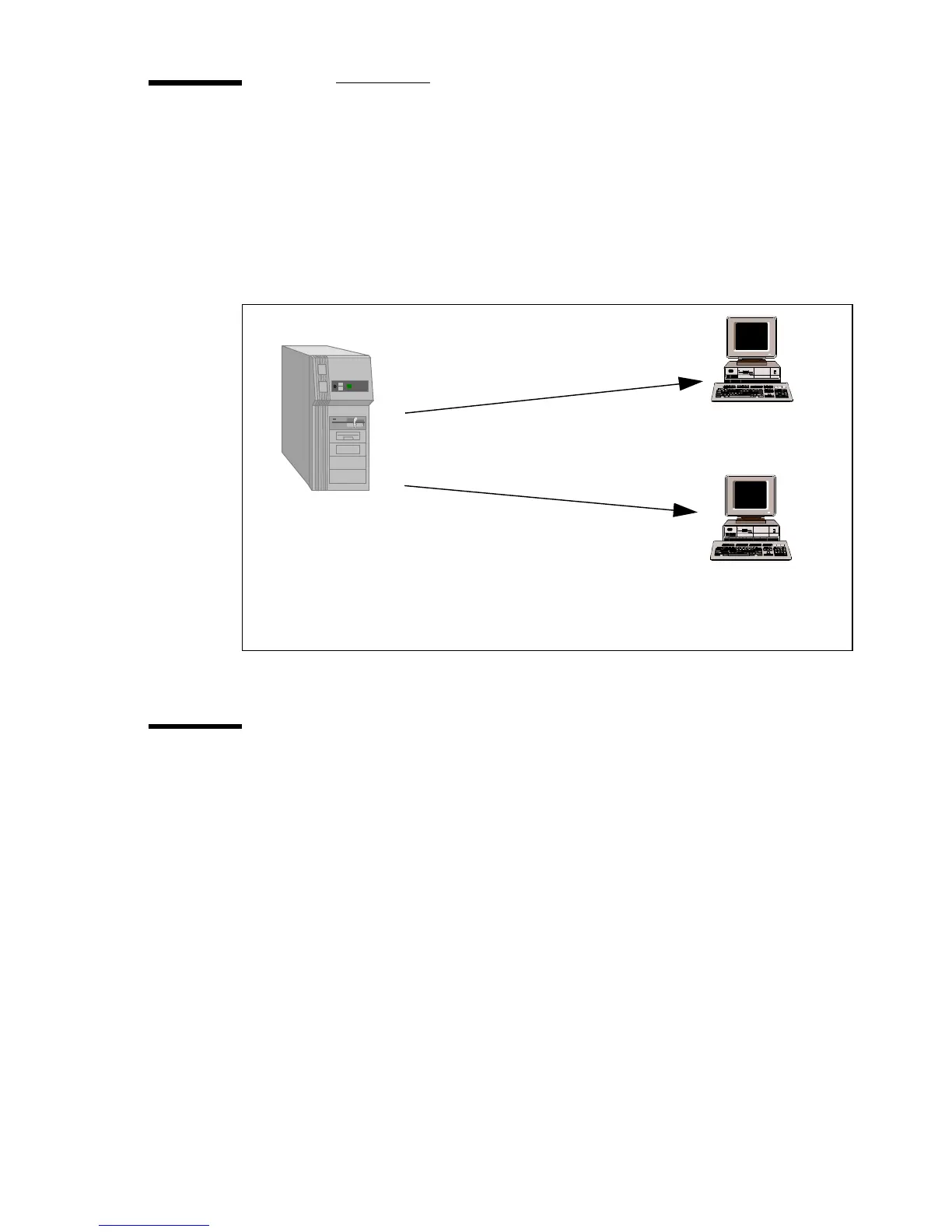
from the local host via File Transfer Protocol (FTP) (see figure 57). Also, if
during scanning to a remote destination something goes wrong, you can
retrieve your files from the local host.
[57] How to retrieve scanned files?
Get files via FTP
1
Launch an FTP client.
2
Enter the ‘ftp’ command.
A DOS box now appears with the FTP prompt.
3
Enter the ‘Open’ command followed by either the registered name of the Next
Generation Controller (NGC) or the IP address (for example: 194.2.66.146) to
connect to the NGC and press Enter: ‘open 194.2.66.146’.
Note:
Instead of performing steps 2 and 3, you could type “ftp host_name”
in the FTP client.
The connection with the NGC is now established and a window appears asking
you for a user name.
4
Enter the user name ‘anonymous’, and enter ‘anonymous’as your password
also.
A connection is now set up for the ‘anonymous’default user.
Remote client
Windows 95 / 98
Remote client
Windows NT 4.0
Local host (Controller)
Windows NT 4.0
G
e
t
f
i
l
e
s
v
i
a
F
T
P
G
e
t
f
i
l
e
s
v
i
a
F
T
P



 To Next Page