Using the Océ 9600 Copier 49
8
Press the green start button to start the copy job.
Your original will be fed into the scanner. The printer starts.
9
Collect your output.
Your copy will be delivered on the selected output unit of the print engine.
Selecting the required media
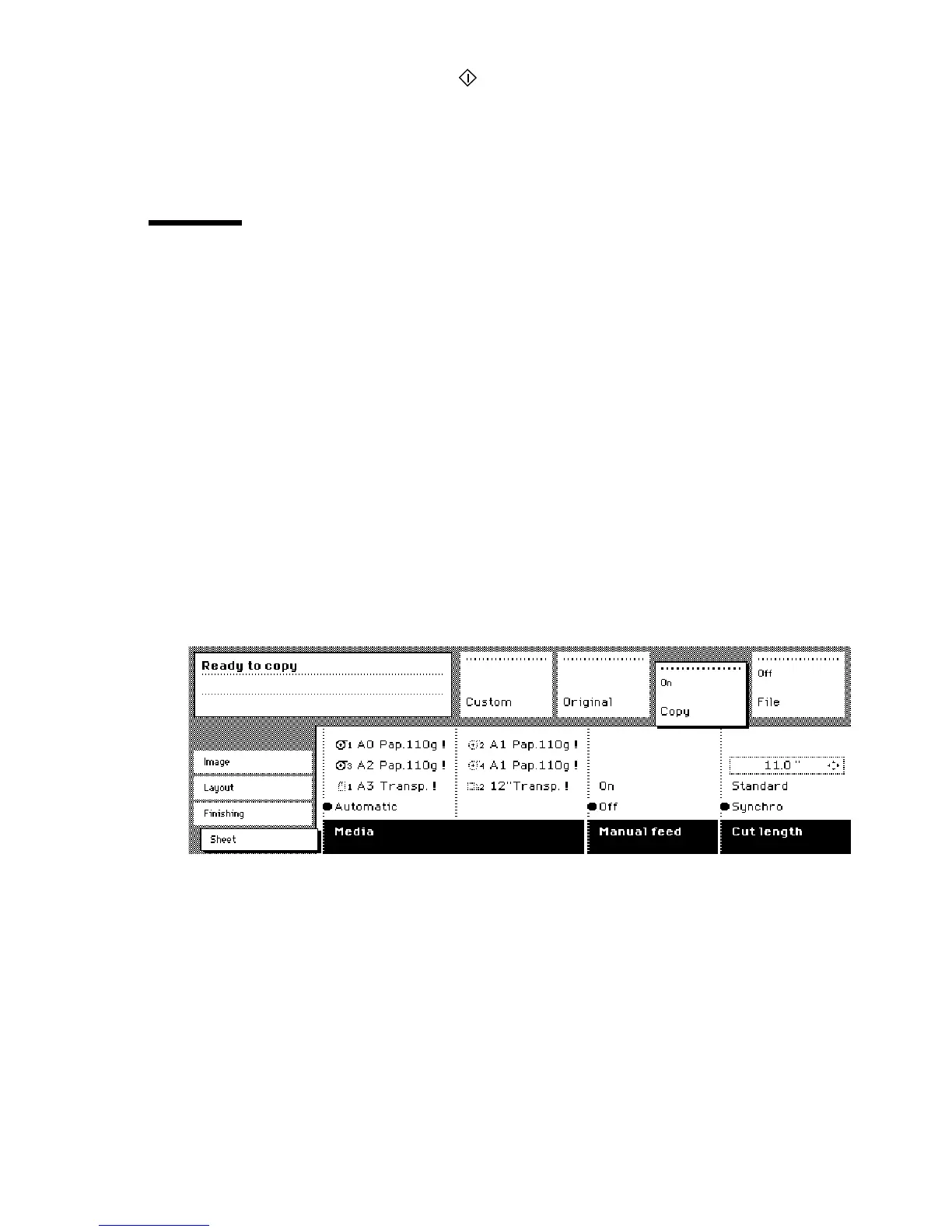
The ‘Media’ setting can be used to select copy material and format. The
display will show you what rolls or cassette trays are currently loaded. The
currently selected roll or cassette tray is indicated by the ‘
●
’ symbol.
If you select ‘Automatic’, the Océ 9600 Copier will try to use a roll or cassette
tray format that matches the original size. After inserting the original, the roll
or cassette tray that is used is indicated by the ‘
❍
’ symbol.
Note:
The
‘
❍
’
symbol remains in place until a new original is inserted. Then it
may move to indicate another roll or cassette tray, depending on the original
format.
▼
▼▼
▼
Selecting the required media
1
Select the ‘Sheet’ card in the ‘Copy’ section.
2
Select the desired media with the ‘Media’ function button.
[17] Selecting the required media
Note:
You can also select the desired media from the ‘Custom’ section, if this
setting has been defined for this (see figure 12 on page 40).
Access to
ial
Access to
Page
Interrupt
job



 To Next Page