270 Océ 9600 Copier/Printer User Manual
▼
▼▼
▼
Choosing folding settings from the Océ 9600 Scanner operating panel
1
Open the ‘Feeding’ card in the ‘Original’ section and press the ‘Legend
location’ function button to select the required legend location (‘Leading’ or
‘Trailing’).
Note:
Make sure that the legend is always located on the right-hand side to
ensure correct positioning of the legend during folding.
2
Press the ‘Drawing method’ function button to select ‘Standard’, ‘Ericsson’ or
‘Afnor’ fold.
3
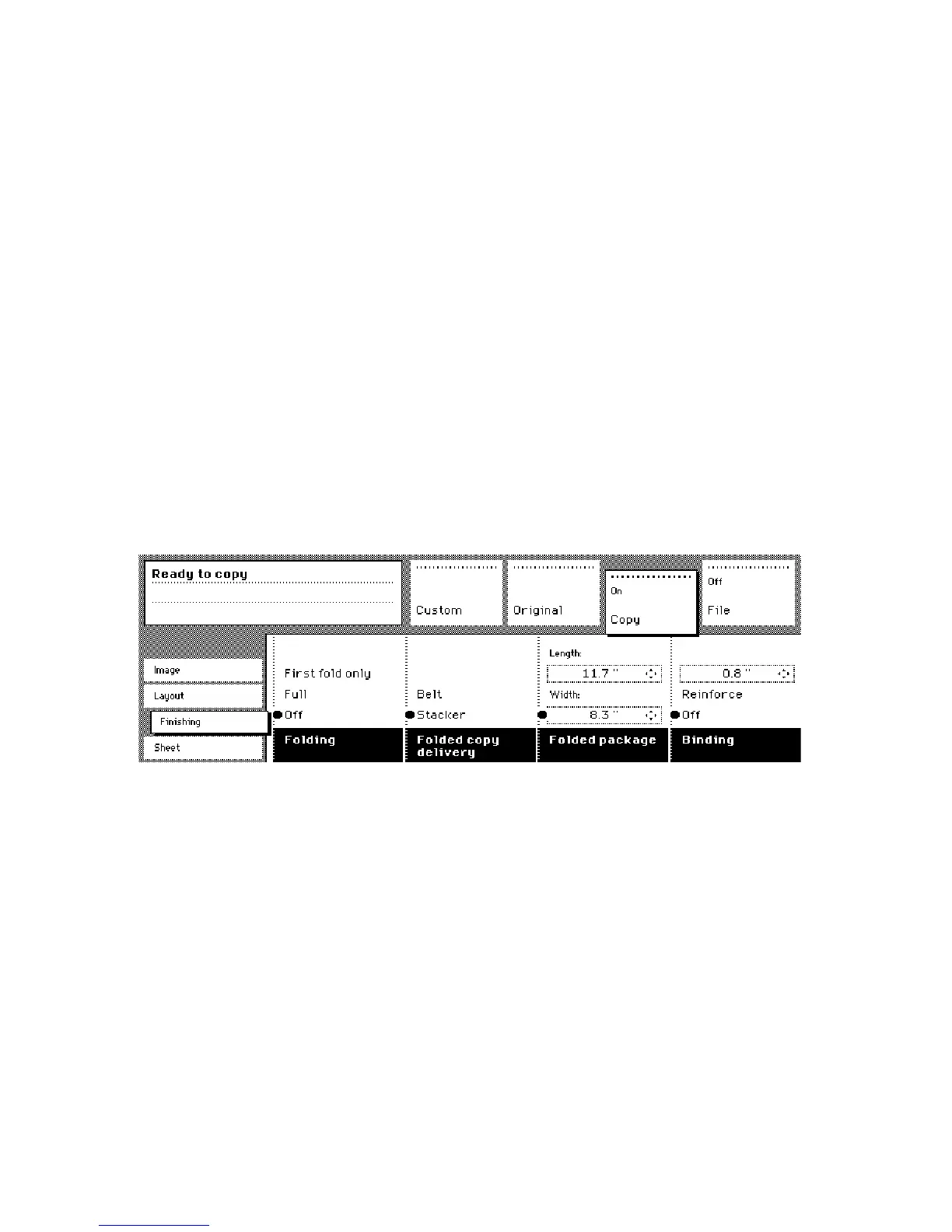
Open the ‘Finishing’ card in the ‘Copy’ section.
4
Press the ‘Folding’ function button to select ‘Full’ or ‘First fold only’ (see
figure 166).
5
Press the ‘Folded package’ function button and change the length and/or width
of the folded package, as required, by using the arrow buttons or the numeric
buttons.
6
If required, press the ‘Binding’ function button.
Set the required binding edge using the arrow buttons or the numeric buttons.
7
Specify other settings as required.
8
Feed in the original.
[166] Folding options
Note:
Do not select the folder when you are using A4 or letter paper on rolls
with a width of 210 mm (8.3 inches) and a length of more than 305 mm (12
inches) on your Océ 9600. Instead, you are advised to select the Integrated
Receiving Tray (IRT).
Note:
You can also select a drawing method and, if required, a folding length,
folding width and binding edge. When changing the folding length and/or
folding width and the folder is equipped with a belt, you must also adjust the
side guides of this unit.



 To Next Page