68 Océ 9600 Copier/Printer User Manual
Note:
You must turn on standard cut length to get copies like the one in the
illustration 33 above. If synchro cut length has been turned on, the result will
be as follows:
[34] Auto shift options with synchro cut option active
In ‘Shift the image’ on page 69 you can read how to define the exact place of
your image on the page.
▼
▼▼
▼
Select default settings for auto shifting
1
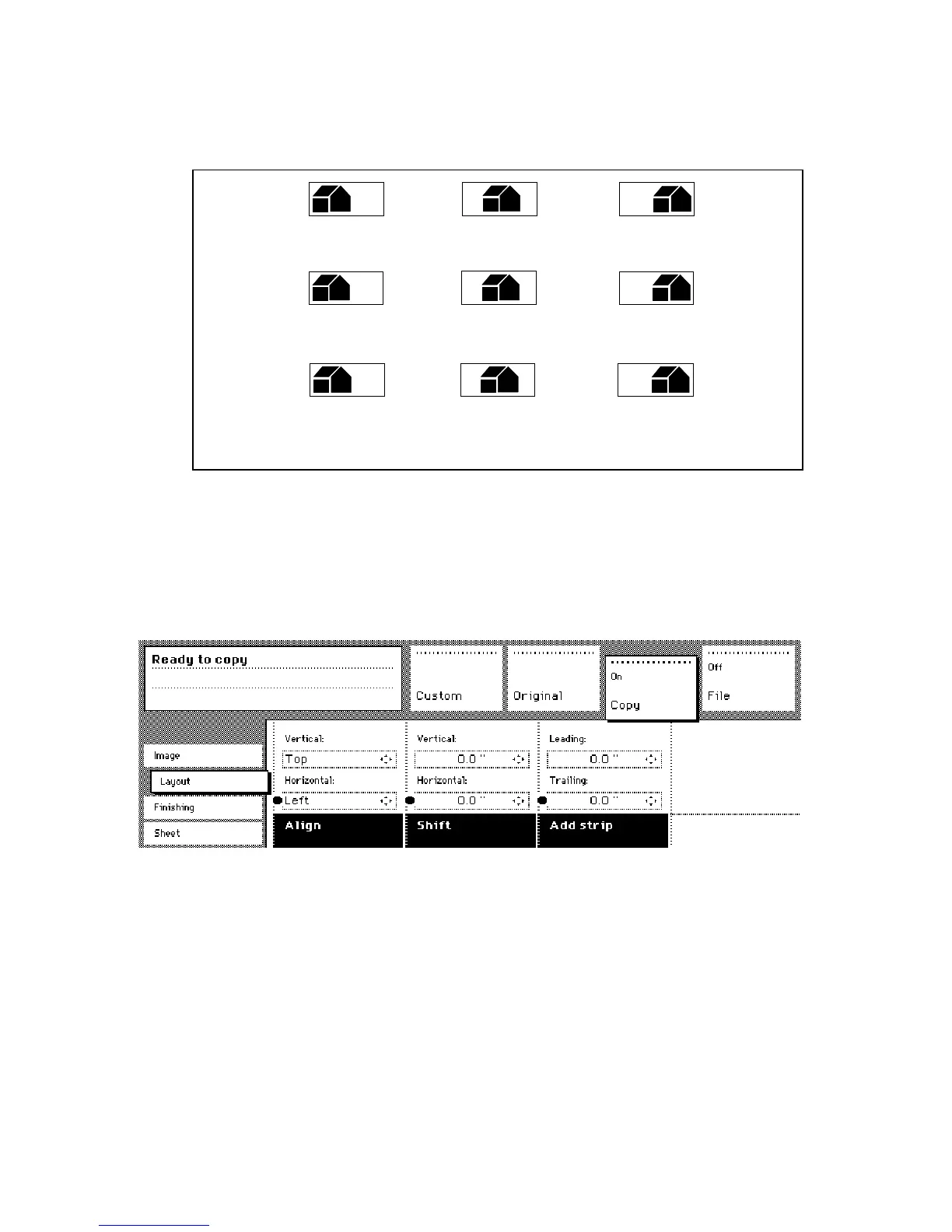
Open the ‘Layout’ card in the ‘Copy’ section.
[35] Automatic shift with the
‘
Align
’
function
2
Press the ‘Align’ function button and select a horizontal alignment value (Left,
Middle or Right) with the arrow buttons.
3
Press the ‘Align’ function button again and select a vertical alignment value
(Top, Middle, or Bottom) with the arrow buttons.
Note:
If you select ‘Center’, make sure the original width is specified as
follows (see ‘The scan width’ on page 59):
■
‘Standard’ if a standard sized original is used
■
The exact original width (numeric) if a non standard sized original is used.
4
Feed your original.
Top Left Top Middle Top Right
Middle Left Middle Middle Right
Bottom Left Bottom Middle Bottom Right



 To Next Page