93 / 374
SOCT User Manual Version 10.0 rev. A
8.3.10.3 Fundus Image Acceptance Window
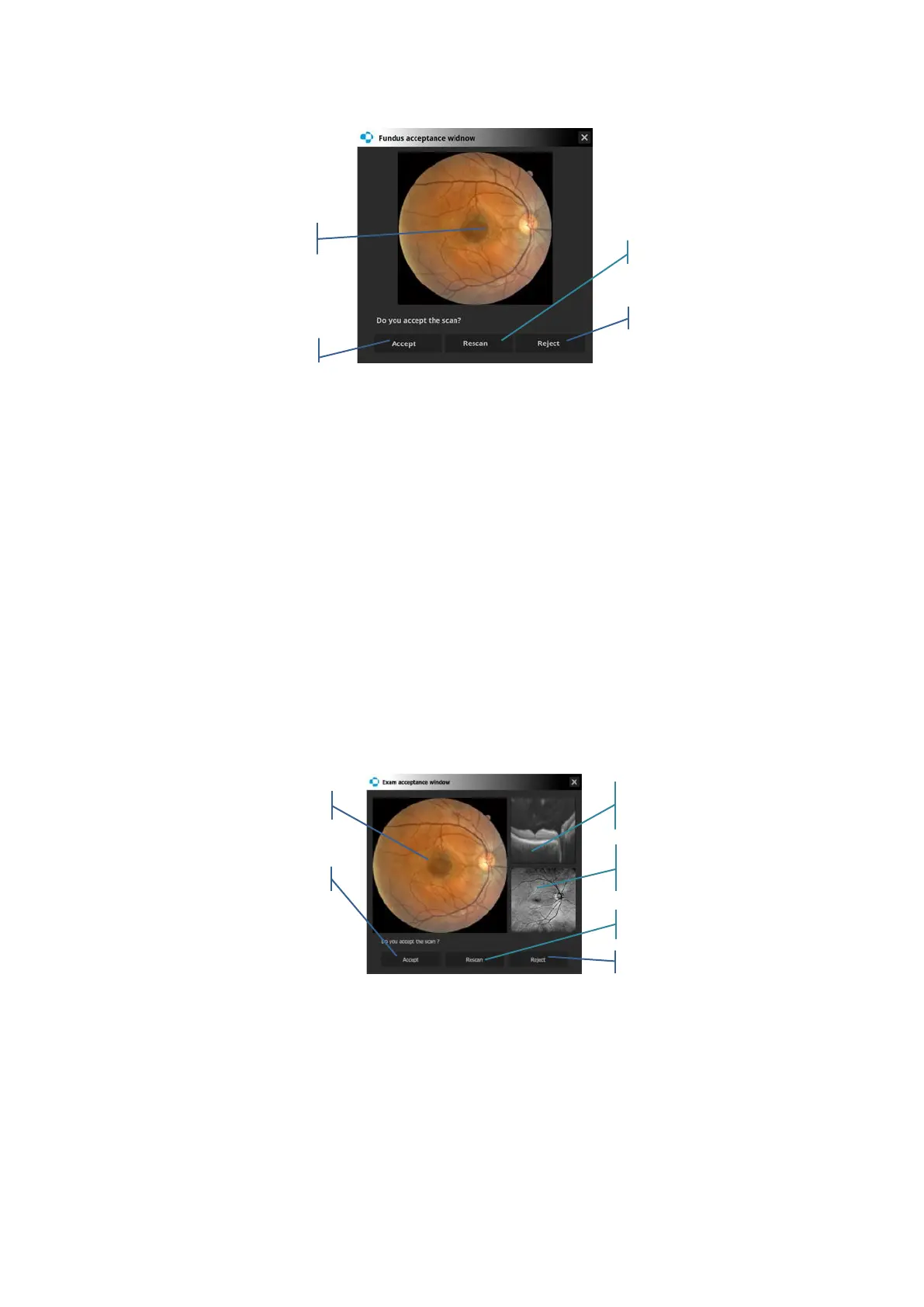
After taking a Fundus photo with or without OCT, the fundus acceptance window is displayed.
Figure 59. Fundus image acceptance window for Fundus mode
[Accept] – Closes the acceptance window and the Acquire window is displayed. The exam is
saved. The operator can continue capturing images or leave the Acquire window. If the
operator is using a protocol, the system moves to the next exam.
[Rescan] – The exam is saved and then repeated. If the operator is using a protocol, the system
continues with the current exam type.
[Reject] – The file is not saved (it is rejected). If the user is using a protocol, the system
continues with the current exam type.
The cross in the upper right corner of the information window closes it and initiates the same
action as the [Rescan] button.
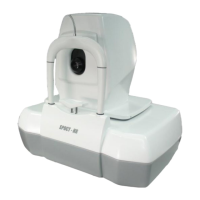
Figure 60. Acceptance window for FUNDUS/OCT mode
[Accept] – Closes the acceptance window and the Acquire window is displayed. The exam is
saved. The operator can continue capturing images or leave the Acquire window. If the
operator is using a protocol, the system moves to the next exam.
[Rescan] – The system saves the exam and displays the Acquire window in order to repeat the
exam. If the operator is using a protocol, the system continues with the current exam type.


 To Next Page