U.3.12
SEL-421 Relay User’s Guide Date Code 20090715
PC Software
Create and Manage Relay Settings
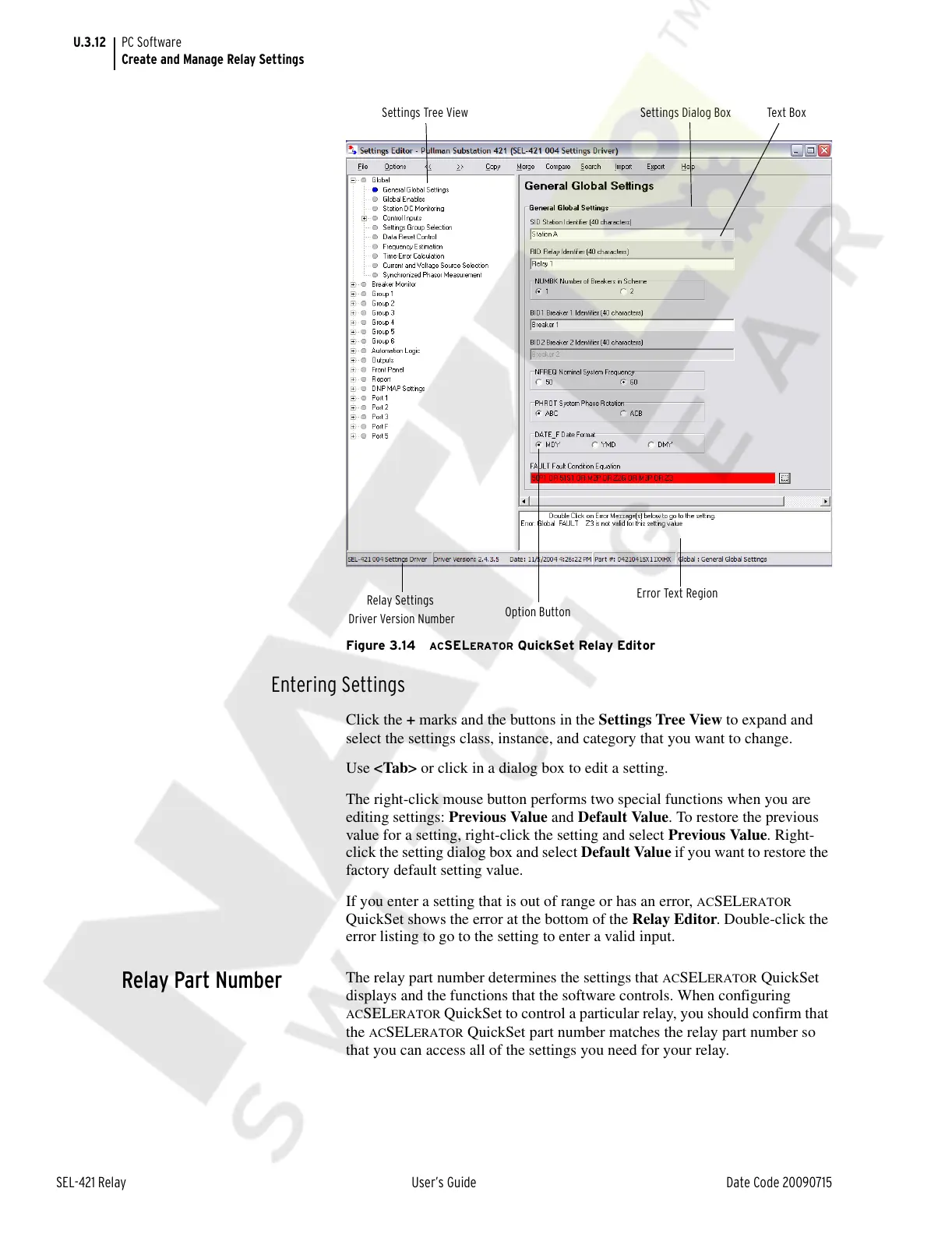
Figure 3.14 ACSELERATOR QuickSet Relay Editor
Entering Settings
Click the + marks and the buttons in the Settings Tree View to expand and
select the settings class, instance, and category that you want to change.
Use <Tab> or click in a dialog box to edit a setting.
The right-click mouse button performs two special functions when you are
editing settings: Previous Value and Default Value. To restore the previous
value for a setting, right-click the setting and select Previous Value. Right-
click the setting dialog box and select Default Value if you want to restore the
factory default setting value.
If you enter a setting that is out of range or has an error,
ACSELERATOR
QuickSet shows the error at the bottom of the Relay Editor. Double-click the
error listing to go to the setting to enter a valid input.
Relay Part Number
The relay part number determines the settings that ACSELERATOR QuickSet
displays and the functions that the software controls. When configuring
ACSELERATOR QuickSet to control a particular relay, you should confirm that
the
ACSELERATOR QuickSet part number matches the relay part number so
that you can access all of the settings you need for your relay.
Settings Dialog BoxSettings Tree View Text Box
Relay Settings
Driver Version Number
Error Text Region
Option Button
Courtesy of NationalSwitchgear.com


 To Next Page