U.6.17
Date Code 20090715 User’s Guide SEL-421 Relay
Testing and Troubleshooting
Test Methods
Step 6. View the target status change.
a. Increase the current source to produce a current
magnitude greater than 10.00 A secondary in the relay.
b. Observe the 50P1 target on the front-panel display.
You will see the 50P1 element status change to 1 when
the input current exceeds the 50P1P setting threshold.
Step 7. Press {ESC} to return to the
MAIN MENU.
View Relay Elements With a Front-Panel LED
The procedure in the following steps shows you how to use a front-panel LED
to view a change-in-state for the 50P1 Phase Instantaneous Overcurrent
element. Use the factory defaults for the pickup level (see Table 6.6). For more
information on the 50P elements, see Instantaneous Line Overcurrent
Elements on page R.1.64.
In this example, use
ACSELERATOR QuickSet to configure the relay. You must
have a computer that is communicating with the SEL-421 and running the
ACSELERATOR QuickSet (see Making Settings Changes: Initial Global
Settings on page U.4.17). In addition, you need a variable current source
suitable for relay testing.
Step 1. Prepare to control the relay with
ACSELERATOR QuickSet by
establishing communication, checking passwords, and reading
relay settings (see Making Settings Changes: Initial Global
Settings on page U.4.17).
Step 2. Set a pushbutton LED SEL
OGIC control equation.
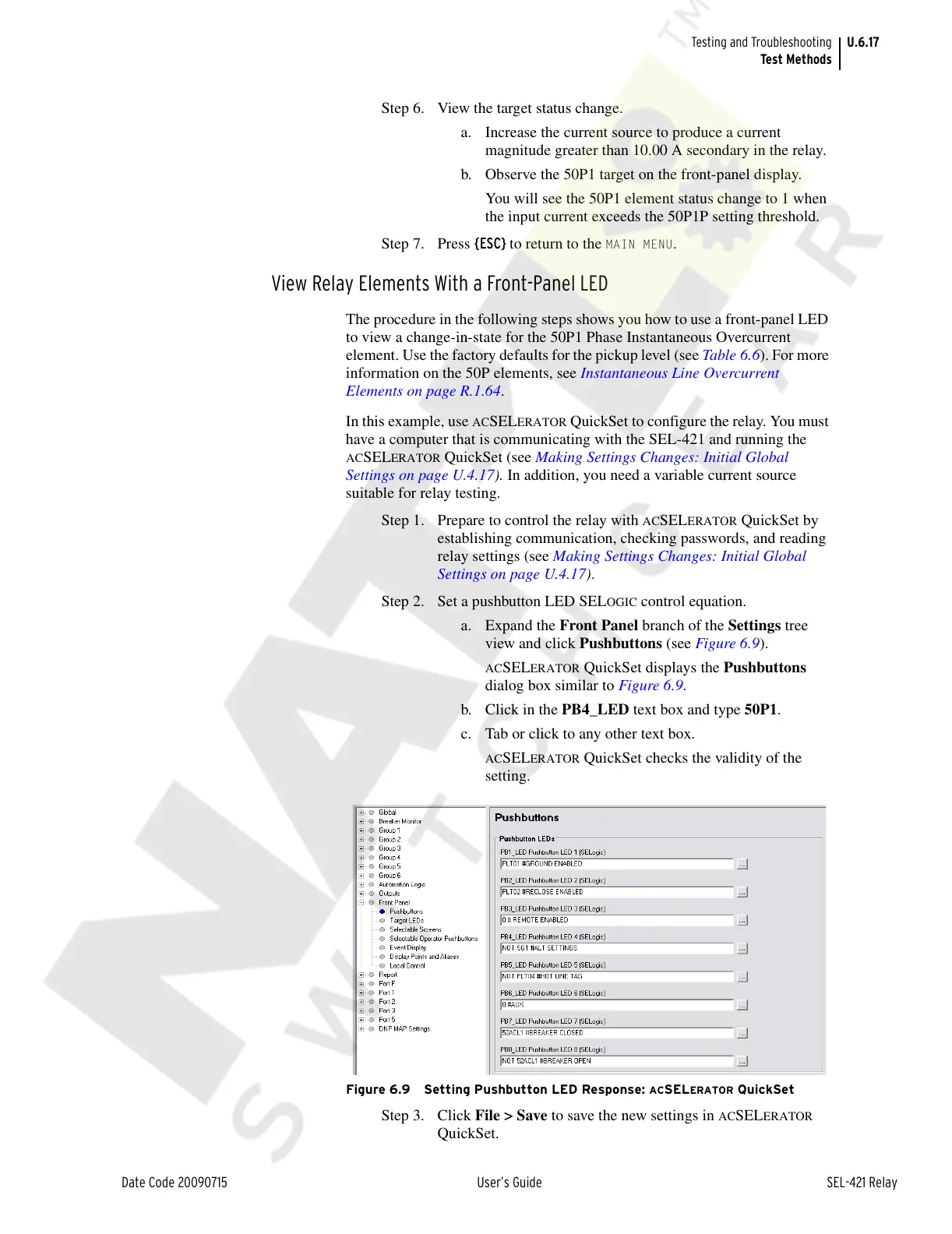
a. Expand the Front Panel branch of the Settings tree
view and click Pushbuttons (see Figure 6.9).
ACSELERATOR QuickSet displays the Pushbuttons
dialog box similar to Figure 6.9.
b. Click in the PB4_LED text box and type 50P1.
c. Tab or click to any other text box.
ACSELERATOR QuickSet checks the validity of the
setting.
Figure 6.9 Setting Pushbutton LED Response: ACSELERATOR QuickSet
Step 3. Click File > Save to save the new settings in ACSELERATOR
QuickSet.
Courtesy of NationalSwitchgear.com


 To Next Page