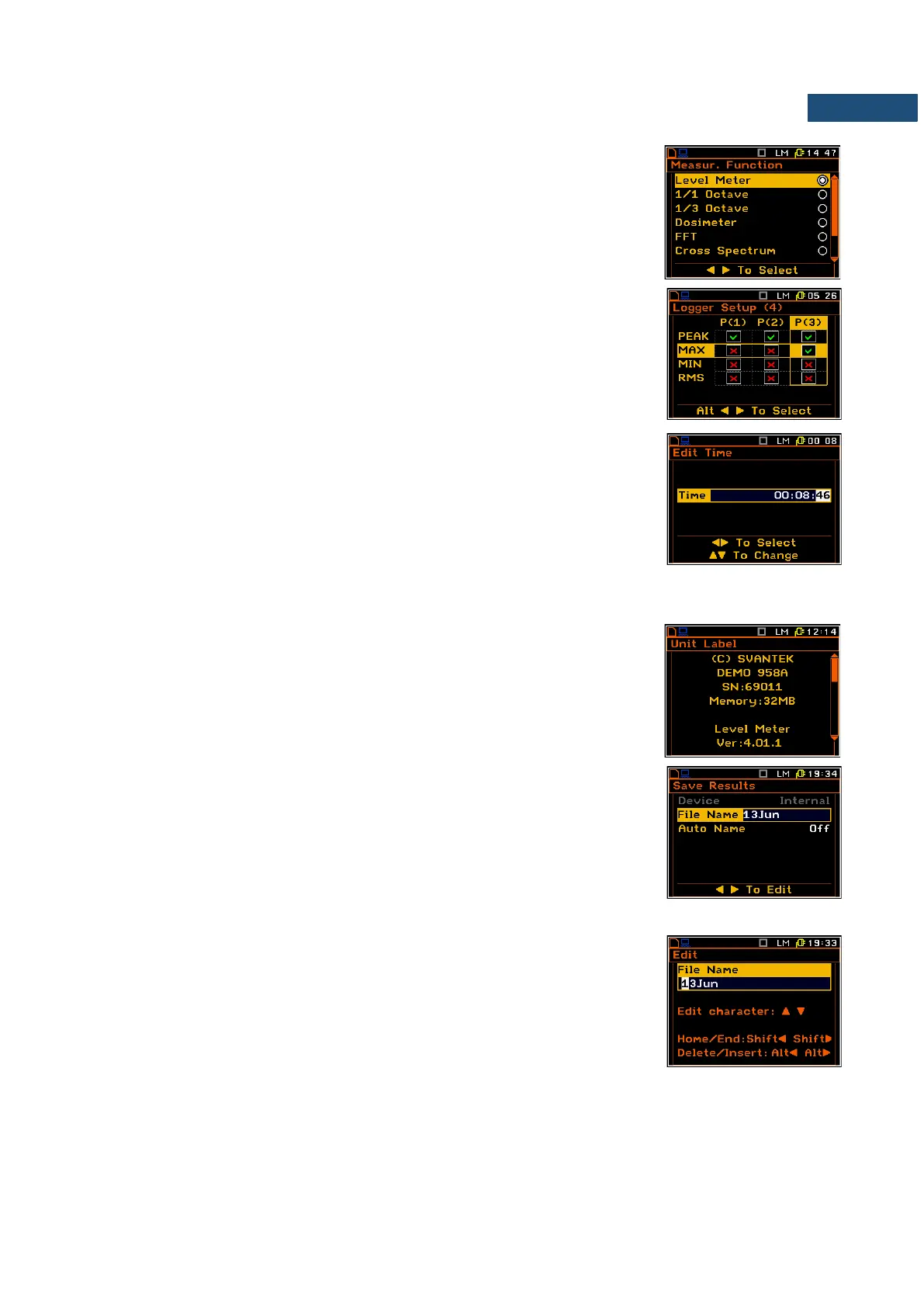
List of options
The option list consists of different options, from which only one may be
selected. The selection of the option is performed in the following way. Highlight
the desired option with the ▲ / ▼ key, mark it with the ► key and then press
<ENTER>. This option becomes active and the list is closed. After re-entering
this list again, the last selected option will be marked.
Matrix of parameters
When the list of parameters consists of more than one column you may change:
• column with the ◄ / ► key
• line in the same column with the ▲ / ▼ key
• value in a selected position with the ◄ / ► and <Alt> or <Shift> keys
pressed together.
Complex parameters
For complex parameters, consisting of more than one value field like Time, you
should first select the field and then change the value of this field in accordance
with the help information on the bottom of the screen.
In all cases the <ENTER> key is used for confirmation of the selection in a position and for closing the opened
list of parameters. The list of parameters is closed, ignoring any changes made in it with the <ESC> key.
Information screen
Some screens inform about the state of the instrument, available memory,
standards fulfilled by the instrument, etc. You cannot change anything in such
screens. To scroll through the screen, use the ▲ / ▼ key. To close such a
screen, press <ENTER> or <ESC>.
Text edition screen
There are also windows in which the user may edit some text (i.e. the name of
the file, option code insertion). This window contains help information to guide
the user on how to edit the text. The character that is displayed inversely may
be edited.
▪ One can select the position of the character in the edited text using the ◄ / ►
key.
▪ The available ASCII characters can be changed using the ▲ or ▼ key. The
subsequent digits, underline, upper case letters and space appear on the
display in the inversely displayed position after each press of the above
mentioned keys.
▪ One can insert or delete the position in the edited text using the ◄ / ► key
pressed together with <Alt>.
Help information
In most screens, the last line or several lines at the bottom of the screen contain help information. It informs
how to select or modify the parameter’s value, change the character in the text line etc.


 To Next Page