114
Format HDD: Select the HDD you want to format and then click Format HDD. To start formatting,
you need to enter your user name and password, then click OK to continue formatting.
Add NetHDD: -X
Overwrite: Use this option to overwrite the old recordings on the HDD when the HDD is full. For example,
if you choose the option 7 days then only the last 7 days of recordings are kept on the HDD. To prevent
overwriting any old recordings, select OFF. If you have disabled this function, please check the HDD
status regularly, to make sure the HDD is not full. Recording will stop if the HDD is full. -X
Record on ESATA: This menu only displays when your NVR comes with an e-SATA port on the
rear panel. It will allow video recordings to be stored to the external e-SATA HDD to expand your
HDD capacity. If the e-SATA recording function is enabled, the e-SATA backup function will be disabled.-X
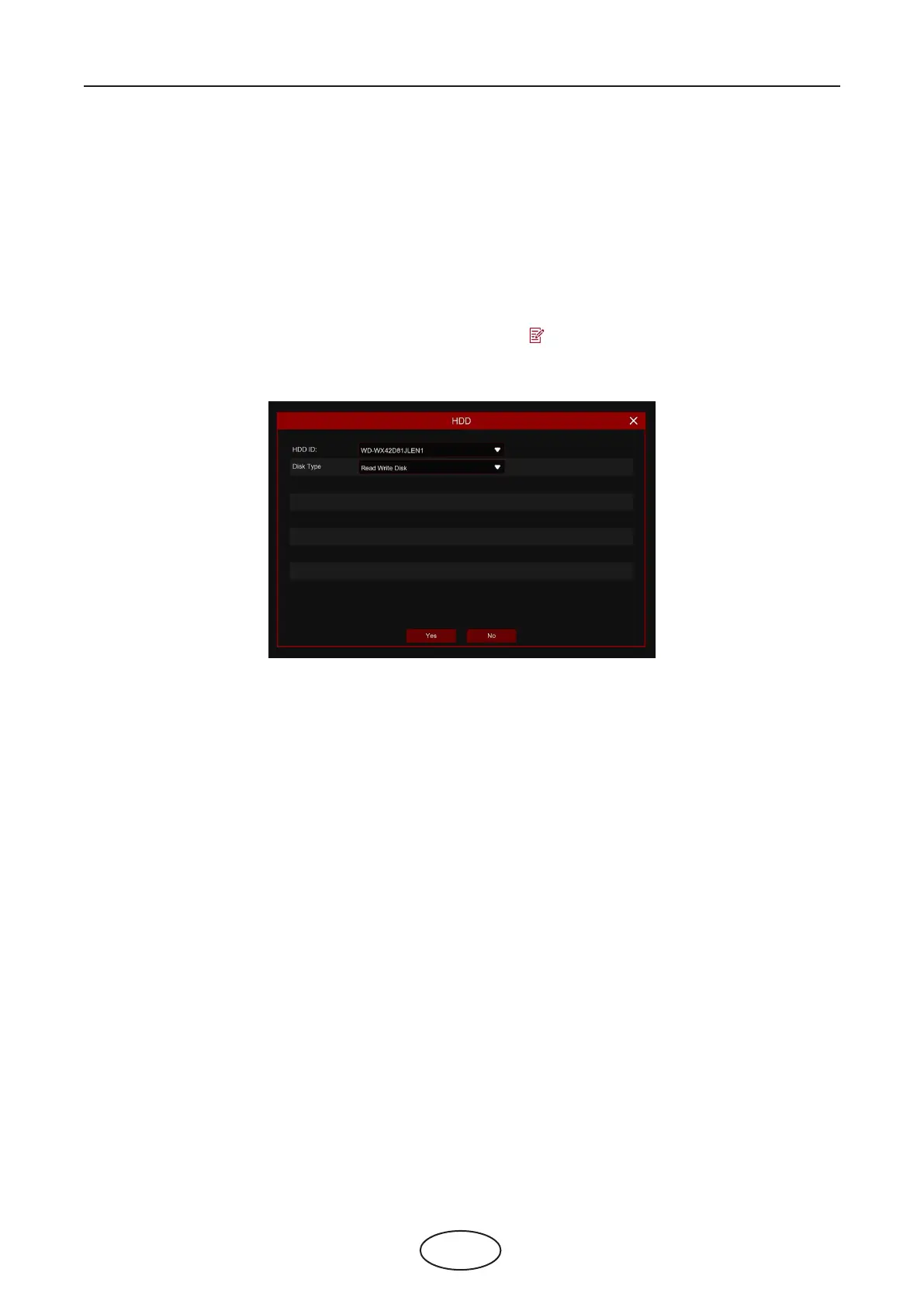
If your NVR supports installation of multiple HDDs, the edit icon appears in your system, you can click it
to edit the HDD as below:
Disk Type: Read-write, read-only, and redundant.
Read-write mode is the normal status for an HDD to save recording or search recording to play.
To prevent important video data from being overwritten during cyclic recording, the HDD can be set as
Read-only mode. New recording will not be able to save into this read-only HDD. You can still search
recording from this read-only HDD to play.
A Redundant HDD can be used to automatically backup video footage on the recording (read-write)
hard drive. When a redundant HDD is set, the system can be set to record cameras in parallel to both the
recording hard drive and the redundant hard drive in case of hard drive failure.
5 NVR System Setup



 To Next Page