32
5.1.4.1 PTZ control
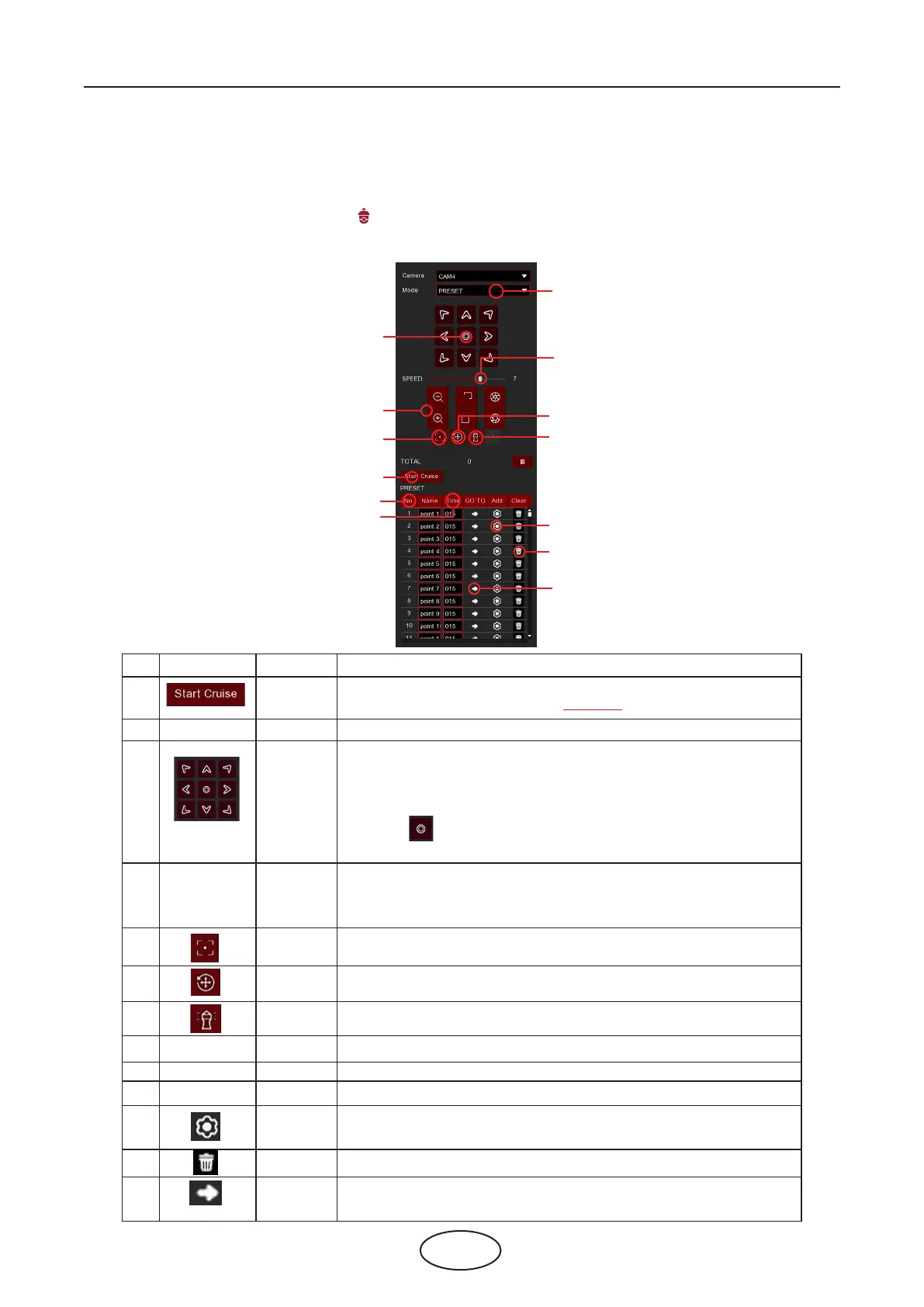
After nishing the PTZ setup, you can use the PTZ function to control your PTZ camera.
1. Click the left mouse button on a channel on the Live Viewing screen to open the Camera Quick Tool-
bar, then click the PTZ control icon .
2. The PTZ control panel will be displayed.
1
2
3
4
7
5
6
9
10
8
13
11
12
No. Icon Item Description
Cruise
Start / stop PTZ cruise by preset points. Make sure you enabled the
Cruise function for this channel in 5.1.4 PTZ.
Enter the number of specic preset points, click this button to move
your PTZ camera to the preset point.
Click to set a specic preset point on a PTZ camera.
You can add up to 255 present points for the NVR.
Speed Speed
PRESETPRESET
No.
Auto Focus
PTZ Reset
Watch
Mode
Click to adjust the camera lens to focus automatically.
Resets all the PTZ preset created and saved.
Click to constantly scan around the camera.
Time
No.
Time
Set
Delete
Go to
Click to delete the selected preset point.
Number of preset points.
Set the time of how long the camera will stay in the preset point.
To display or hide the preset point panel.
Adjust the PTZ speed.
A. Click the Direction arrow to select the direction of
the PTZ camera
B. Click up/down/left/right arrow to move cursor in
UTC OSD menu.
C. Click to switch to auto pan mode.
Pointer
Panel
- ZOOM +
- FOCUS +
- IRIS +
Zoom
Focus
Iris
Click to zoom in/out.
Click to adjust the focus.
Click to adjust the iris setting.
5 NVR System Setup
1
11
7
13
12
10
3
9
2
6
4
5
8



 To Next Page