171
7 Remote Access via Web Client
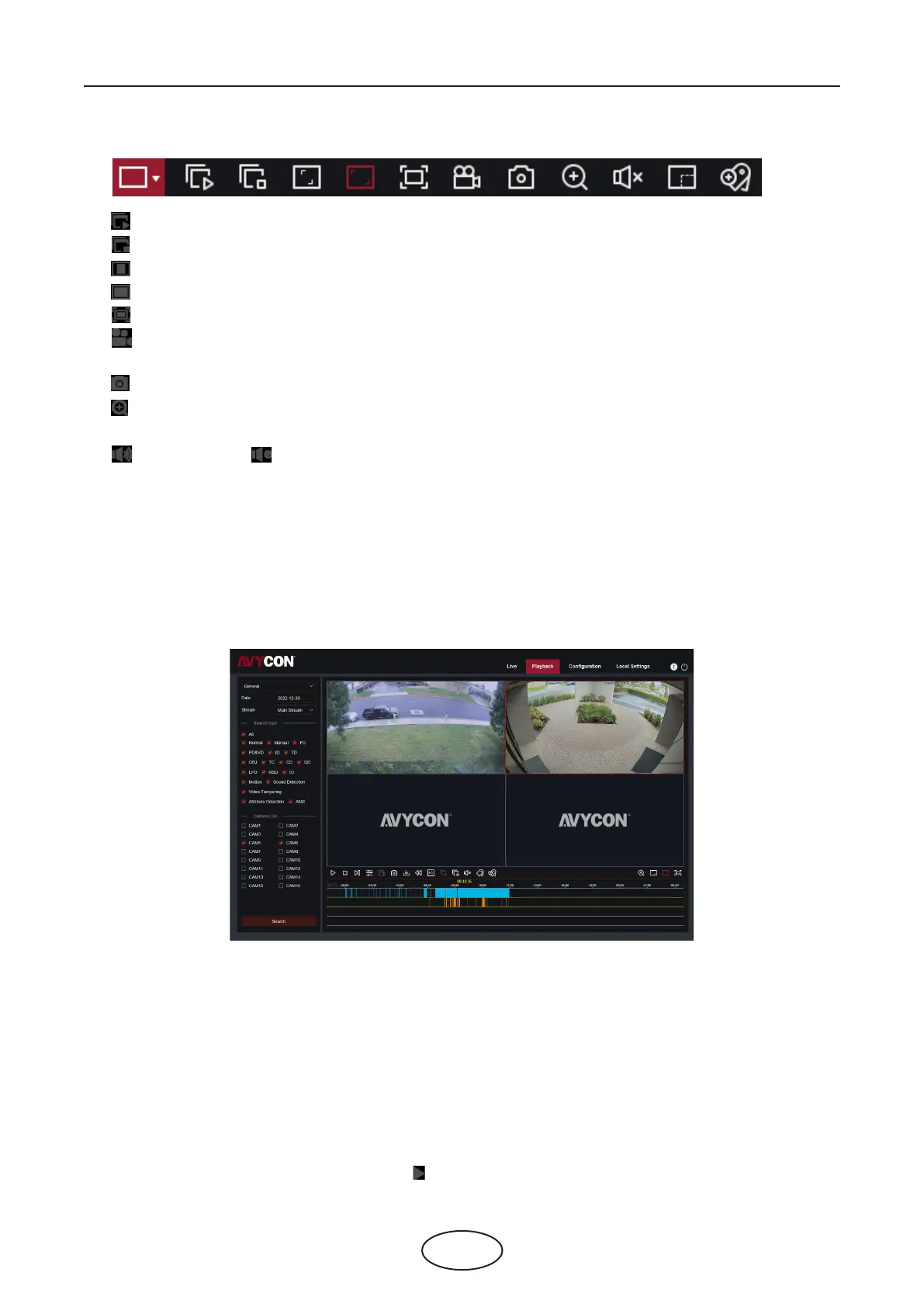
9. Live View Control Buttons:
`
Open the images on the Live window.
Close all the Live cameras.
Original Proportions: Shows live video at the original proportions.
Stretch: Stretch live video to t the full area for each camera on screen.
To enlarge the web client to full screen.
Manual Recording: Click to start manually recording for all displayed cameras. Click again to
stop recording. Manual recordings are saved to your computer
Snapshot: Click to save snapshots of all current displayed channels to your computer.
Digital Zoom: Click on a live image, then click-and-drag over an area of the live image to enlarge.
Right-click to return to the normal display.
Volume Control. Volume is mute.
10. Navigation: Shows current page number for the channels shown on screen. Use the arrow keys to
switch between pages.
11. Page View: Click to select how many cameras appear on screen at a time.
7.3.2 Playback
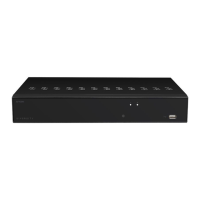
You can search and play recording videos stored in the HDD inside the NVR, and download the videos
to your computer.
To search recordings:
1. Click Playback in the top-right corner of the window.
2. Select a day on the calendar to search for recordings from. Days with recordings appear with a
red underline.
3. Select the recording type to search for from the dropdown next to Type, or select All to search for
all recordings.
4. To choose the video stream you want to search & play. If you want to play Substream recordings,
please make sure you had set the NVR to record with Dualstream at 5.2.2.1 Record.
5. Check the channels you would like to search for recordings from. Check Synchronous playback to play
all channels at once.
6. Click Search..
7. Recordings that t your search will be displayed in the timeline. Click a section of video where you
would like to begin playback and click the play button.



 To Next Page