148
Save Video Clip.
Volume Control: scroll the slider bar to increase or decrease volume.
Snapshots: To capture a snapshot image to your USB ash drive. If the video playback is
in split-screen view, move the cursor to the channel you want to capture, then click the icon
to save the snapshot.
6. Timeline: Continuous recordings are shown with colored bars to represent dierent types of recording
(legend shown in the bottom-right corner of the display). Use the timeframe options ( )
to view a smaller or larger time period.
Dierent types of recording shown in dierent colors:
Normal Recording in Green color;
Motion Recording in Yellow color;
I/O Recording in Red color;
PIR Recording in Purple color;
Smart Analytics in Blue color;
Alarm in Orange color;
Manual in Green Color
7. Playback Status: Display the video play status.
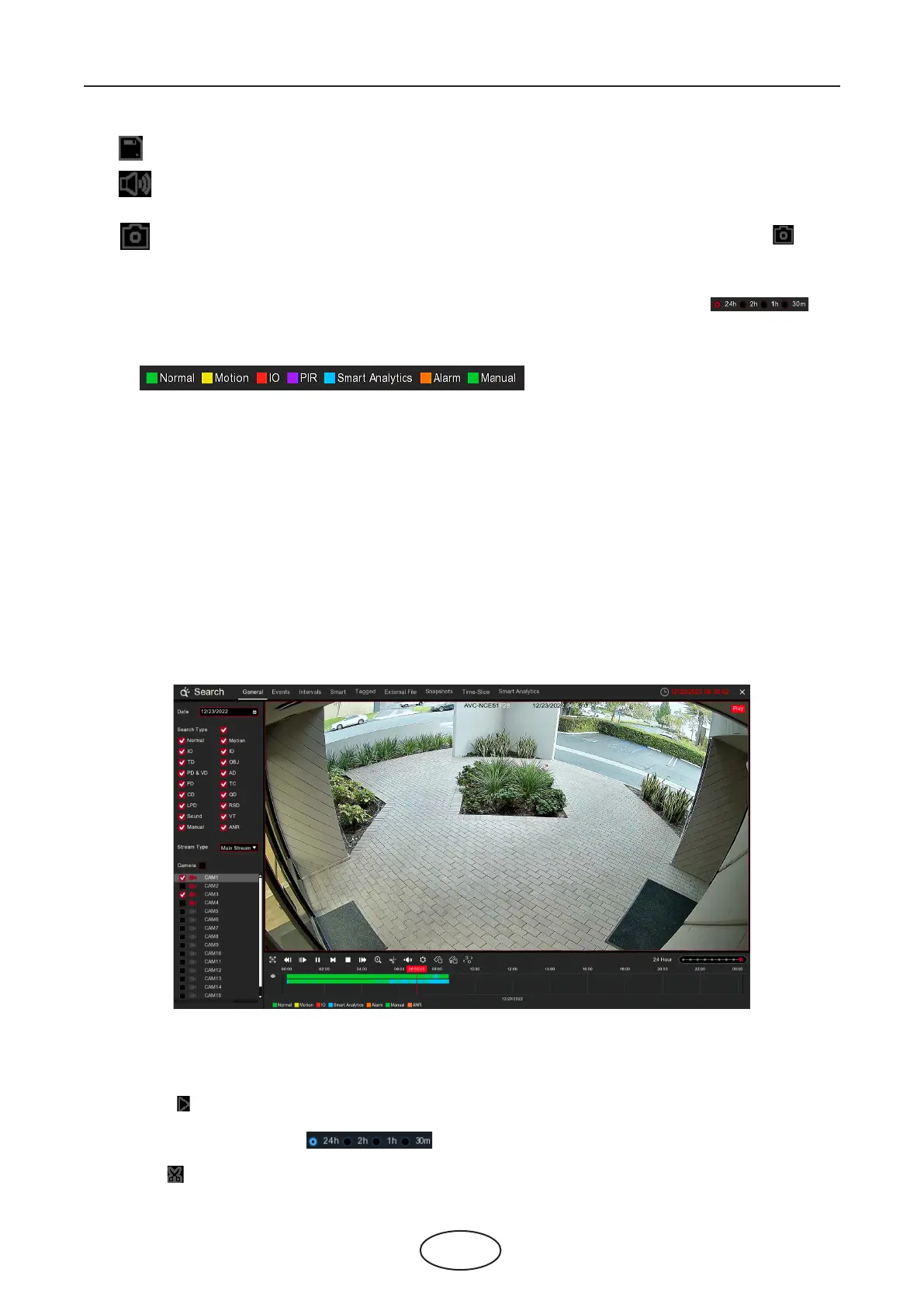
6.1.1 Search & Play Video in General
This menu gives an option to search and play recording for a selected date.
1. Select a date to search for video recording from the calendar.
2. Choose a search type.
3. Check cameras you would like to search, or check Camera to search all connected cameras.
4. The search result will display on the timeline from 00:00 to 24:00.
5. Click the button to start playback.
6. Control the playback with buttons on Video Playback Controls.
7. Use the timeframe options ( ) to view a smaller or large time period.
8. If you want to quickly save a section of video during play back to a USB ash drive,
use the Video Clip backup function.
6 Search, Playback & Backup



 To Next Page