169
7 Remote Access via Web Client
7.3.1 Live Interface
7.3 Web Client Manager
The web client supports full control of the NVR with an administrator account. Please make sure to protect
your user name and password to prevent illegal login.
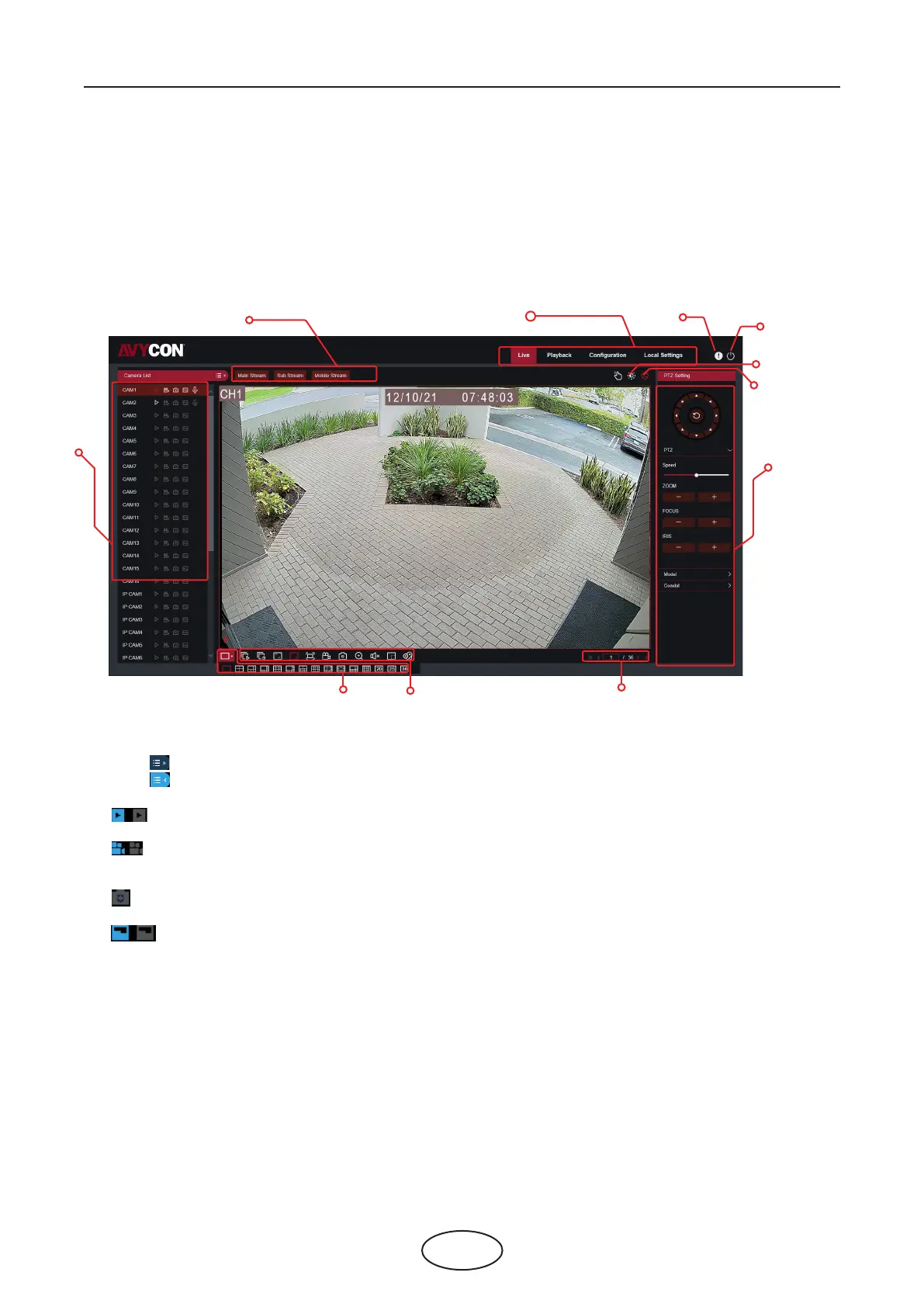
This is the rst screen that opens after you have logged into the Web Client. Here you can open or
close live preview, record video to local computer manually, take snapshots of the screens, PTZ control,
color adjustment, etc.
1. Camera List: Open the camera list for quick camera function:
Click button to display the Camera List.
Click button to hide the Camera List.
Turn the Live video stream on/o. The button is blue if the live video stream is on.
Manual Recording buttons. Click to start manually recording live stream video. Click again
to stop recording. Manual recordings are saved to your computer. While recording, the button is blue.
Manual snapshot button. Click to save a snapshot of the current live display to your computer.
Bitrate button. Set camera to use mainstream, substream, or mobile stream video settings.
Mobile stream is available for IP channels only.
2. Live Video Stream Options:
Mainstream: View all live videos using high-quality mainstream video settings.
Substream: View all live videos using middle-quality substream video settings.
Mobile Stream: View all live video using lower-quality mobile stream video settings to
conserve bandwidth. Available for IP channels only.
3. Main Menus:
Live: View live video from cameras.
Playback: View recorded video which is saved in the NVR’s HDD.
Conguration: Access functions of the NVR setting menus.
Local Settings: Set download locations for recordings and snapshots taken using Web Client,
and choose le type for video les.
1
2
3
4
5
8
11
10
9
7
6



 To Next Page